01
Create photos that do not exist
Describe an original moment, location, casting direction, product scene, or still life instead of adapting a close-enough stock image.
✨ Create Stunning Videos with AI! Access Kling 3.0, Seedance, Veo, Flux, Nano Banana and more in one platform. Start Creating
Turn a written visual brief into photorealistic portraits, products, food, interiors, landscapes, and editorial scenes by directing camera, light, material, and mood.
HighReach / create
Reference image
01 / Prompt and result
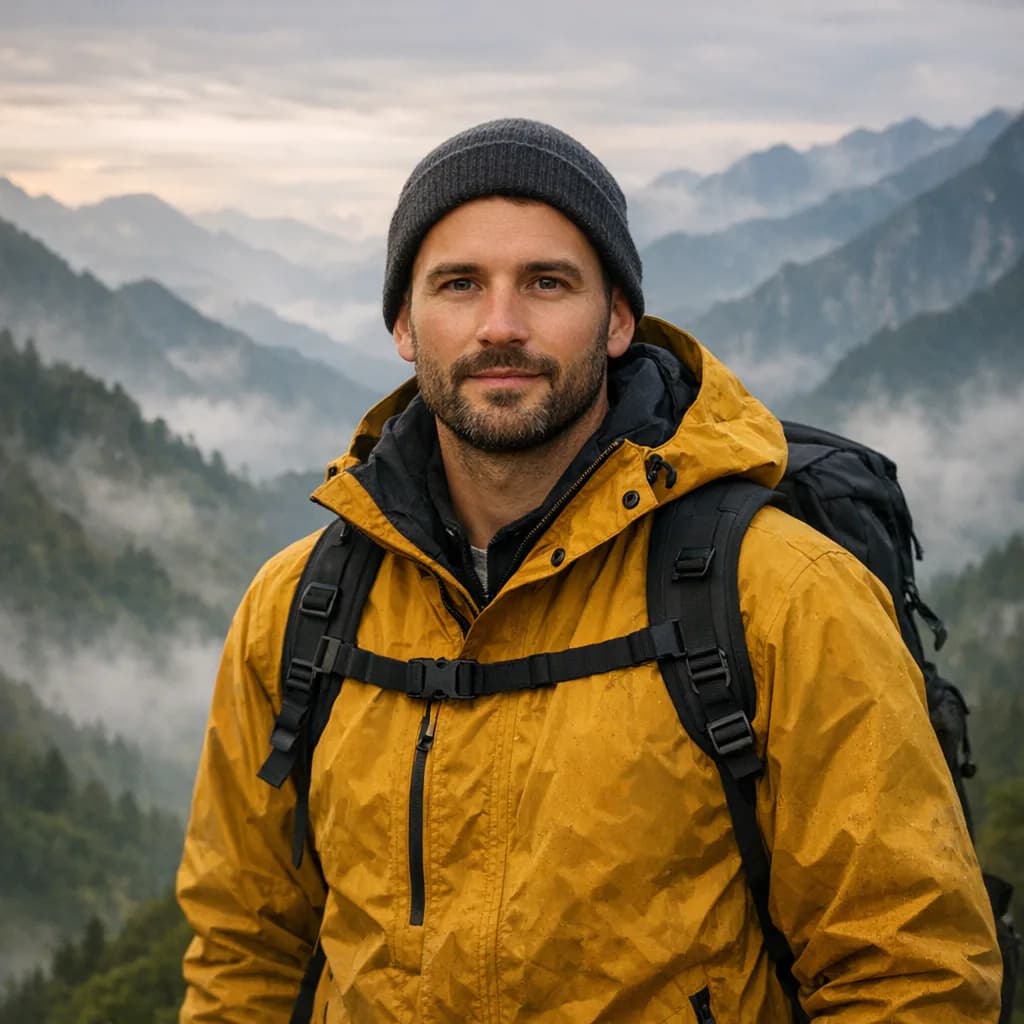 Generated
1 image · credits vary by model
GenerateWhat is text-to-photo AI?
Text-to-photo AI is the photorealistic branch of text-to-image generation. You describe a subject, moment, environment, camera treatment, light, and mood; the model creates a new image that follows the conventions of photography.
The prompt does not need technical jargon, but observable direction helps. Tell the model where the camera is, what the light is doing, how materials should behave, and what kind of photographic moment you want. HighReach then lets you edit, vary, expand, or animate the result.
Why HighReach
Move between text prompts, image references, generative edits, variations, expansion, upscale, camera control, and video without rebuilding the workflow.
Describe an original moment, location, casting direction, product scene, or still life instead of adapting a close-enough stock image.
Direct viewpoint, framing, lens feel, focus, movement, time, weather, exposure, practical light, surface, and color.
Generate options, revise the prompt, edit details, upscale the final frame, or animate it with image-to-video models.
Creative applications
The same prompt structure works across photographic genres; the subject, physical detail, and lighting decisions change.
Describe a fictional adult subject, expression, wardrobe, background, framing, lens feel, skin texture, and lighting direction.
Specify object shape, material, surface, camera height, reflections, background, contact shadow, and accurate label treatment.
Control ingredients, styling, vessel, surface, condensation, crumbs, cut edges, arrangement, and directional studio light.
Describe architecture, furniture, materials, lived-in detail, sunlight, window direction, camera height, and lens perspective.
Direct location cues, terrain, season, weather, scale, atmospheric depth, time of day, and human presence.
Combine a photographic subject with restrained surrealism, color systems, graphic composition, and intentional negative space.
Visual range
Move between photographic, painterly, illustrative, mixed-media, product, character, and editorial directions while keeping the prompt, reference, and finishing workflow connected.
Step-by-step workflow
Build the scene from concrete visual facts, then add camera and mood direction.
Step 1
State who or what is visible, what is happening, where the scene takes place, and the physical details that define it.
Step 2
Describe camera distance, angle, framing, lens feel, focus, light source, time, palette, material, and atmosphere.
Step 3
Choose the strongest composition, fix one issue per revision, and inspect realism, anatomy, physics, text, and fine detail.
Prompt framework
Start with subject and scene. Add only the camera, light, material, and mood instructions that visibly change the photograph.
Current image models
Model availability can change. HighReach keeps leading image generators in one interface so you can compare generation and editing strengths without changing the complete workflow. Images below illustrate the workflow range rather than claiming a specific model output.
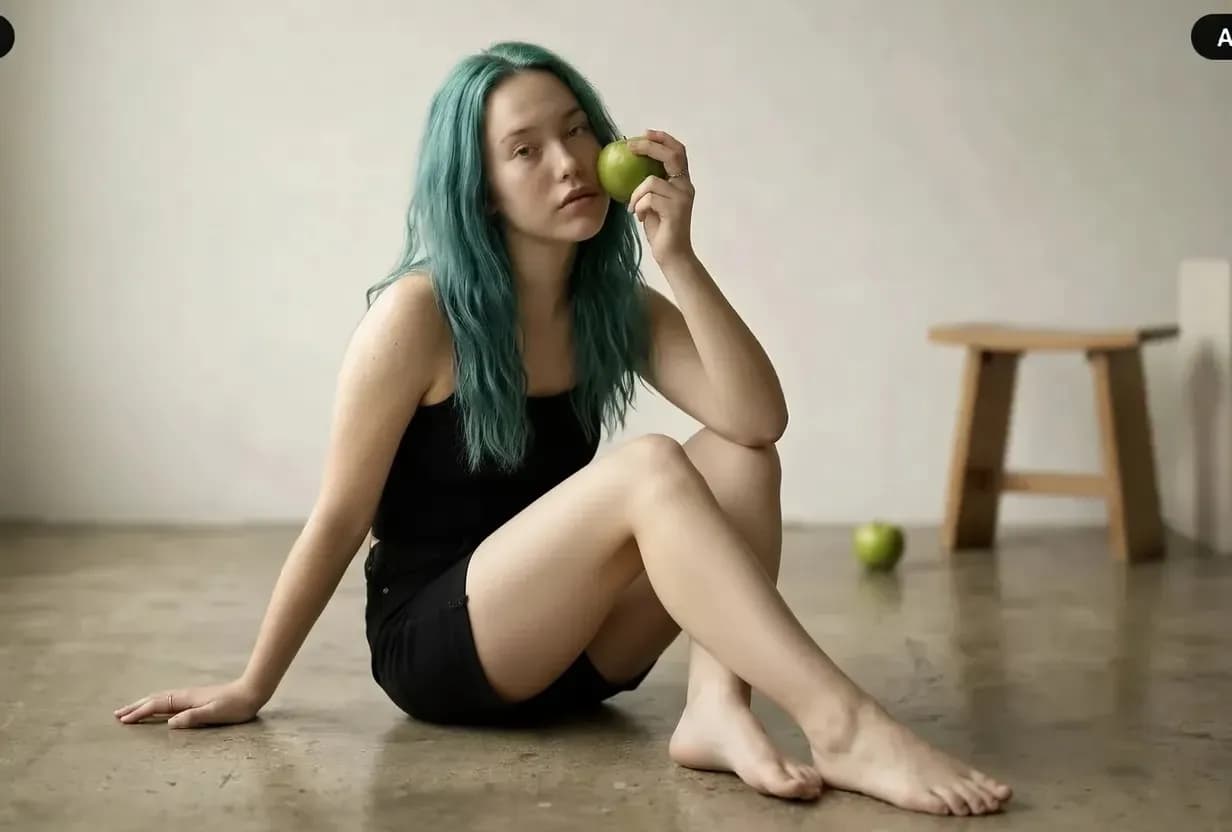 01
01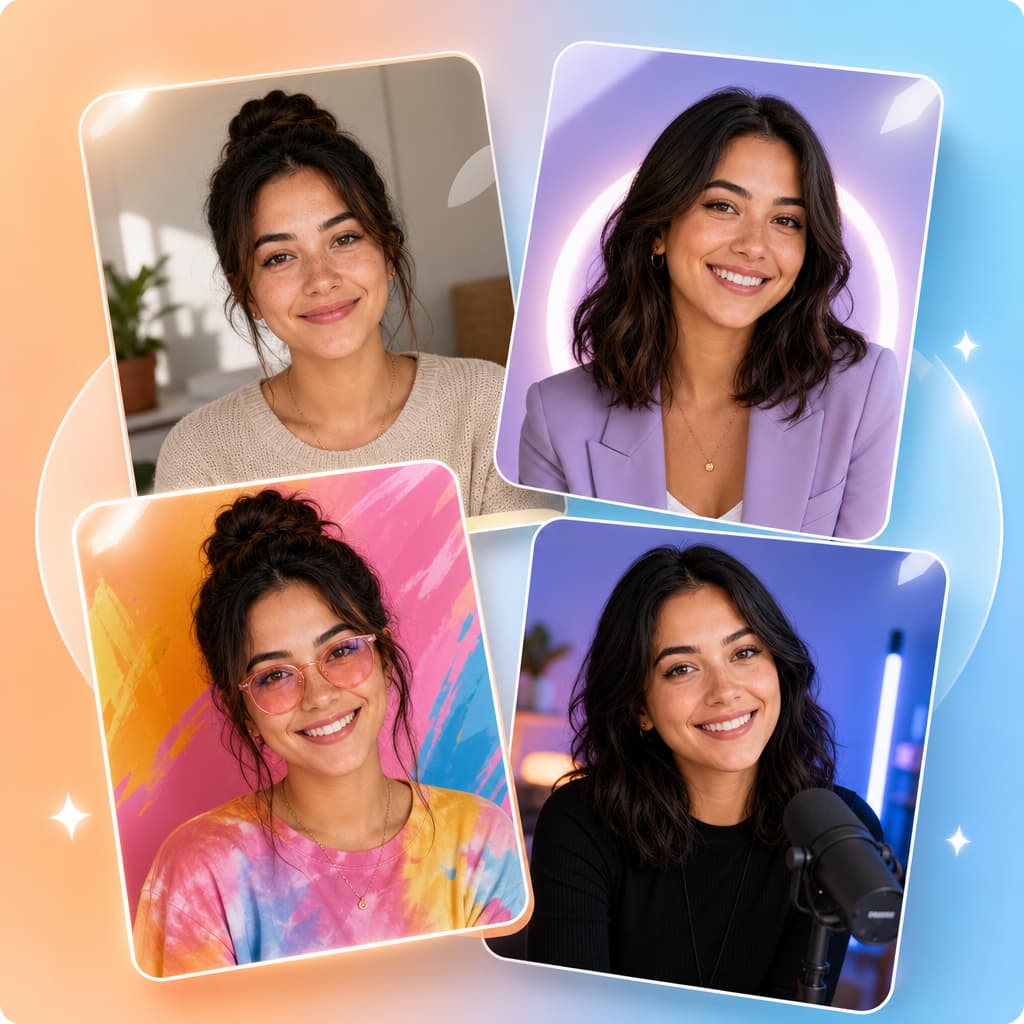 02
02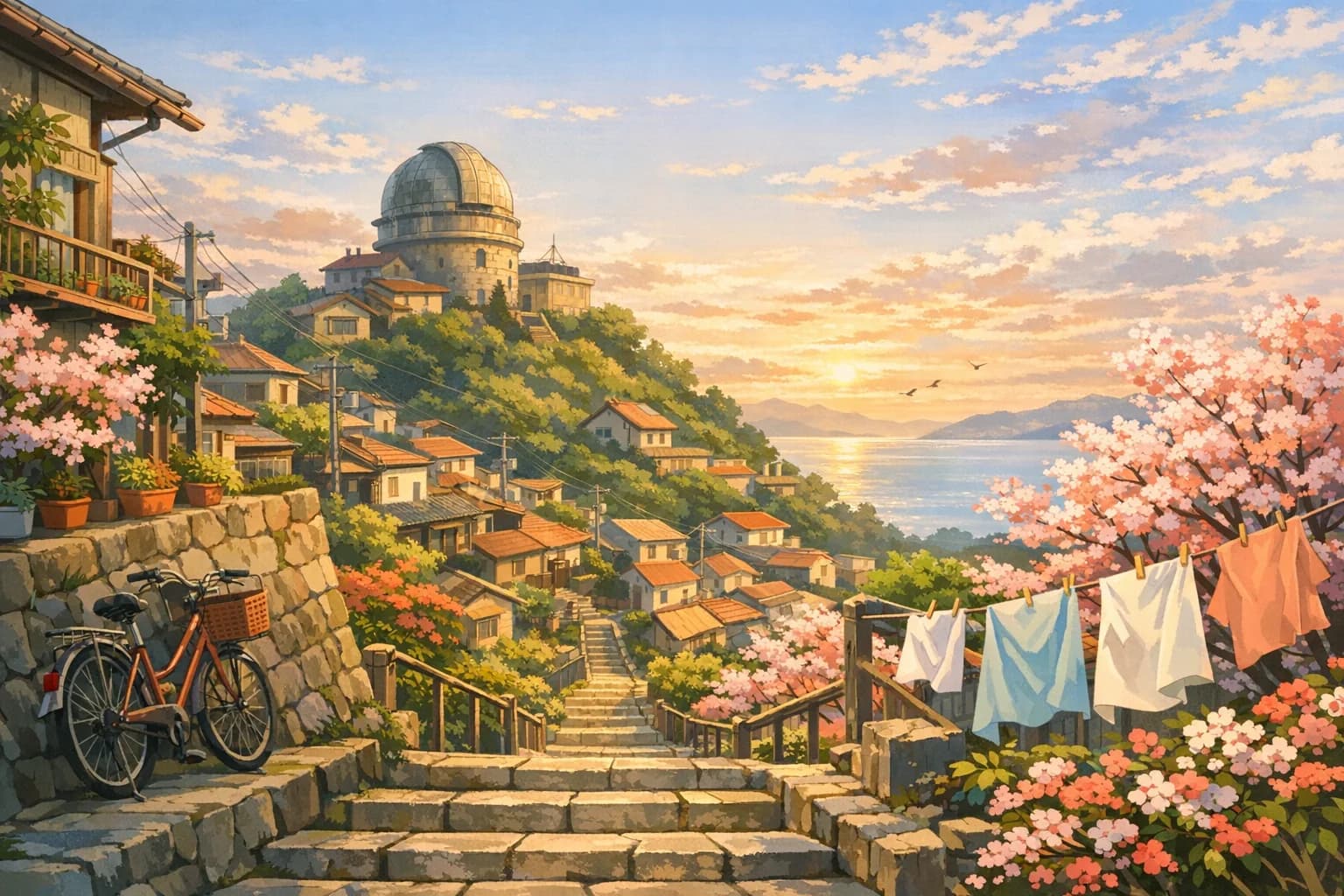 03
03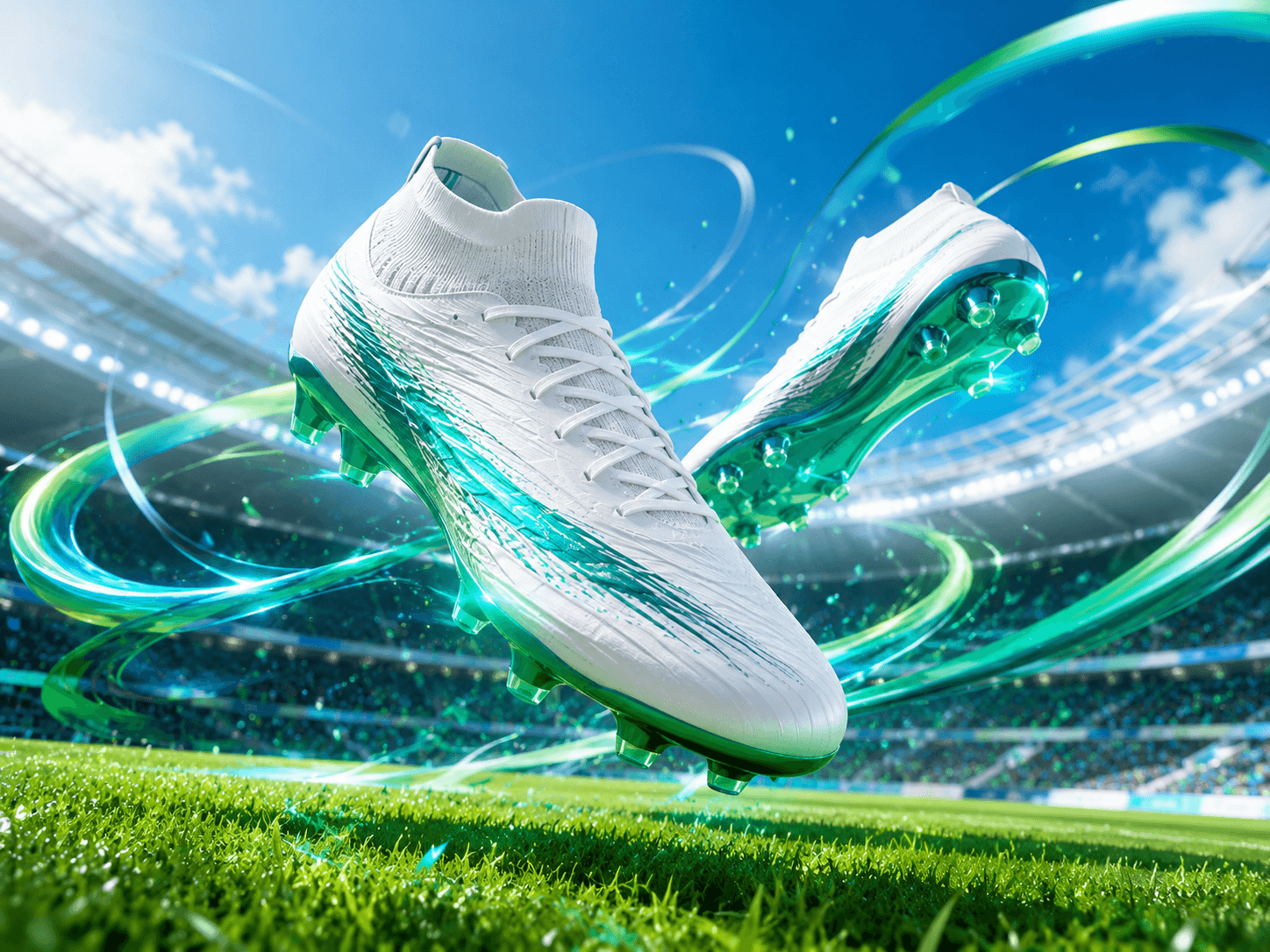 04
04Put the tools into practice
Explore copyable prompts, reference-image advice and composition workflows before your next generation.
Learn a repeatable editing method with same-photo model comparisons for backgrounds, lighting and clothing.
Explore the workflowCompare reference-led edits, try natural poses and troubleshoot two-person portraits.
Explore the workflowChoose a photographic direction for people, products, food or a new scene.
Explore the workflowExplore tested Gemini-family edits with original references, product examples and exact prompts.
Explore the workflowAdd room around the composition with a reference-led outpainting workflow.
Explore the workflowImage generation guides
Start from text, transform a reference, or edit an existing photograph. Explore what each workflow can do before choosing your next tool.
Pillar
Create original images from text and continue into a complete visual workflow.
Read the guide
Artwork
Create paintings, illustrations, concept art, and mixed-media artwork from text or images.
Read the guideTransform
Upload a visual anchor and generate new styles, scenes, and variations.
Read the guide
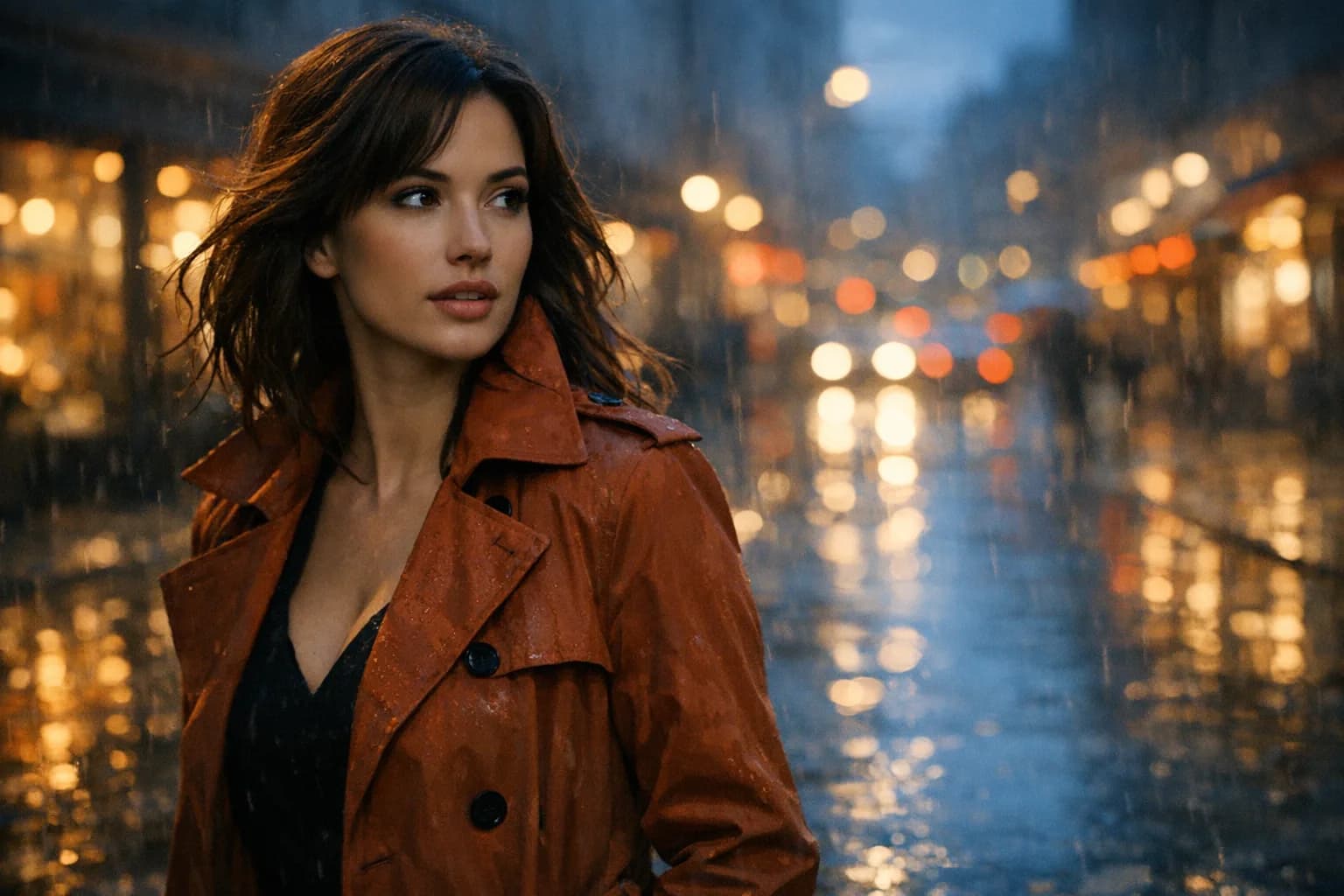
Photography
Generate photorealistic portraits, products, places, and editorial scenes.
Read the guideVariations
Use one photograph as the visual anchor for another photographic direction.
Read the guide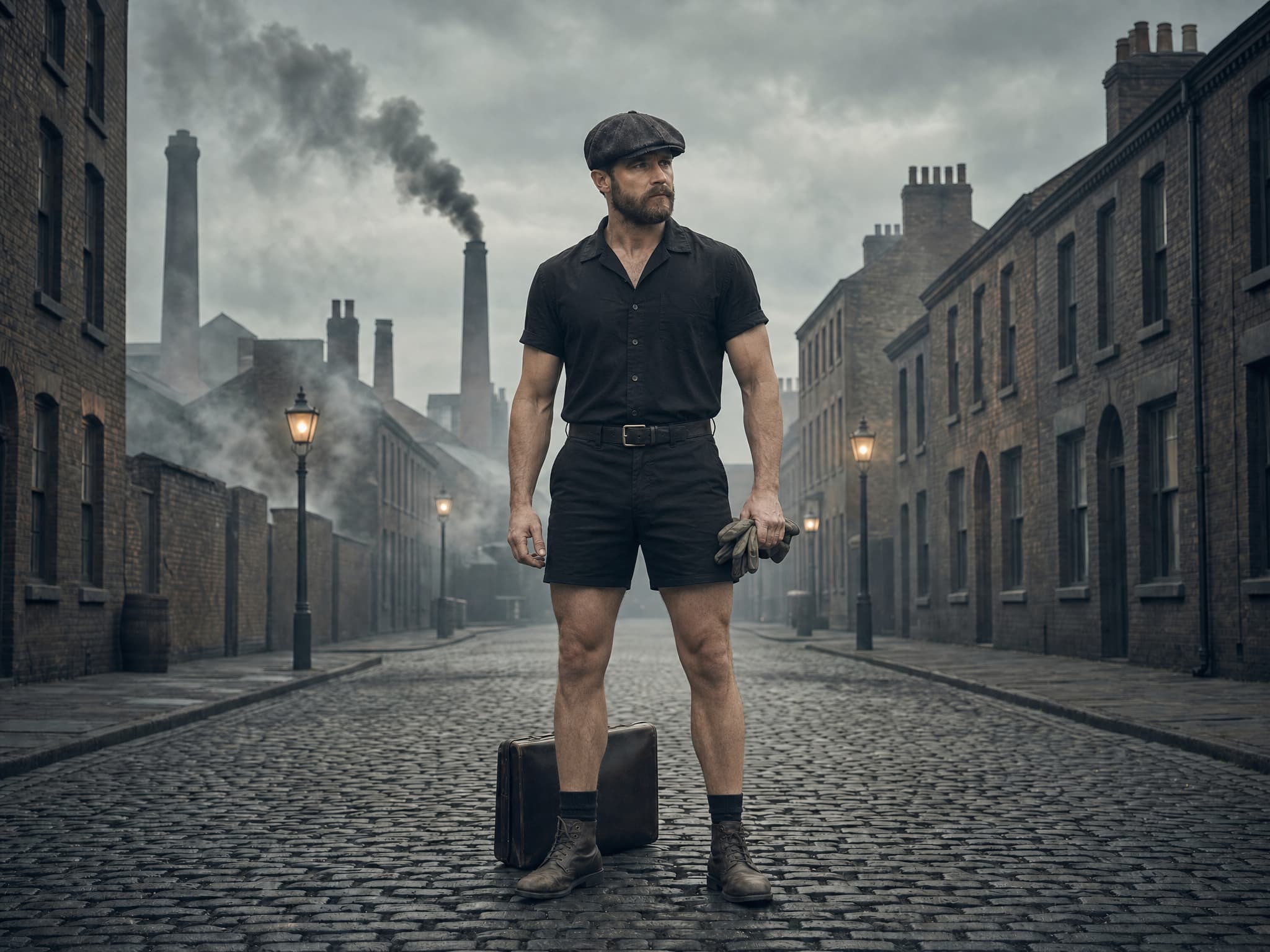
Retouch
Correct and transform photographs while protecting natural detail and identity.
Read the guideCurrent guidePrompt
Direct a realistic photographic scene from a written visual brief.
Open the toolText-to-photo AI FAQ
Clear answers about inputs, prompts, free credits, workflow differences, quality, and responsible production.
A text-to-photo generator is an AI system that creates photorealistic-looking images from written descriptions. It is a focused type of text-to-image AI where the requested output follows photographic rather than illustrated visual language.
Describe the subject and moment first, then setting, camera position, framing, lens feel, focus, lighting, materials, color, and mood. Avoid stacking contradictory styles or repeating vague terms such as ultra realistic.
Yes. HighReach can generate multiple alternatives from one prompt. Compare composition first, then refine the strongest image by changing one variable at a time.
Text-to-image generation uses credits. Any current starter credits or trial access appears in your HighReach account; model and settings determine the cost of each generation.
Yes, through Image Variations or model-supported reference workflows. Combining image and text is useful when a composition, person, product, palette, or visual style is easier to show than describe.
Some image models can render short text in pictures. Quote the exact wording, describe placement and typography, and verify every character. Use a design editor for long copy or strict brand typography.
Text-to-photo AI
Start with a prompt or rights-cleared image, choose the right model, and keep refining the result inside the connected HighReach image and video suite.