01
Preserve the photographic anchor
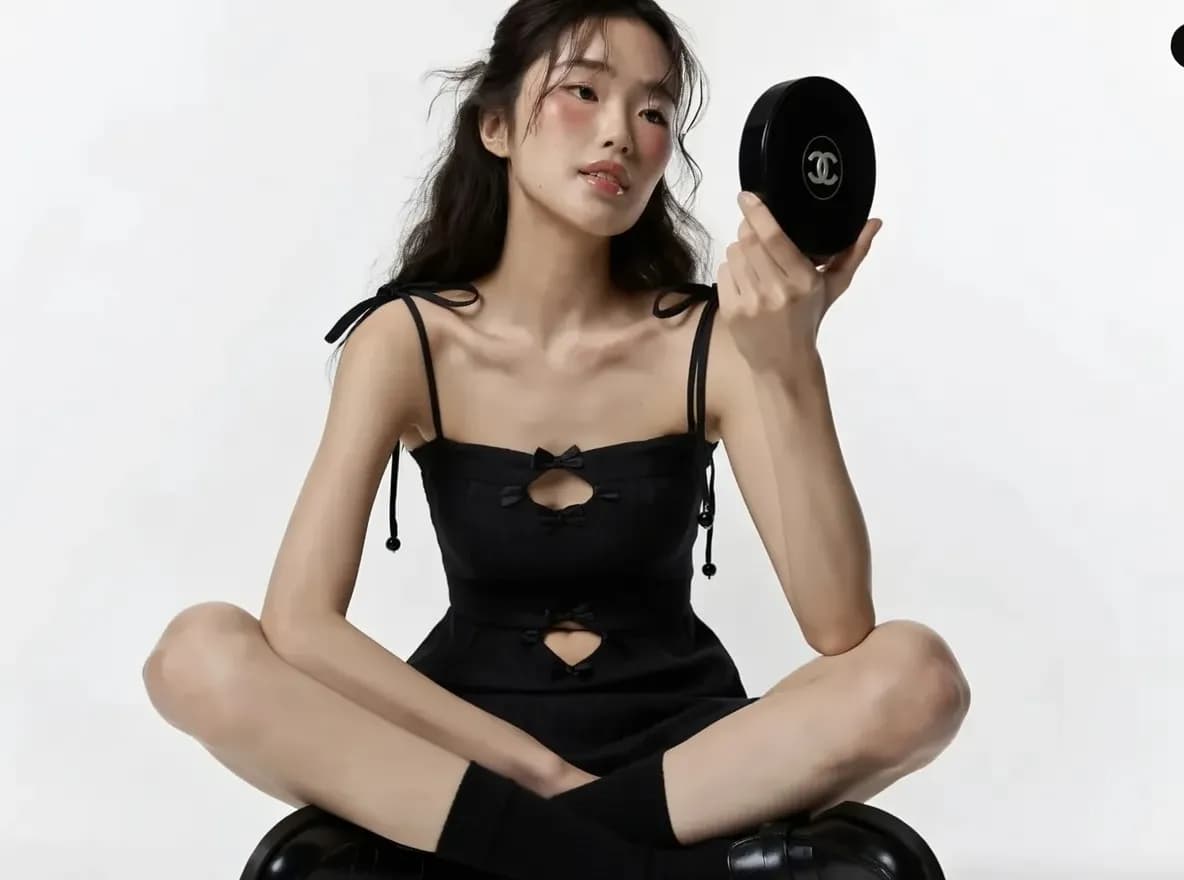
Carry forward a subject, pose, framing, product, or room layout that already works in the original photograph.
✨ Create Stunning Videos with AI! Access Kling 3.0, Seedance, Veo, Flux, Nano Banana and more in one platform. Start Creating
Use an existing photograph as the visual anchor for new scenes, styling, light, mood, framing, and creative direction. Keep what matters and generate controlled alternatives.
HighReach / transform
01 / Source image
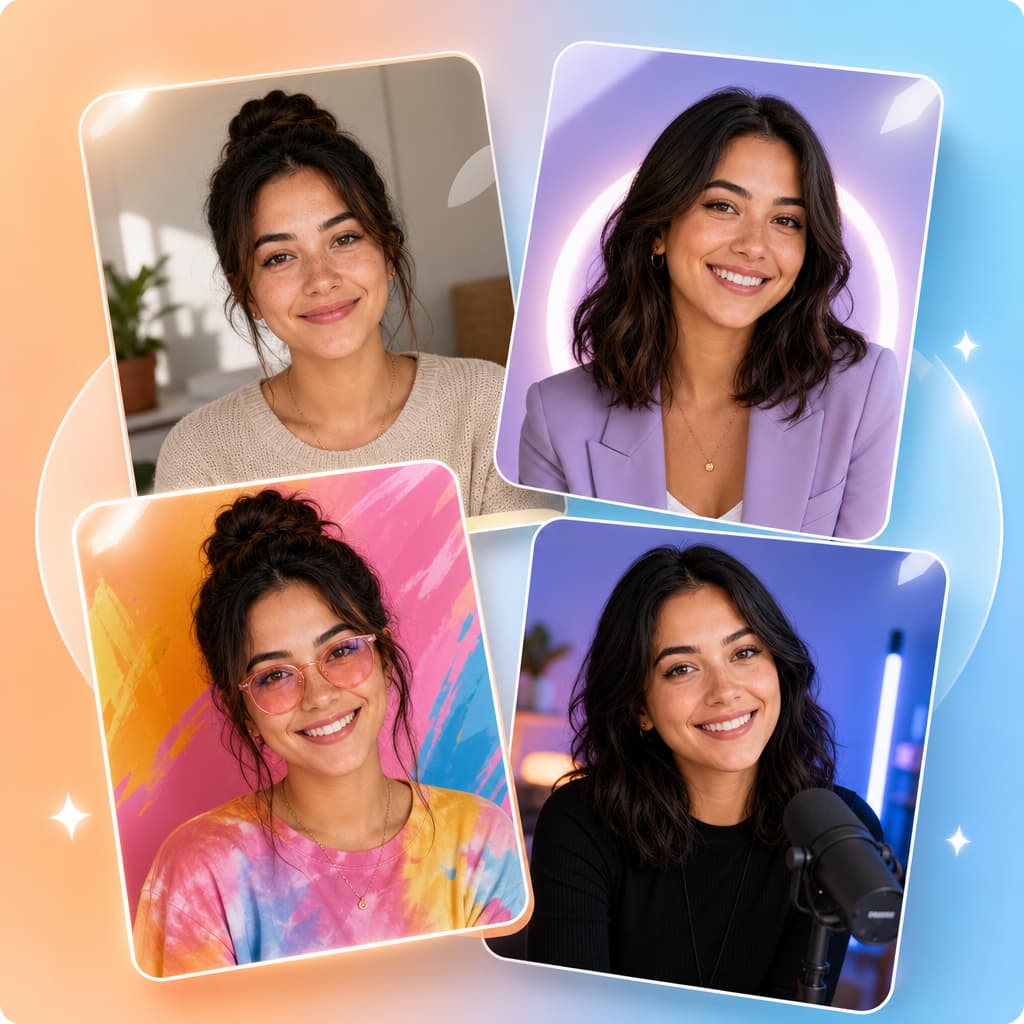 Uploaded
02 / Prompt and result
Generated1 image · credits vary by model
GenerateWhat is photo-to-photo AI?
Photo-to-photo AI is a reference-driven generation workflow where a real or generated photograph guides a new photographic result. The source can anchor identity, pose, product shape, camera angle, or composition while a prompt changes the scene, styling, light, palette, or mood.
It is a photographic subset of image-to-image AI. The distinction is intent: photo-to-photo aims to keep the output inside believable photographic language rather than translating the source into illustration, painting, or another medium.
Why HighReach
Move between text prompts, image references, generative edits, variations, expansion, upscale, camera control, and video without rebuilding the workflow.
Carry forward a subject, pose, framing, product, or room layout that already works in the original photograph.
Explore wardrobe, location, time, season, background, palette, props, lens treatment, and lighting from one source.
Create a controlled family of images for concepts, story sequences, profile directions, campaigns, and presentation boards.
Creative applications
Use one variable at a time when consistency matters, and compare every result with the original at full size.
Keep an authorized adult identity while testing wardrobe, background, light, crop, expression, or editorial direction.
Place an approved product into different studio, lifestyle, seasonal, or campaign settings while reviewing accuracy.
Reimagine a scene at dawn, night, winter, summer, indoors, outdoors, or under a different weather condition.
Keep geometry and camera position while exploring furniture, surfaces, styling, landscaping, and natural light.
Develop several consented visual treatments from one clear portrait before selecting a final professional style.
Use approved photo references to create connected keyframes with repeated subjects, settings, palettes, and visual rules.
Visual range
Move between photographic, painterly, illustrative, mixed-media, product, character, and editorial directions while keeping the prompt, reference, and finishing workflow connected.
Step-by-step workflow
Define which photographic facts are fixed and which creative variables can change.
Step 1
Choose a sharp, rights-cleared photo where the subject, product, room, or composition you want to preserve is easy to read.
Step 2
State what remains fixed, then direct the new setting, wardrobe, light, camera treatment, atmosphere, and output format.
Step 3
Inspect identity, geometry, product details, perspective, texture, and lighting before continuing from the strongest result.
Prompt framework
A photo-to-photo prompt should read like a revision to a specific shoot, not a completely unrelated scene request.
Current image models
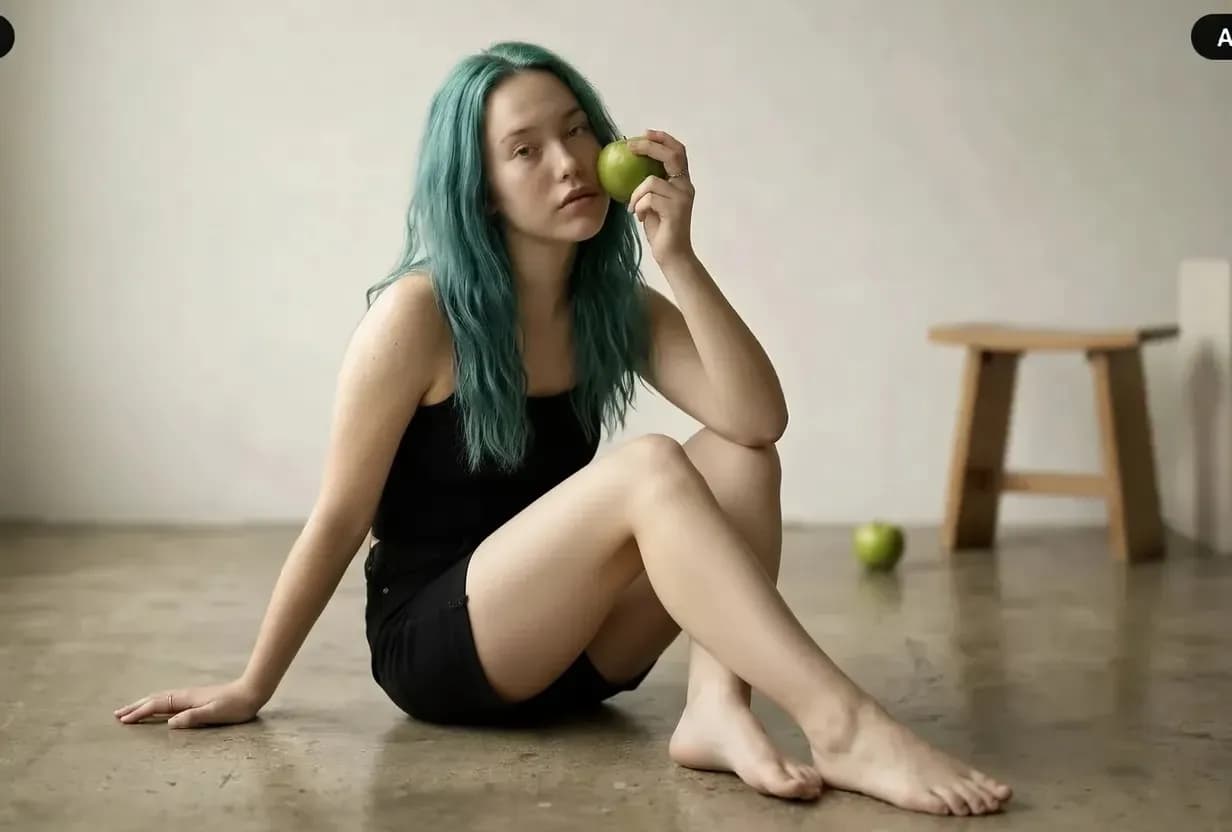
Model availability can change. HighReach keeps leading image generators in one interface so you can compare generation and editing strengths without changing the complete workflow. Images below illustrate the workflow range rather than claiming a specific model output.
 0102
0102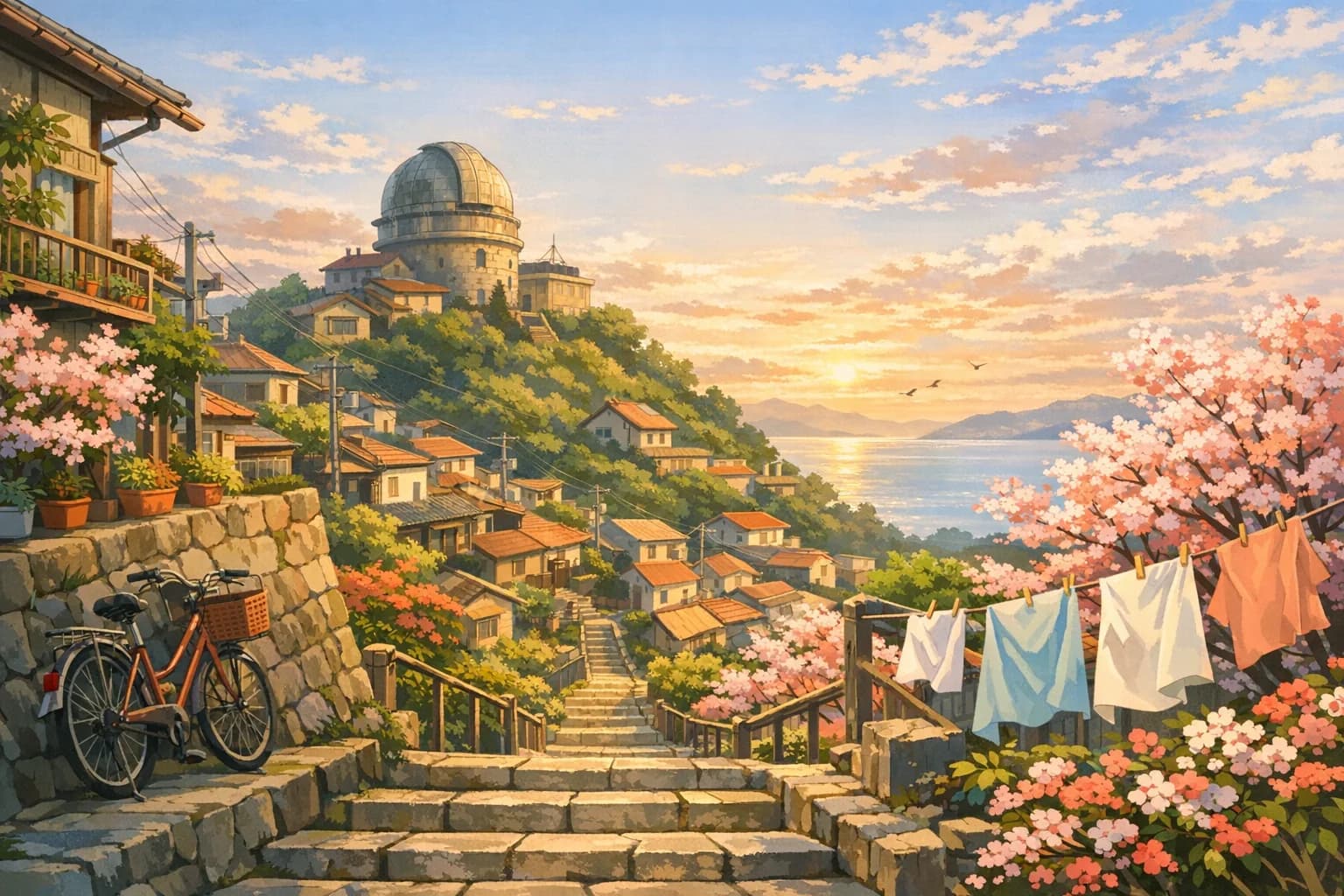 03
03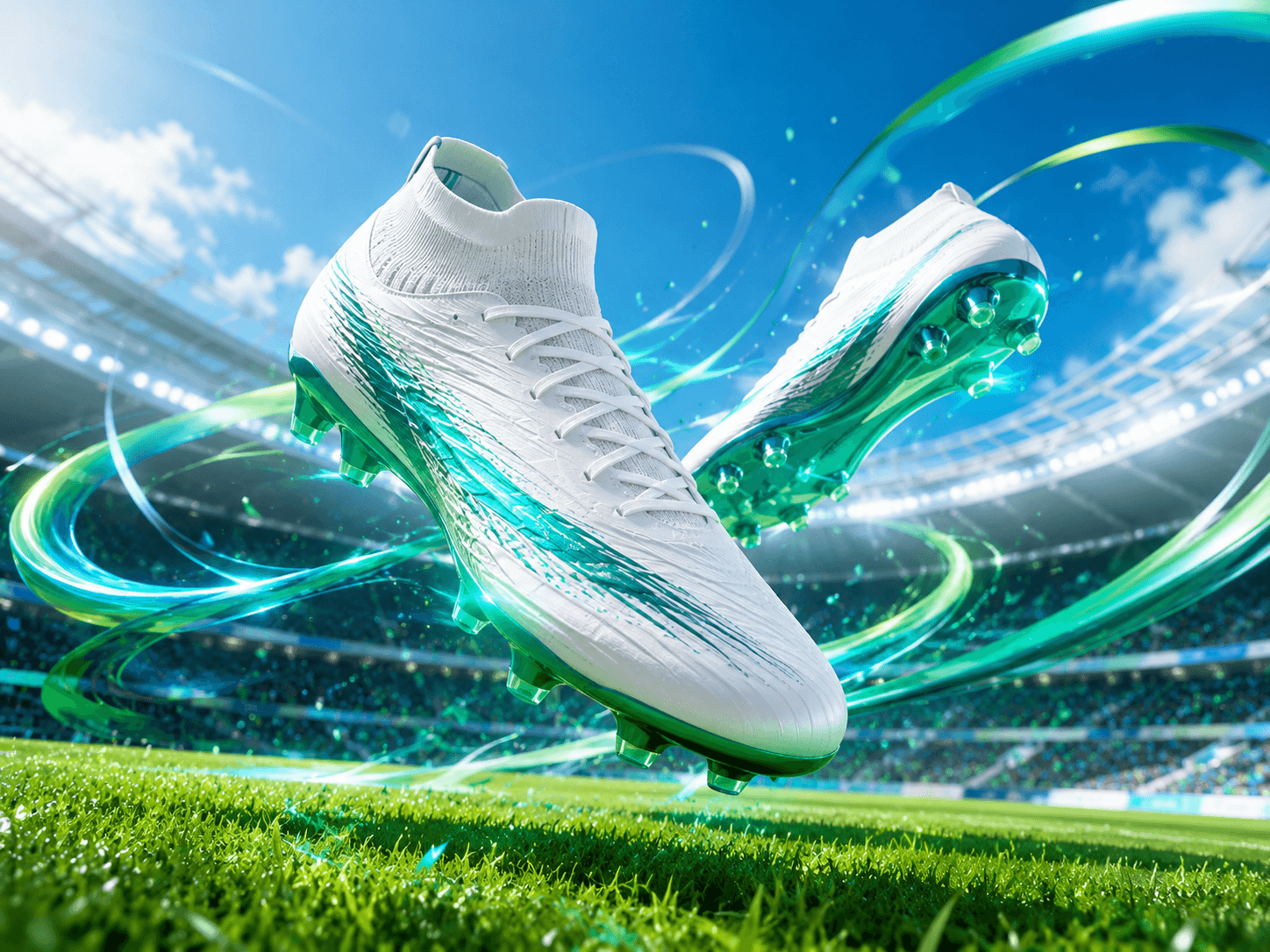 04
04Put the tools into practice
Explore copyable prompts, reference-image advice and composition workflows before your next generation.
Learn a repeatable editing method with same-photo model comparisons for backgrounds, lighting and clothing.
Explore the workflowCompare reference-led edits, try natural poses and troubleshoot two-person portraits.
Explore the workflowChoose a photographic direction for people, products, food or a new scene.
Explore the workflowExplore tested Gemini-family edits with original references, product examples and exact prompts.
Explore the workflowAdd room around the composition with a reference-led outpainting workflow.
Explore the workflowImage generation guides
Start from text, transform a reference, or edit an existing photograph. Explore what each workflow can do before choosing your next tool.
Pillar
Create original images from text and continue into a complete visual workflow.
Read the guide
Artwork
Create paintings, illustrations, concept art, and mixed-media artwork from text or images.
Read the guideTransform
Upload a visual anchor and generate new styles, scenes, and variations.
Read the guide
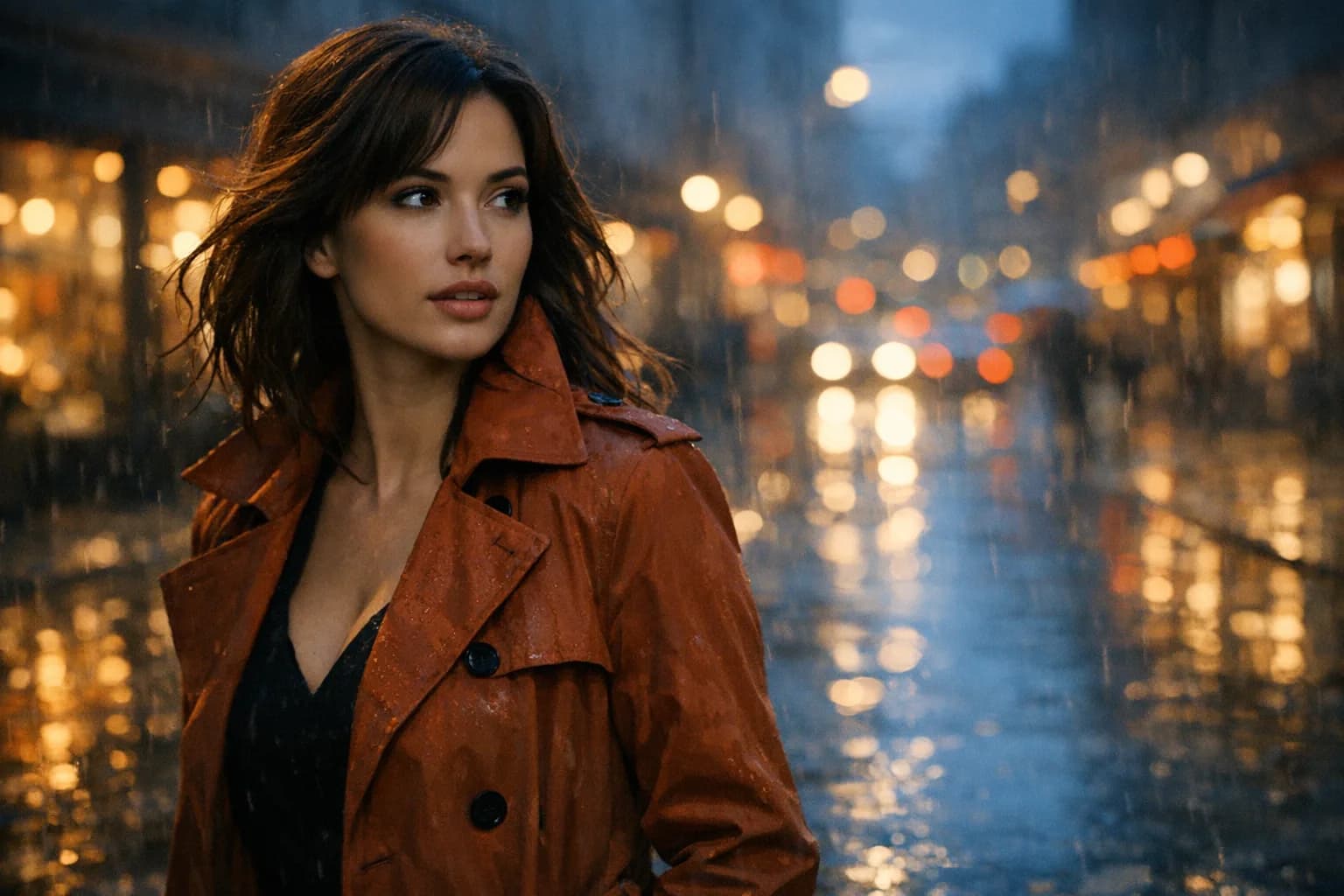
Photography
Generate photorealistic portraits, products, places, and editorial scenes.
Read the guideCurrent guideVariations
Use one photograph as the visual anchor for another photographic direction.
Open the tool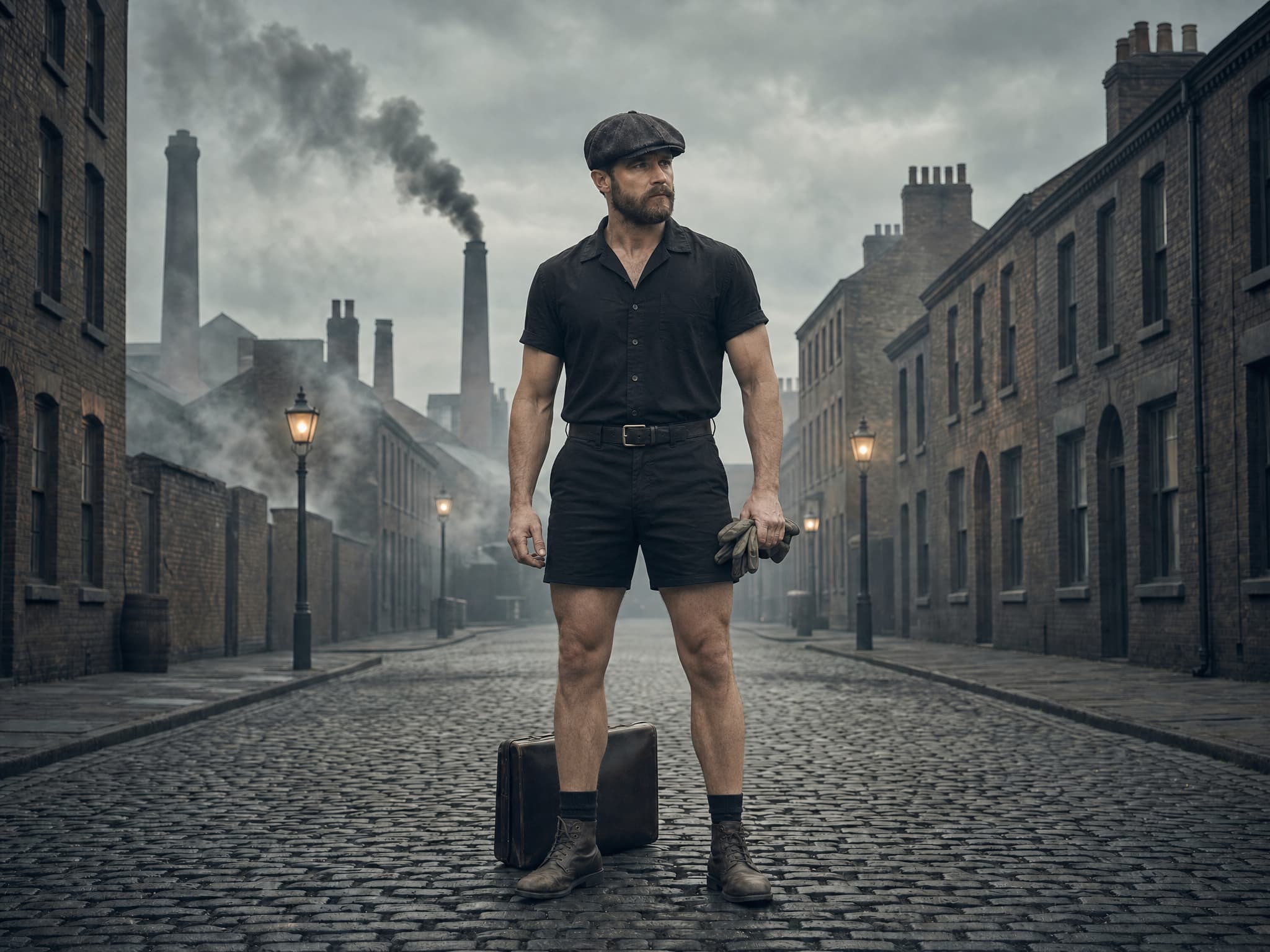
Retouch
Correct and transform photographs while protecting natural detail and identity.
Read the guide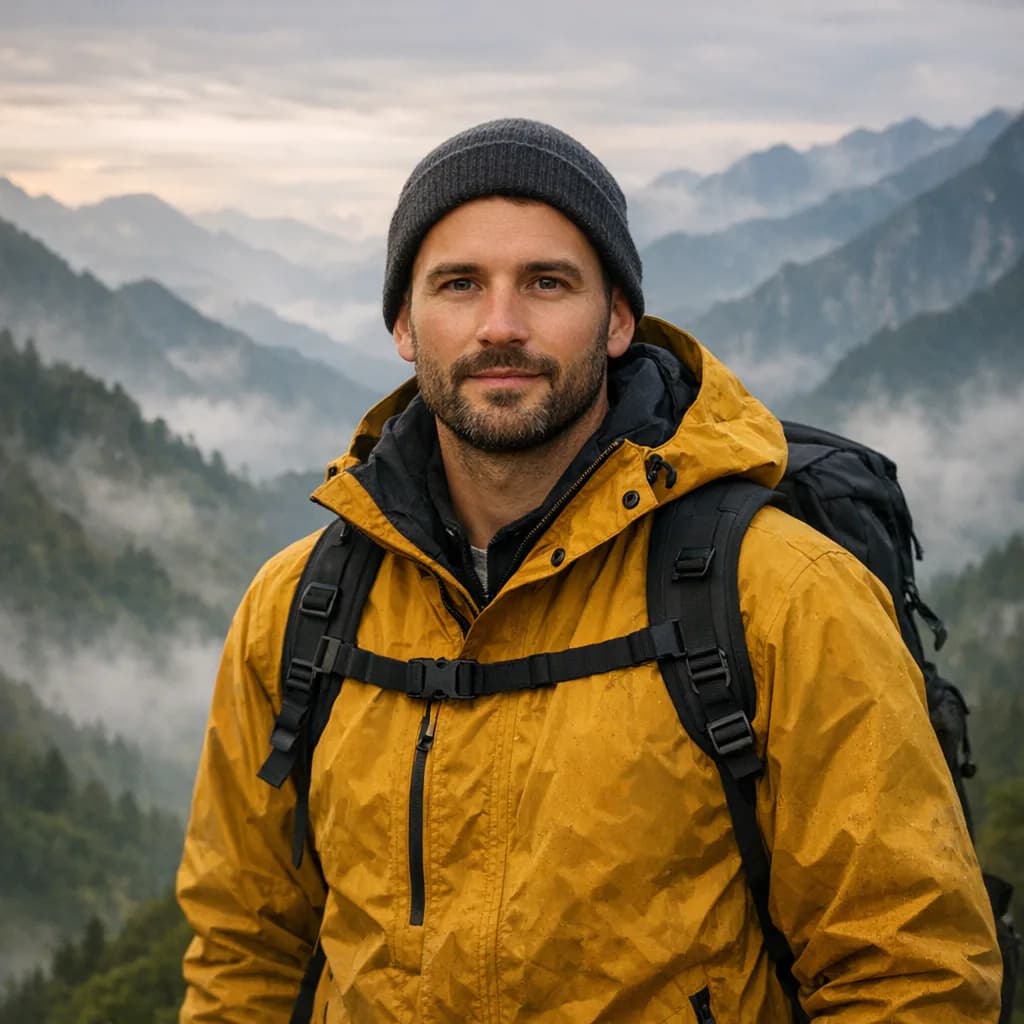
Prompt
Direct a realistic photographic scene from a written visual brief.
Read the guidePhoto-to-photo AI FAQ
Clear answers about inputs, prompts, free credits, workflow differences, quality, and responsible production.
Photo-to-photo AI creates a new photographic image from an uploaded photo and written direction. The source supplies visual structure or identity while the prompt directs changes to scene, styling, light, color, mood, or details.
Photo-to-photo is a type of image-to-image workflow focused on photographic outputs. Image-to-image can also transform sketches, illustrations, renders, diagrams, or paintings into other visual media.
Reference images and explicit identity instructions can improve consistency, but results vary by model and source quality. Use only authorized adult likenesses and review facial structure, hair, skin, eyes, and expression before publishing.
Yes. HighReach Image Variations can generate several outputs from one uploaded source. Keep the preservation instruction stable and change one creative variable at a time for easier comparison.
Variations use HighReach credits. Any active starter credits or trial offer appears in your account, and model settings determine generation cost.
Use a clear, high-resolution image with useful composition, visible subject detail, balanced exposure, and limited compression. Avoid a source where the important identity or object is tiny, blurred, hidden, or heavily filtered.
Photo-to-photo AI
Start with a prompt or rights-cleared image, choose the right model, and keep refining the result inside the connected HighReach image and video suite.