Subject
Identify the person, object, creature, product, or place the viewer should notice first.
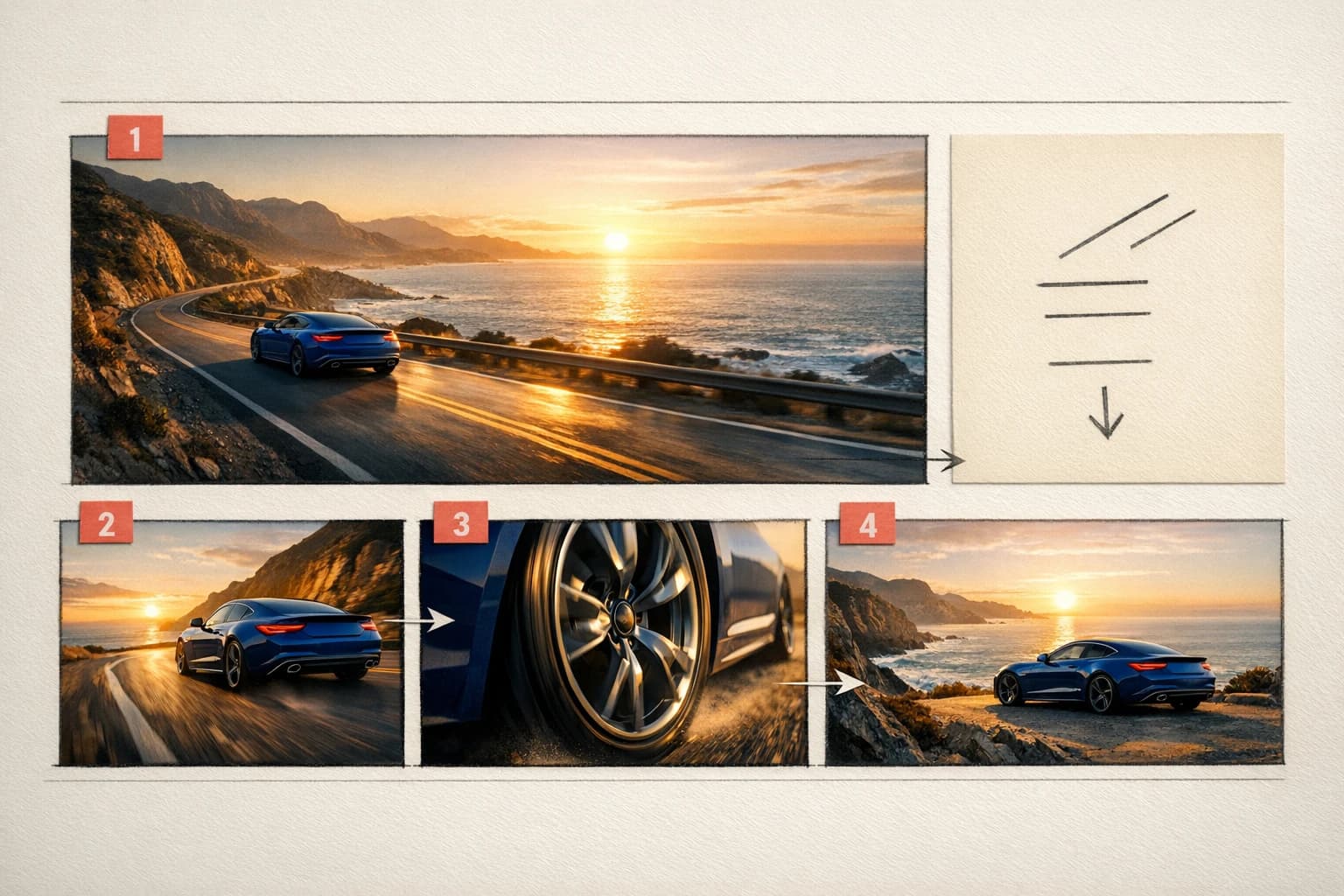
A cobalt grand touring car
✨ Create Stunning Videos with AI! Access Kling 3.0, Seedance, Veo, Flux, Nano Banana and more in one platform. Start Creating
Describe a scene in your own words, direct the subject and camera, choose a leading AI video model, and turn the prompt into a production-ready shot.
What is text-to-video AI?
A text-to-video AI generator interprets natural-language direction and creates a sequence of moving frames. You control more than the topic: the prompt can establish composition, action, camera behavior, atmosphere, timing, and sound.
It is most effective when treated like directing a shot. Give the model a clear visual priority, then refine the strongest result instead of asking one prompt to create an entire film.
Anatomy of a strong prompt
A useful prompt has a hierarchy. Start with what matters most and add only the direction that helps the shot become more specific.
Identify the person, object, creature, product, or place the viewer should notice first.
A cobalt grand touring car
Describe the main movement and the pace. Keep one action visually dominant in a short shot.
accelerates through a coastal bend
Set the viewpoint, framing, lens feel, and camera movement instead of leaving the composition accidental.
low tracking shot, 35mm lens
Add time of day, light, atmosphere, color, texture, pacing, and audio direction when the model supports it.
sunrise haze, tire sound, restrained score
Example direction
Notice how the prompt describes subject, motion, camera, environment, light, pace, and sound without burying the main action in unrelated detail.
A cobalt grand touring car accelerates through a coastal bend at sunrise, low tracking shot from the rear quarter, 35mm lens, ocean mist, warm highlights on wet asphalt, controlled speed, final two-second hold at the cliffside overlook, realistic tire sound and restrained cinematic score.
Text-to-video models
Use the prompt across available model families, compare how they interpret movement and style, and continue with the result that best serves the production.
 01
01Best for: Fast text-led exploration
Move quickly from a written scene into visual alternatives, then continue with references or editing when the direction becomes more specific.
 02
02KlingAI
Best for: Cinematic movement
Use detailed action and camera prompts for shots that depend on deliberate movement, pace, and cinematic visual control.
 03
03ByteDance
Best for: Story-led sequences
Develop more expressive scenes and coordinated visual beats when the prompt needs action, atmosphere, and multiple moments.
 04
04Best for: Video with integrated sound
Generate polished short scenes from text with sound direction in model configurations that support native audio.
 05
05OpenAI
Best for: Narrative concepts
Explore environments, visual metaphors, and story ideas from written direction before selecting shots for further production.
How text-to-video works
Step 1
Describe a visual moment rather than an entire film. Name the subject, the main action, the environment, and the intended framing.
Step 2
Select the model, aspect ratio, duration, resolution, and audio settings that fit the final destination and the shot’s requirements.
Step 3
Evaluate composition and motion first. Keep what works, change one variable, and use the strongest result in editing or a longer sequence.
Prompt craft
Use these practices to make each pass easier to evaluate and easier to improve.
Short video models respond more predictably when the prompt describes one visual beat with one dominant action.
Lead with what must remain visible, then describe movement, setting, camera, lighting, and secondary detail.
Terms such as slow push-in, handheld follow, locked wide shot, or low tracking shot give the model a clearer spatial task.
Use language such as slow, sudden, continuous, restrained, energetic, or final hold to shape how the moment unfolds.
A short clip can support one clear action. Break complex ideas into separate shots instead of forcing every beat into one generation.
Change one major variable per pass so you can identify whether camera, action, environment, or styling improved the result.
Create from any idea
Start with a blank page when you need to invent the scene rather than preserve an existing image.
Cinematic concepts and short films
Social videos and vertical openings
Product launches and brand films
Explainers and visual education
Music visualizers and performance worlds
Previsualization, pitches, and mood films
Text-to-video FAQ
Practical guidance for prompts, models, sound, consistency, styles, and editing AI-generated video.
Text-to-video AI converts a written description into a moving visual scene. The prompt can define the subject, action, setting, camera movement, visual style, lighting, pacing, and sound where supported by the selected model.
Open HighReach Text to Video, choose a model, describe one clear shot, select the aspect ratio and available output settings, then generate. Review the composition and motion, revise one important detail, and continue the strongest clip into editing or a sequence.
Start with the subject and main action. Add the setting, camera angle or movement, lighting, atmosphere, pace, and desired finish. Include sound direction only when the workflow supports it or when you plan to use the prompt later for sound design.
There is no single best model for every prompt. Choose based on motion, prompt adherence, audio, duration, resolution, speed, style, and cost. HighReach lets you use different available models without rebuilding the surrounding production workflow.
Yes. Depending on the selected model and prompt, you can create photorealistic scenes, cinematic footage, stylized animation, product visuals, illustrative motion, fantasy worlds, and abstract sequences. Describe visual traits rather than copying a protected franchise or living artist.
Some models support native audio. HighReach also provides separate tools for sound effects, music, voice-over, dubbing, and lip-sync, so a silent generation can continue through a complete audio workflow.
Repeat defining details, keep the prompt structure stable, generate one shot at a time, and use image references when continuity becomes important. For recurring characters or products, create reference sheets and keyframes before generating additional scenes.
Yes. Continue with HighReach tools for prompt-based video editing, extension, relighting, background or character replacement, motion sync, lip-sync, sound, and upscaling where supported.
Your next shot starts as a sentence
Choose a model, describe one clear visual moment, and turn your prompt into a moving shot with HighReach.