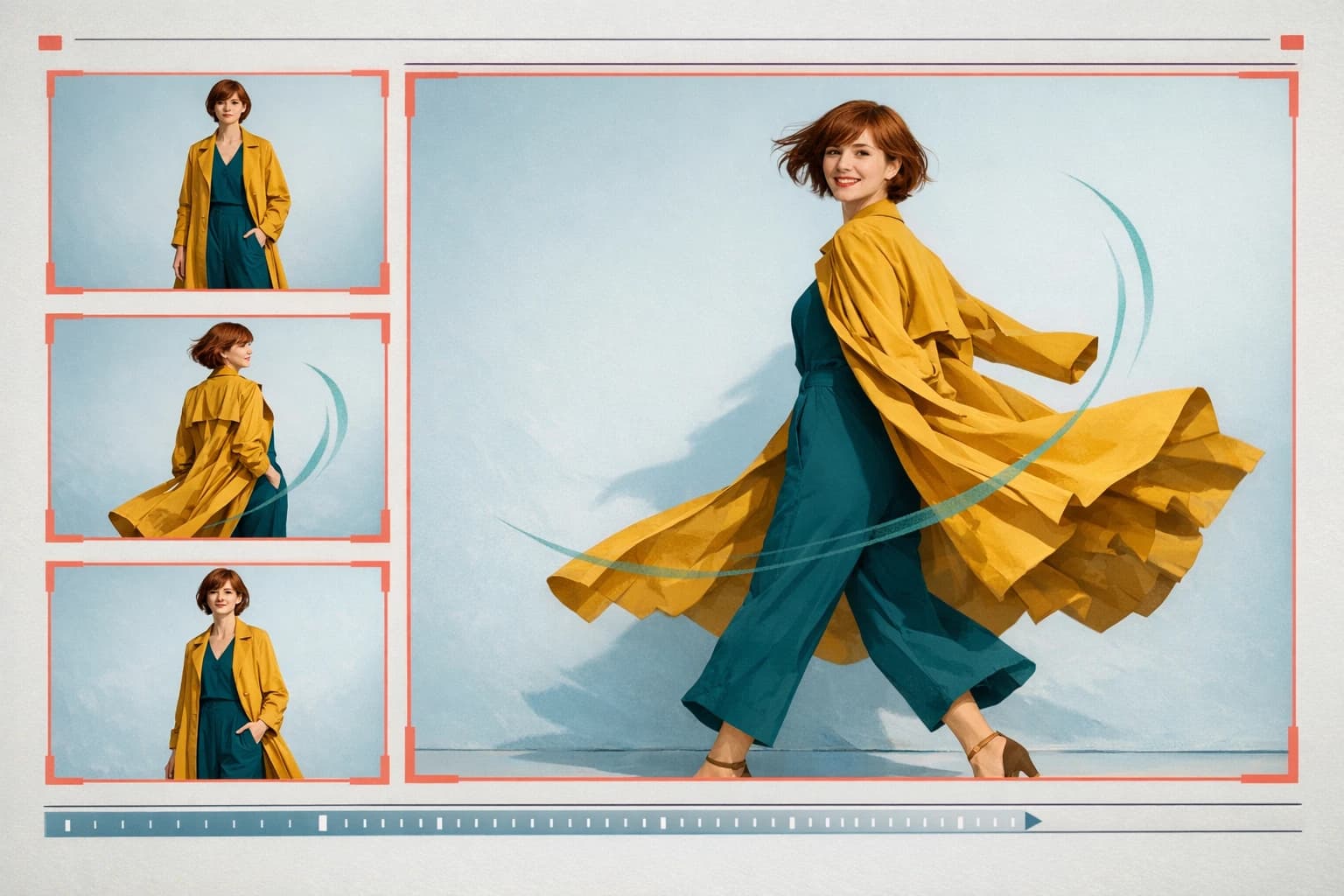
 01
01Reference-led creation
Give every image a clear role.
Combine a starting frame with supporting references for a product, character, wardrobe, environment, palette, or material. Name each reference in the prompt so the visual intent stays legible.
✨ Create Stunning Videos with AI! Access Kling 3.0, Seedance, Veo, Flux, Nano Banana and more in one platform. Start Creating
Turn a prompt, starting frame, and visual references into a directed short video. Gemini Omni Flash brings Google's fast multimodal reasoning into a focused AI video generation workflow in HighReach.

One unbroken macro tracking shot follows a glass marble through copper rails, wooden mechanisms, and a clean arc of water in a sunlit artist studio.
HighReach inputs
Text, start frame, image references
Reference images
Up to 10 per generation
Formats
16:9 landscape and 9:16 vertical
Output
3-10 seconds at 720p
What is Gemini Omni Flash?
Gemini Omni Flash is Google's video-focused model for prompt-led generation, rich visual references, and iterative creative direction.
The broader Gemini Omni model can reason across text, images, audio, and video, helping it interpret a creative brief as connected production context rather than isolated keywords.
In HighReach, the current Gemini Omni Flash generation workflow accepts text, a starting frame, and up to ten reference images. That makes it useful when a product, character, material, or art direction must stay visually anchored.
Use Gemini Omni Flash for fast concept exploration, vertical or landscape social scenes, product motion, world-aware action, and reference-rich shots that benefit from a concise director's brief.
Gemini Omni Flash capabilities
Use Gemini Omni Flash as part of a complete AI video workflow in HighReach, from the first reference frame to final output review.
01Reference-led creation
Combine a starting frame with supporting references for a product, character, wardrobe, environment, palette, or material. Name each reference in the prompt so the visual intent stays legible.
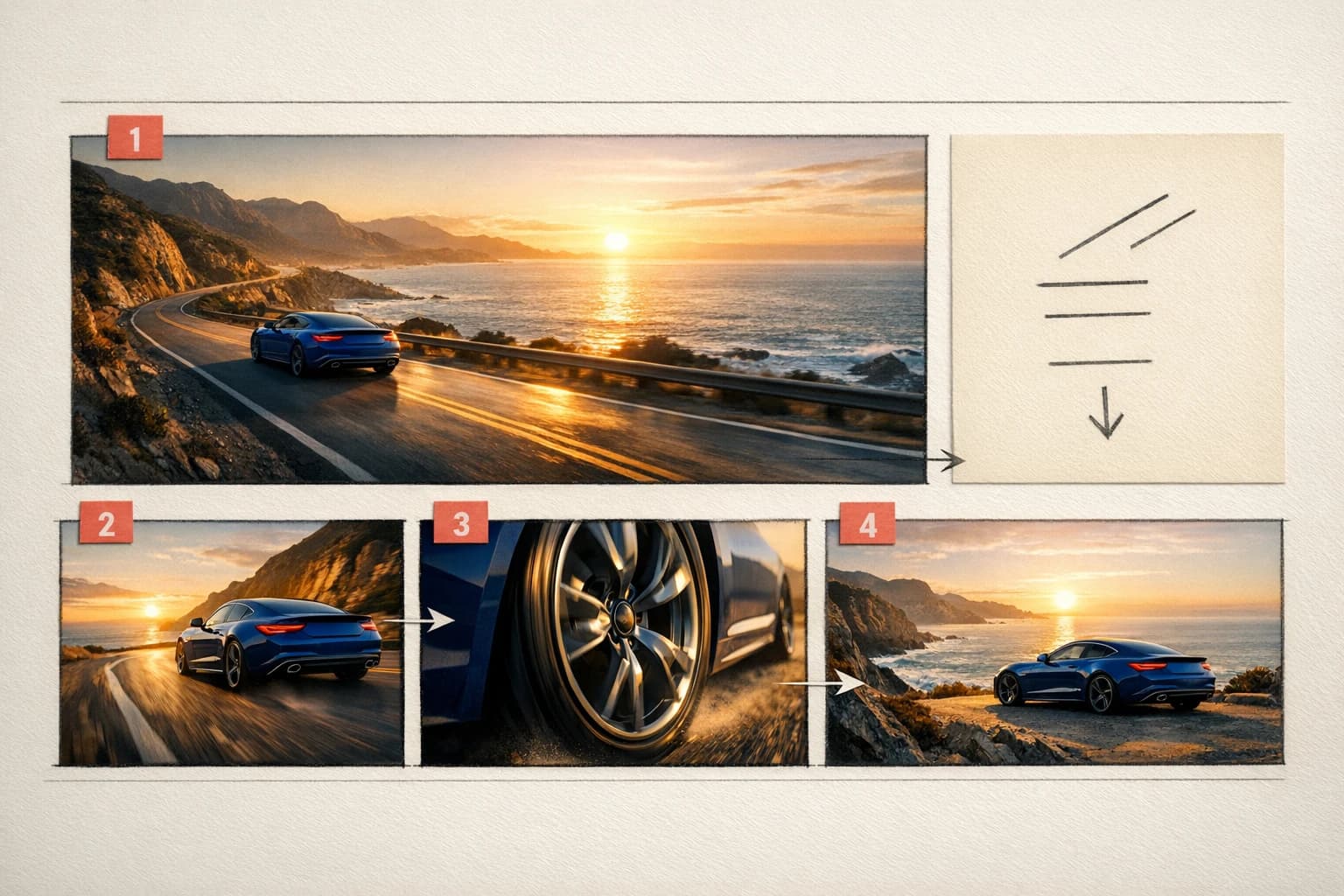 02
02Natural direction
Separate subject, action, camera, lighting, and continuity. Gemini's multimodal reasoning is most useful when the prompt explains what each part of the shot should do and what must remain stable.
03Fast exploration
Generate short, directed clips for storyboards, product concepts, transitions, and social formats. Compare variants before committing to the final production direction.
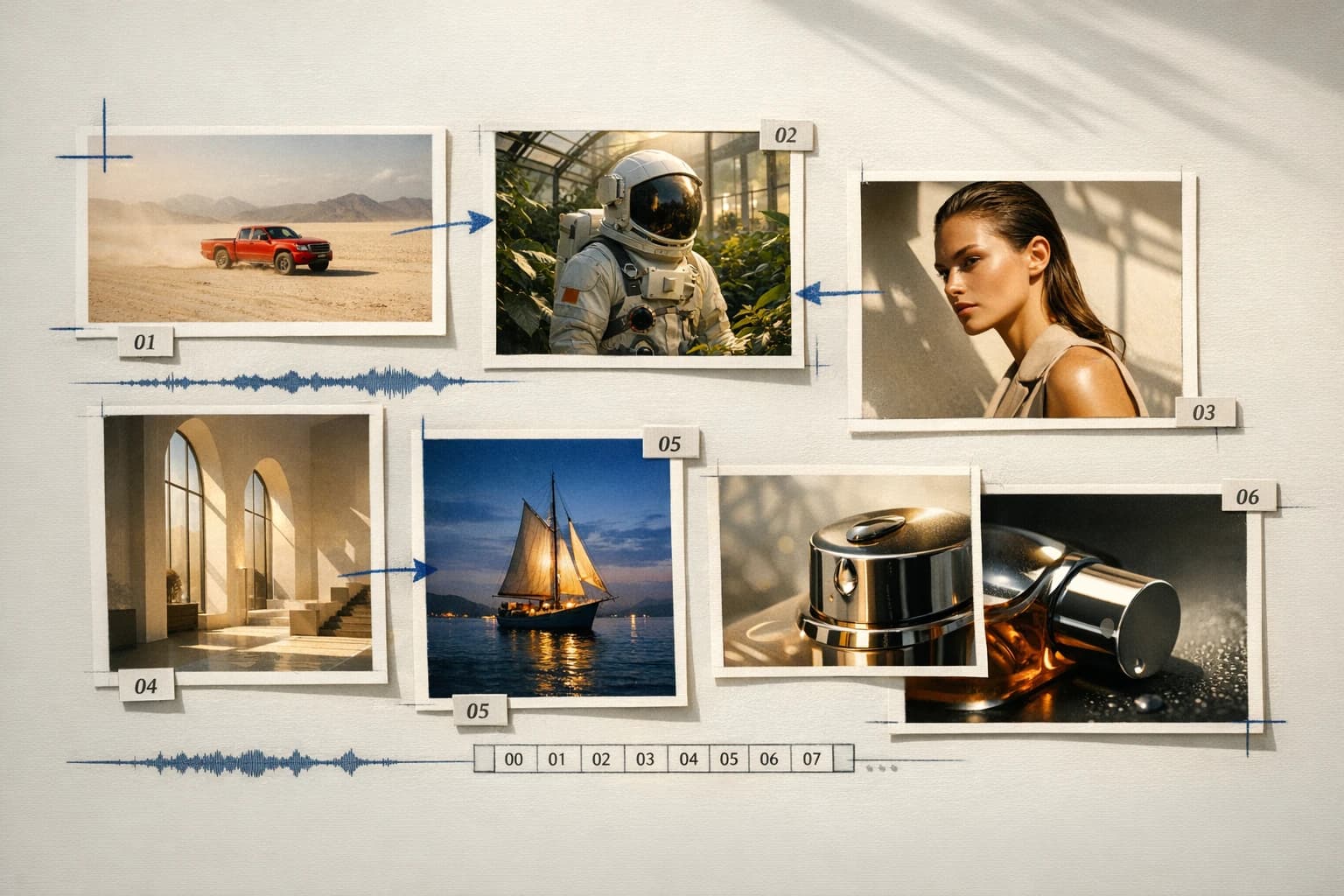
Connected production
Brief, generate, compare, and refine without losing the creative thread.
How it works
HighReach keeps the prompt, visual inputs, output settings, and result together so Gemini Omni Flash can become a repeatable production tool rather than a one-off generation.
Start from text alone or upload the opening image that should anchor composition and identity.
Attach up to ten images and state which one controls the subject, setting, product, style, or material.
Define action, camera path, pace, lighting changes, physics, and the details that must not drift.
Choose 16:9 or 9:16, set a 3-10 second duration, and review the 720p output before refining.
Model lineup in HighReach
Select the endpoint that matches the source material you already have. Available controls are shown directly in the HighReach Video Suite.
Generate
Create a short video from a written brief, a starting frame, or a reference-rich combination of both.
Transform
Use the edit workflow when an existing visual or clip should be the foundation for a focused creative change.
Prompt playbook
A useful prompt behaves like a compact director's brief. Give every detail a job instead of stacking visual adjectives.
Physical motion
01Single continuous macro tracking shot. @Image1 defines the workshop. A clear glass marble rolls down the copper track, triggers each wooden lever in sequence, and releases a precise arc of water. Realistic weight, contact, reflections, and momentum. Warm afternoon light; no cuts.
Product scene
02Use @Image1 for the exact bottle design and @Image2 for the stone studio palette. Keep the label, cap, proportions, and glass material unchanged. Slowly orbit 35 degrees as condensation travels down the bottle and a narrow rim light reveals the silhouette. Premium commercial realism.
Vertical story
039:16 vertical shot of a cyclist entering a rain-lit tunnel at blue hour. Begin low beside the front wheel, rise smoothly to shoulder height, and reveal the city lights beyond the exit. Natural spray, accurate wheel motion, restrained handheld energy, no text or logos.
Choose the right model
No single model is best for every brief. Compare the controls, cost and results that matter for your production workflow.
 Kuaishou
Best for Directed camera and character motion
Cinematic text and image animation with start/end frames, multi-shot timing, audio, and motion control.
Explore Kling 3.0 ByteDance
Best for Complex narrative sequences
Multimodal, multi-shot video production with native sound, broad formats, and high-resolution output.
Explore Seedance 2.0 MiniMax
Best for Reference-rich commercial production
Multimodal video generation and localized editing with long prompts, reference media, high-resolution output, and native sound capabilities.
Explore MiniMax H3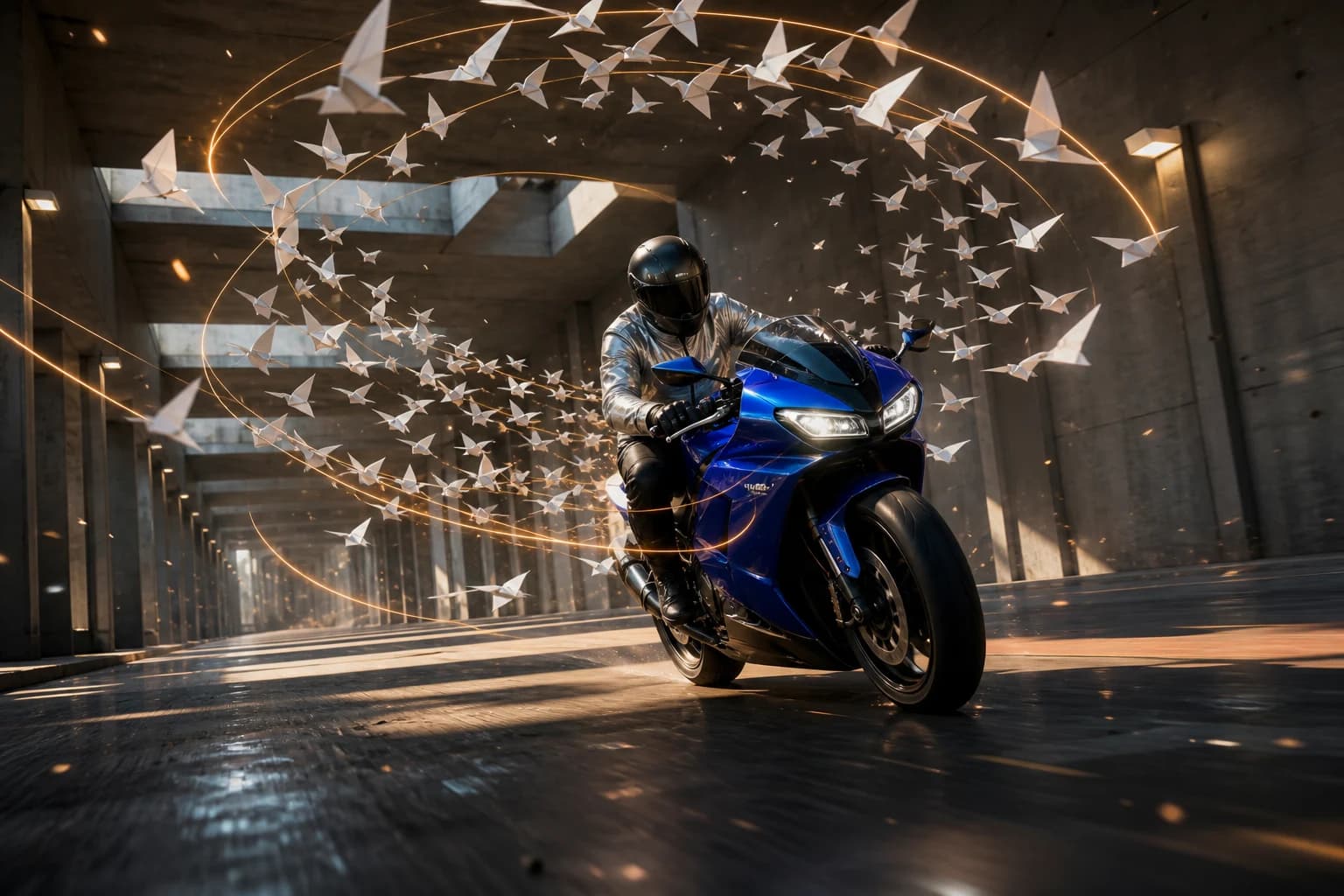 fal Research
Best for Fast, high-quality shot iteration
fal's post-trained H3 variant combines stronger prompt adherence, native synchronized audio, and faster-than-real-time 768P generation.
Explore MiniMax H3 Max ByteDance
Best for Long takes and multimodal direction
Long-form text, image, and reference-to-video with up to 50 multimodal inputs, native audio, and directed 30-second sequences.
Explore Seedance 2.5 Black Forest Labs
Best for Physical motion and camera control
Physics-aware video with native audio, precise camera language, high-fidelity image animation, and up to 20-second output.
Explore FLUX.3 VideoProduction notes
Check 01
The current HighReach generation endpoint is limited to 720p and 3-10 second outputs.
Check 02
HighReach currently exposes image references but not the broader model's audio or video inputs in this generation workflow.
Check 03
Review hands, readable text, logos, small product details, and physical contact frame by frame.
Check 04
Complex instructions improve when divided into fewer actions with one clear camera path.
Gemini Omni Flash FAQ
Practical answers about Gemini Omni Flash, available HighReach workflows, output controls, and prompt direction.
Gemini Omni Flash is Google's fast multimodal video model for creating and refining short video from connected creative inputs. It can reason across multiple media types, while the current HighReach generation workflow focuses on text, a starting frame, and image references.
Yes. Open Image to Video, choose Gemini Omni Flash, add a prompt and optional starting frame or image references, select a supported duration and aspect ratio, then generate.
The current HighReach Gemini Omni Flash workflow accepts up to ten image references. Explain what each image should control for more predictable output.
HighReach currently exposes 16:9 landscape and 9:16 vertical output, with durations from 3 to 10 seconds at 720p.
Google's broader Gemini Omni capability includes synchronized audio in compatible surfaces. The current HighReach Gemini Omni Flash generation endpoint does not expose an audio toggle, so review the model controls shown in the suite before generating.
Yes. A starting image can anchor the opening composition, and additional images can guide identity, product details, setting, materials, or style.
Gemini Omni Flash emphasizes fast multimodal reasoning and image-reference workflows. Kling 3.0 is often a stronger fit when you need start and end frames, 3-15 second output, multi-shot timing, native audio, or motion-control options.
Gemini Omni Flash is a focused choice for rapid, reference-led short video. Seedance 2.0 offers broader aspect ratios, longer clips, multi-shot and audio controls, and higher-resolution output in supported HighReach workflows.
Gemini Omni Flash in HighReach
Bring your prompt, opening frame, and visual references into HighReach, then generate with Gemini Omni Flash and compare the result with other leading AI video models.