Give a portrait breathing room
Continue the background around a tightly framed person. Keep the face as your visual anchor and check it against the source after generation.
✨ Create Stunning Videos with AI! Access Kling 3.0, Seedance, Veo, Flux, Nano Banana and more in one platform. Start Creating
A good image should not end where the frame does. Extend a background, give a subject breathing room or explore a wider composition with AI outpainting. Start from your image, not a blank canvas.
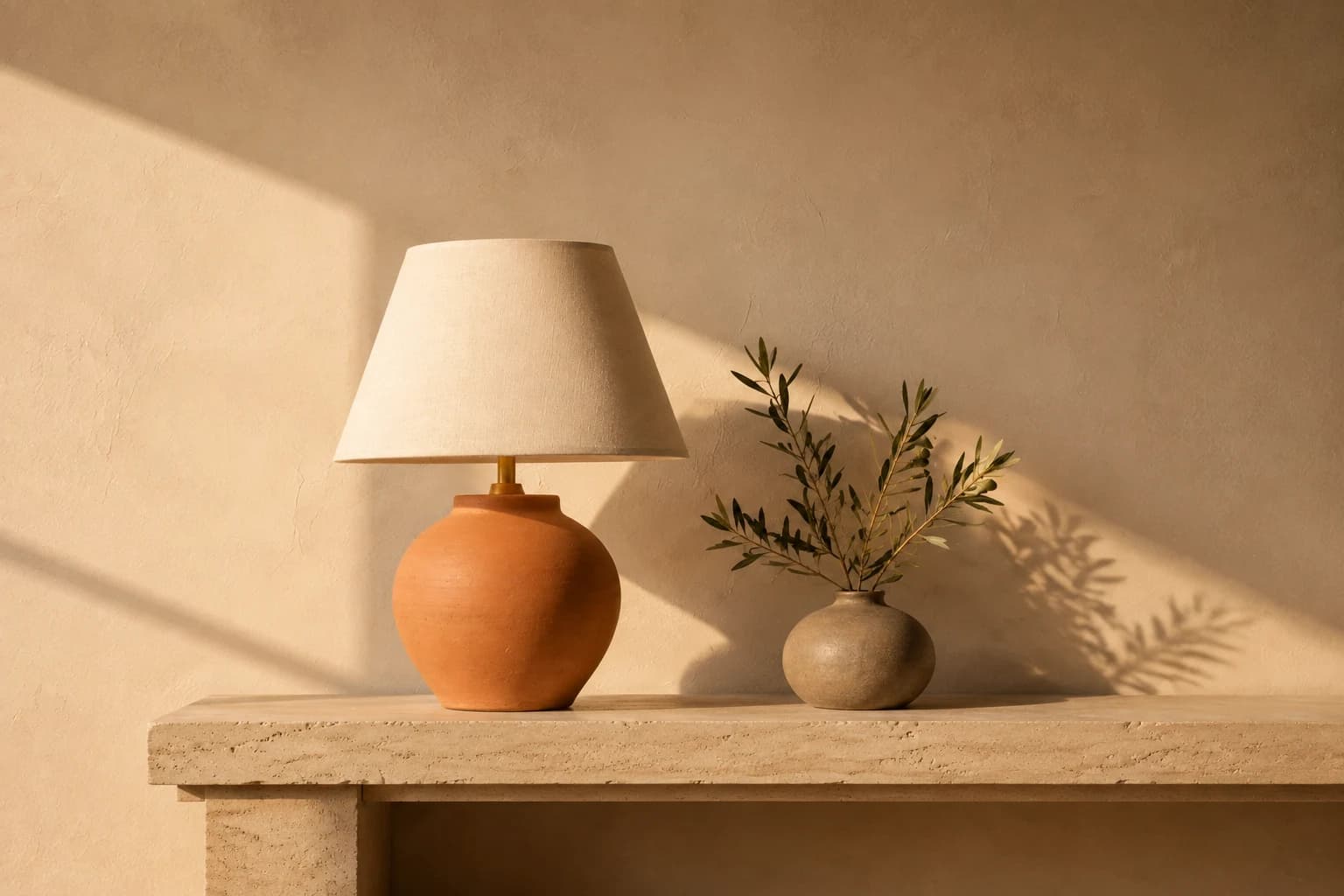
From tight crop to wider context
A square product composition can become a wider visual with room for a layout. Compare the reference and the generated continuation, including any details you would want to correct.
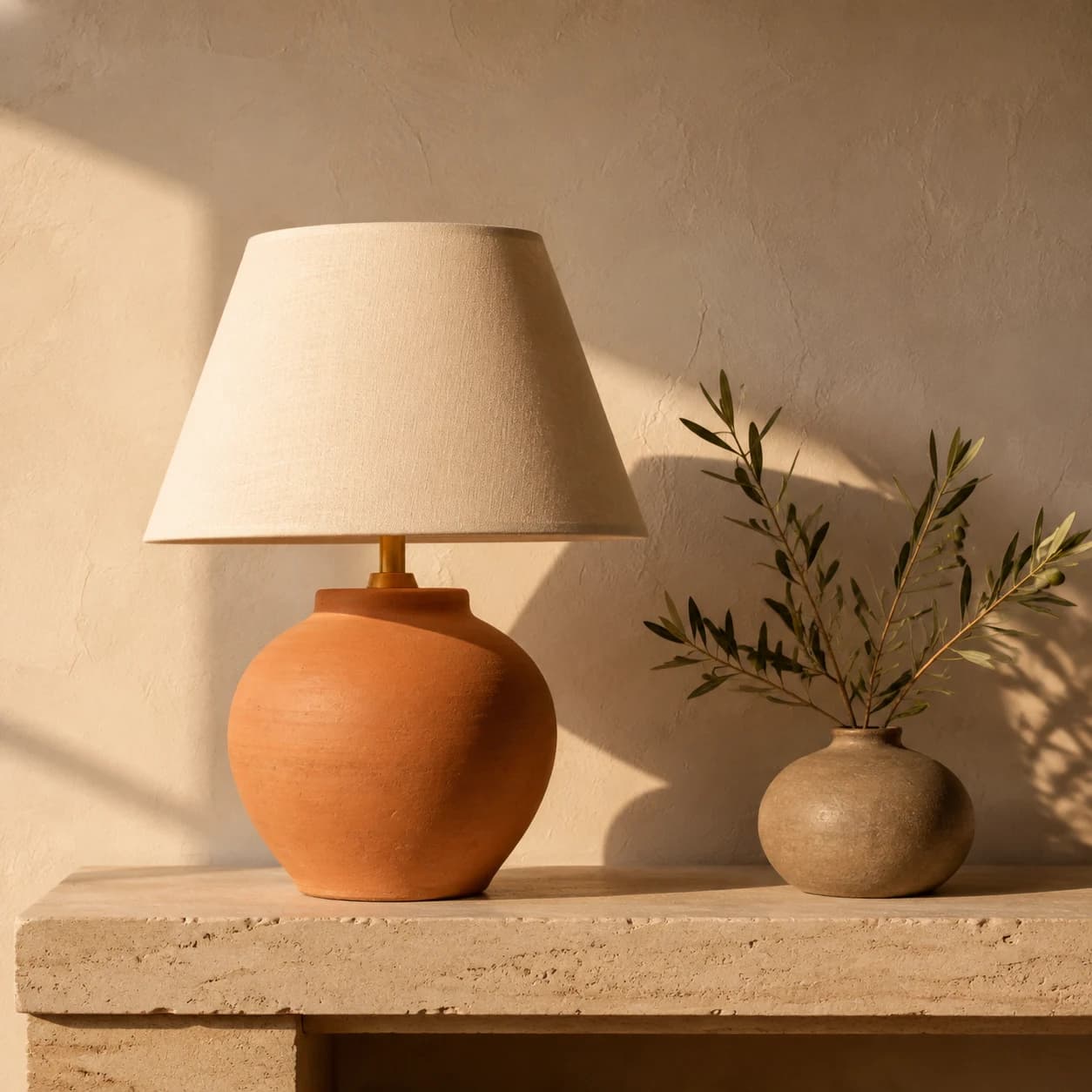
Example instruction: Expand the square photograph into a landscape composition. Continue the ivory plaster wall and pale travertine console to the sides. Match the afternoon light and keep the lamp and vase recognizable, without adding text or extra objects.
Illustrative reference and edit generated with Codex's built-in OpenAI image tool on September 4, 2026. This is not a HighReach model benchmark or a promise of the same output in the suite.
When AI outpainting helps
Continue the background around a tightly framed person. Keep the face as your visual anchor and check it against the source after generation.
Explore room for a headline or adjacent design elements. Add the actual typography in your design editor and verify that the product was not redesigned.
Extend sky, landscape or an interior beyond the visible edge. Inspect perspective, repeated textures and shadows before using the result.
How to expand an image
Step 1
Upload an image you own or are authorized to edit in Expand Image. Use a sharp source with a clearly visible subject.
Step 2
Adjust the existing Expansion control and optionally describe the continuation. Match light, material and perspective rather than asking for an unrelated scene.
Step 3
Check the displayed credits before generating, then inspect original and generated areas at full size. Refine or reject altered subjects and implausible details.
Choose the right operation
Outpainting imagines what could continue beyond the frame. It does not reveal the exact scene that originally existed outside it.
Expand an imageUse editing for a background change, object removal or another adjustment within your existing composition.
Explore image editingUpscaling targets output size and detail rather than adding a new environment around the original frame.
Open Image UpscaleBefore you expand
It generates additional scenery outside an image's frame using the existing scene as context. This is also called AI outpainting. It is different from stretching the same pixels or cropping away part of the picture.
It can imagine a plausible continuation, but it cannot recover the exact content that was cropped out. Treat new areas as generated material, especially in documentary, product and factual images.
Set an optional continuation prompt here, then open Expand Image. Upload or choose one reference, adjust Expansion between 100% and 300%, review the output settings and displayed credits, then generate. The form on this page transfers your prompt and expansion choice; it does not start a generation.
No pixel-perfect preservation is promised. The model may regenerate details in the subject or original background. Compare the output with your source, particularly faces, product details, letters, straight lines and edges.
You can explore the examples and prepare a prompt for free. Generation uses HighReach credits. Your account and the current tool settings determine the cost, which is displayed before you generate.
Use outpainting to add room around a composition. Use image editing to change something within the existing frame. Use upscaling when you want a higher-resolution version rather than additional scenery.
Your next composition
Bring one reference image into Expand Image, guide the continuation and decide which result is worth keeping.