01
Make focused corrections
Remove distractions, balance light and color, clean edges, refine backgrounds, or correct temporary details without restarting the photo.
✨ Create Stunning Videos with AI! Access Kling 3.0, Seedance, Veo, Flux, Nano Banana and more in one platform. Start Creating
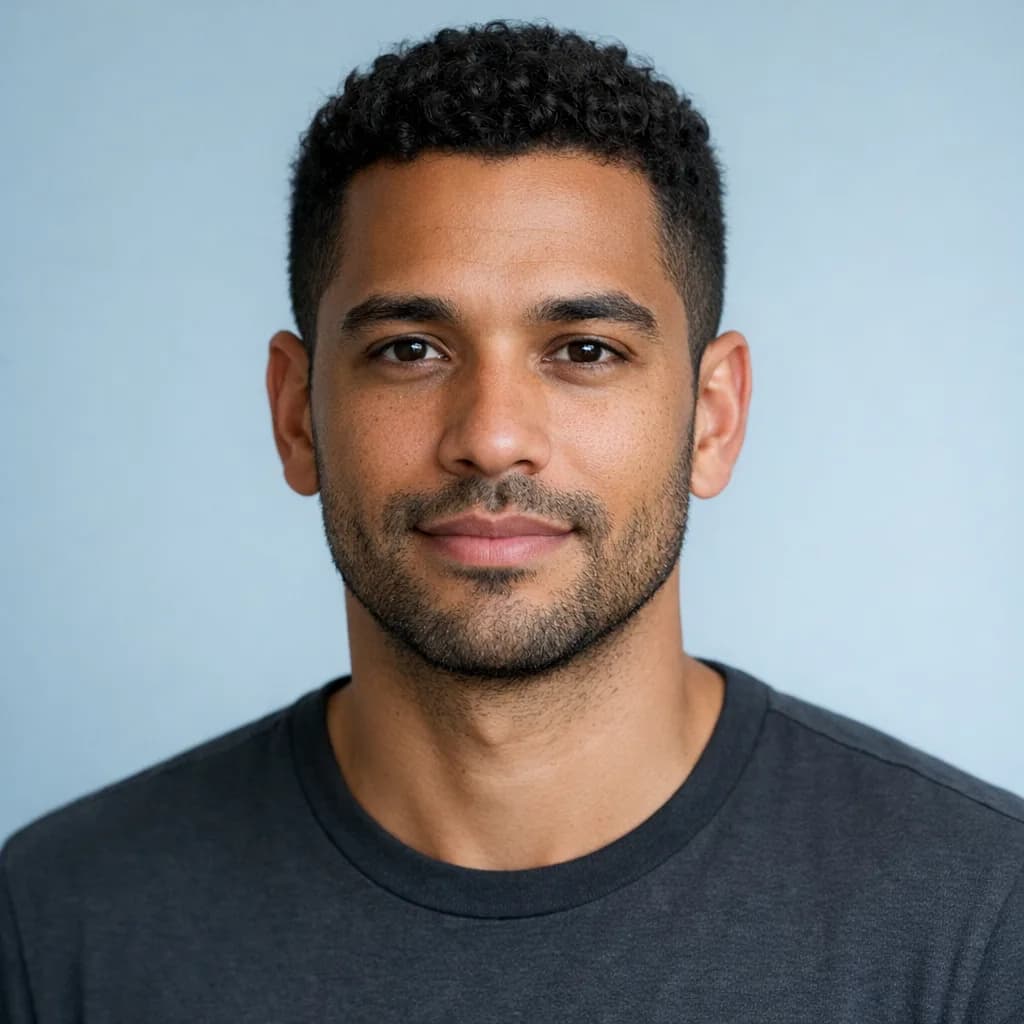
Correct exposure, color, distractions, backgrounds, styling, and temporary details with text prompts while protecting natural texture, identity, and photographic intent.
HighReach / edit
01 / Source image
 Uploaded
02 / Prompt and result
Generated1 image · credits vary by model
GenerateWhat is AI photo editing?
AI photo editing applies generative and analytical models to an existing photograph. A prompt can identify a distraction, background, temporary blemish, color cast, garment, object, or lighting issue and regenerate that part while attempting to preserve the rest of the frame.
Photography editing still requires judgment. Natural skin, truthful product details, realistic light, documentary integrity, and subject consent should not be traded for speed. HighReach is most useful when the instruction is focused and the result is reviewed at full resolution.
Why HighReach
Move between text prompts, image references, generative edits, variations, expansion, upscale, camera control, and video without rebuilding the workflow.
Remove distractions, balance light and color, clean edges, refine backgrounds, or correct temporary details without restarting the photo.
Tell the model to preserve pores, facial structure, age, expression, hair, body proportions, product shape, and camera framing.
Expand, upscale, create approved variations, or animate the finished photograph after the correction pass.
Creative applications
Use the least invasive edit that solves the visual problem, especially for portraits, products, and documentary contexts.
Correct temporary blemishes, flyaways, exposure, white balance, background distractions, and minor wardrobe issues while preserving identity.
Remove dust, cables, stands, reflections, surface marks, and background clutter while protecting shape, label, and color accuracy.
Balance warmth, exposure, contrast, shadow detail, local brightness, atmosphere, and mixed lighting with restrained prompts.
Simplify, replace, or extend a background while matching depth, focus, perspective, contact shadow, and edge quality.
Reduce damage, rebuild missing areas, improve faded contrast, and prepare old rights-cleared photos for careful manual review.
Explore editorial color grades, cinematic atmosphere, season, weather, wardrobe, and art direction from an approved source.
Visual range
Move between photographic, painterly, illustrative, mixed-media, product, character, and editorial directions while keeping the prompt, reference, and finishing workflow connected.
Step-by-step workflow
Protect photographic truth and identity by making small, reviewable changes.
Step 1
Use the highest-quality rights-cleared source available. Preserve the original file and work from a duplicate.
Step 2
Name the issue, desired correction, and the identity, texture, product, composition, or documentary details that must stay unchanged.
Step 3
Compare against the original at full size and review skin, anatomy, text, edges, reflections, shadows, products, and disclosure needs.
Prompt framework
A professional AI photo editing prompt explains both the desired adjustment and the photographic evidence that must remain trustworthy.
Current image models
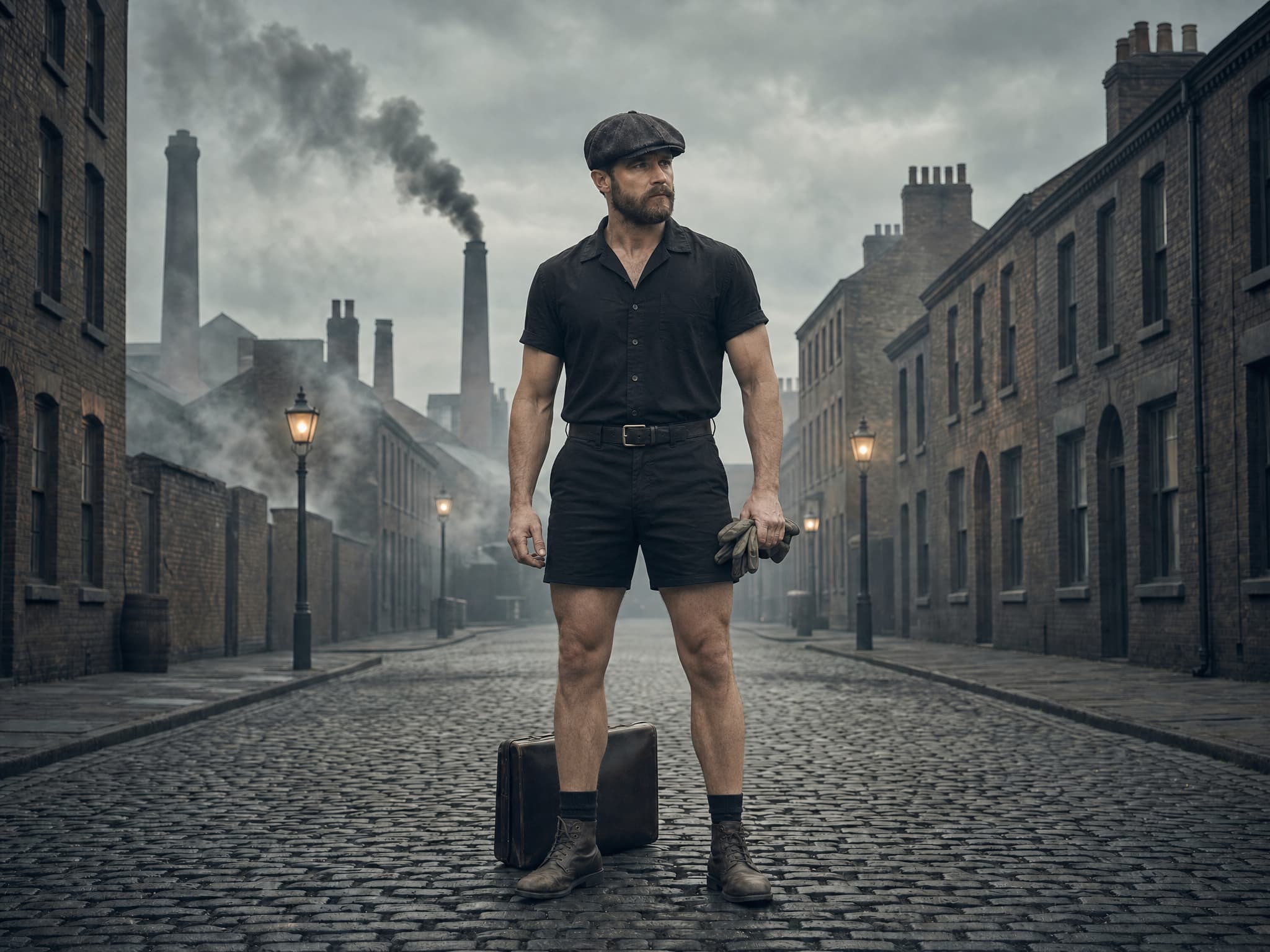
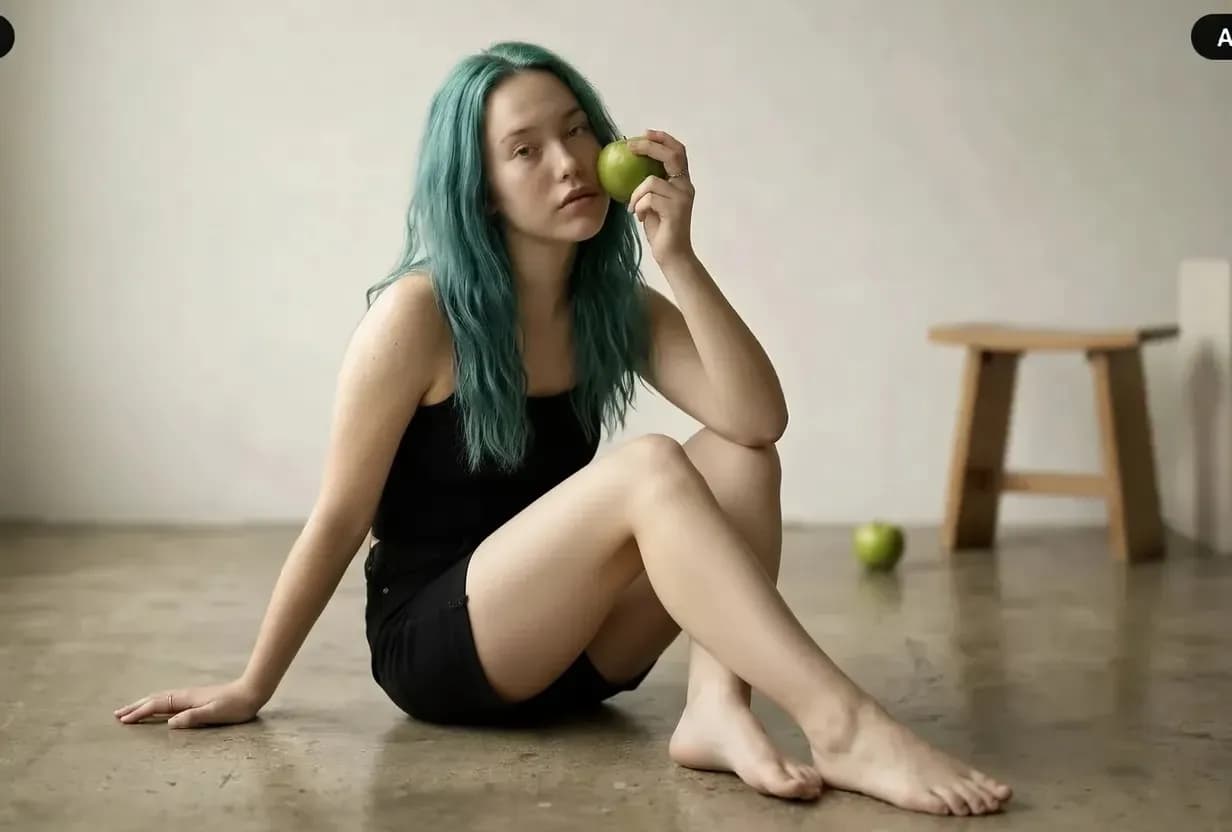
Model availability can change. HighReach keeps leading image generators in one interface so you can compare generation and editing strengths without changing the complete workflow. Images below illustrate the workflow range rather than claiming a specific model output.
 01
01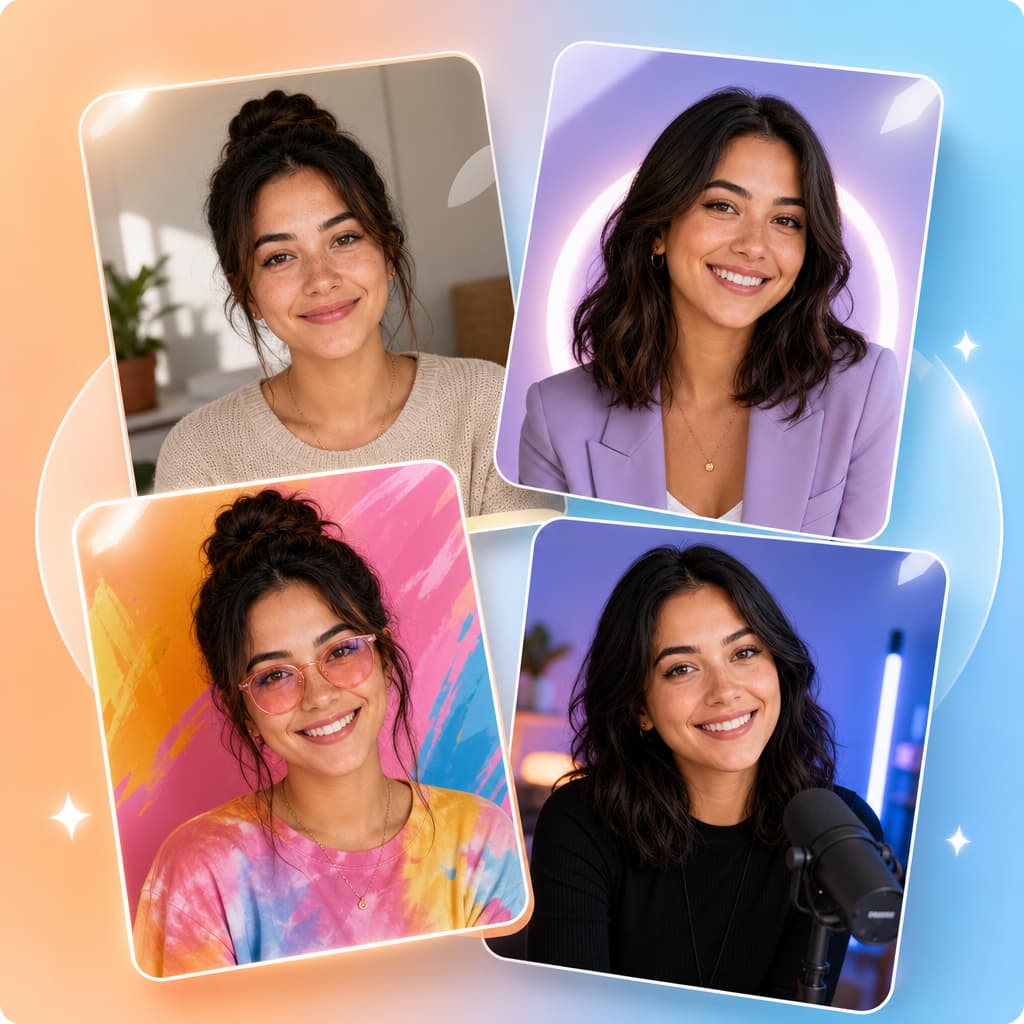 02
02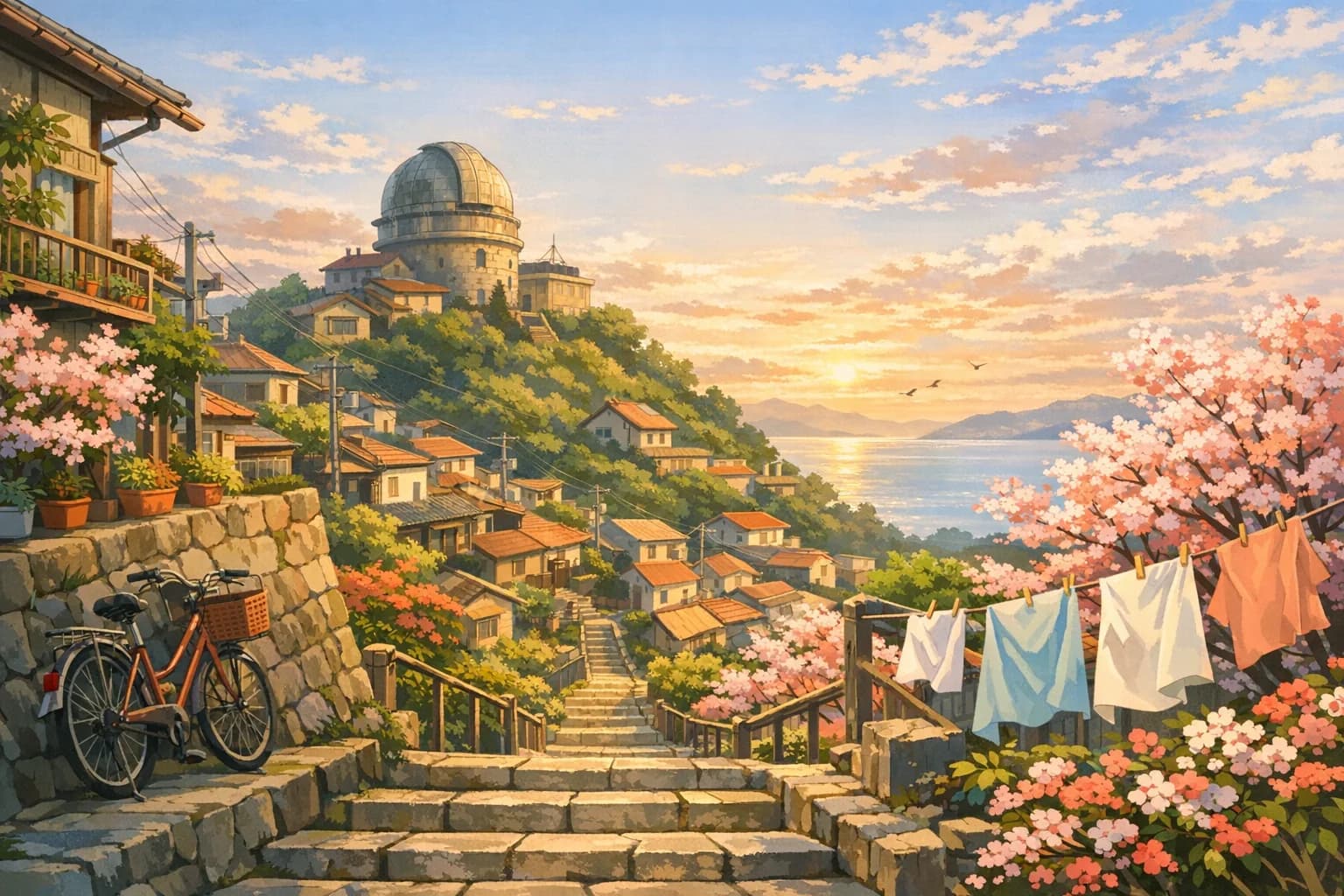 03
03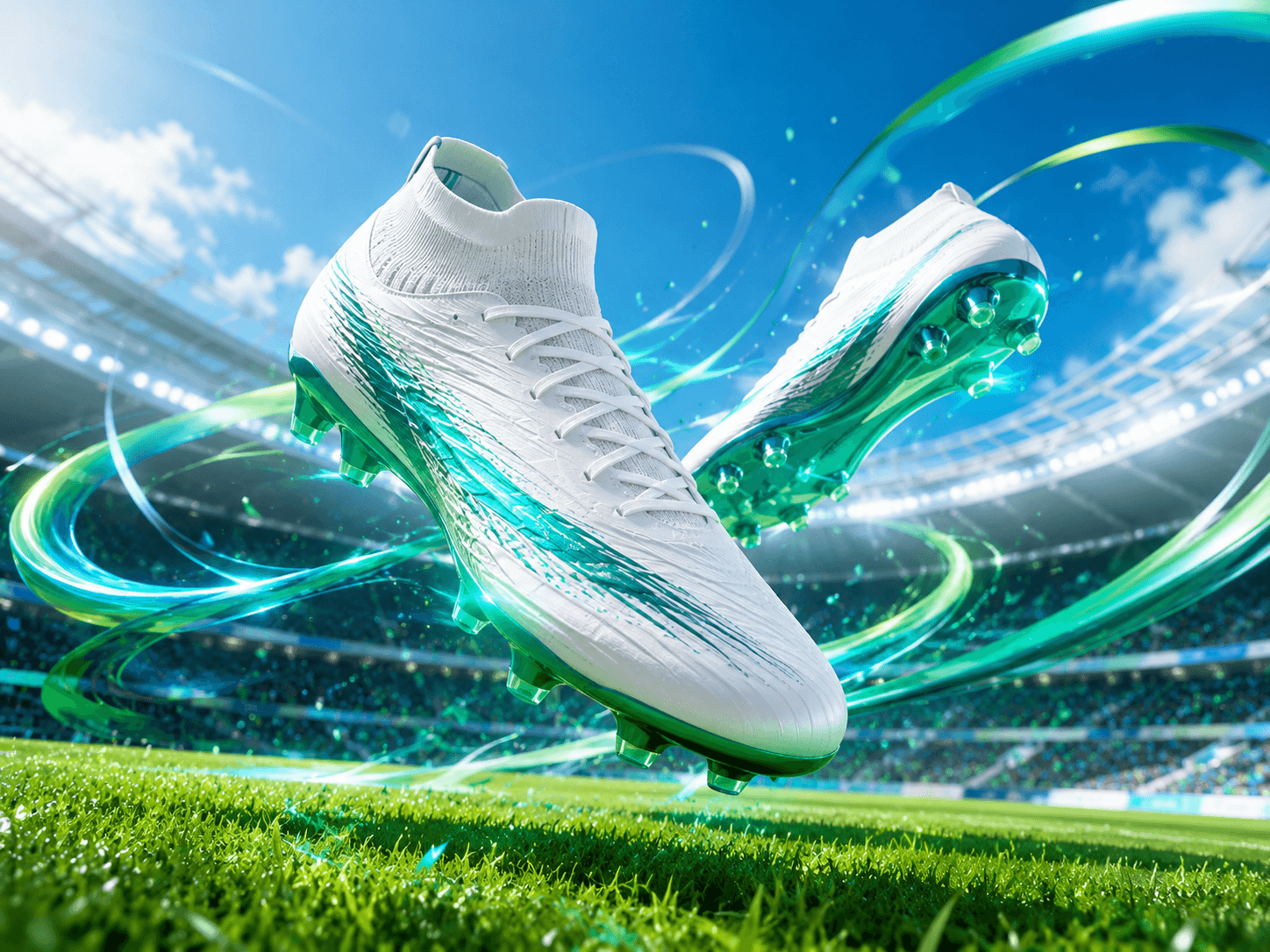 04
04Put the tools into practice
Explore copyable prompts, reference-image advice and composition workflows before your next generation.
Learn a repeatable editing method with same-photo model comparisons for backgrounds, lighting and clothing.
Explore the workflowCompare reference-led edits, try natural poses and troubleshoot two-person portraits.
Explore the workflowChoose a photographic direction for people, products, food or a new scene.
Explore the workflowExplore tested Gemini-family edits with original references, product examples and exact prompts.
Explore the workflowAdd room around the composition with a reference-led outpainting workflow.
Explore the workflowImage generation guides
Start from text, transform a reference, or edit an existing photograph. Explore what each workflow can do before choosing your next tool.
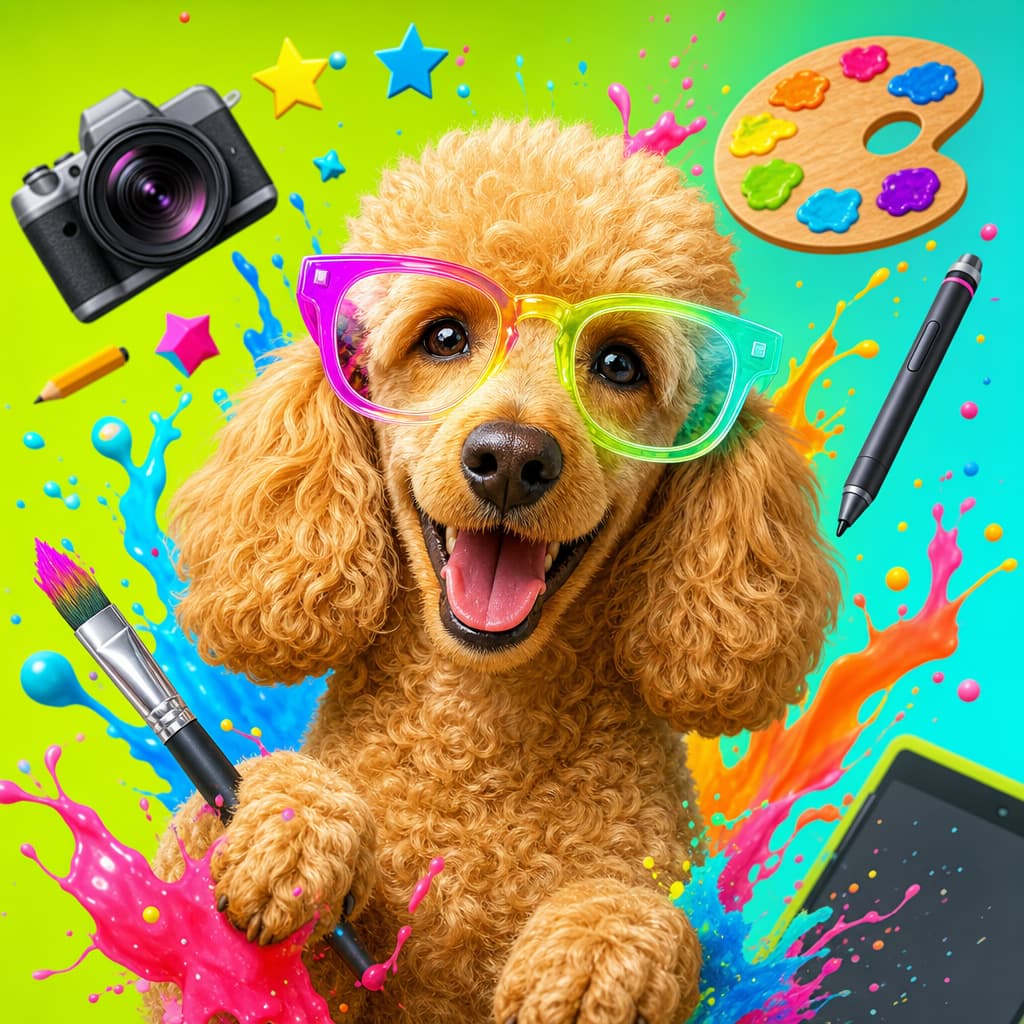
Pillar
Create original images from text and continue into a complete visual workflow.
Read the guide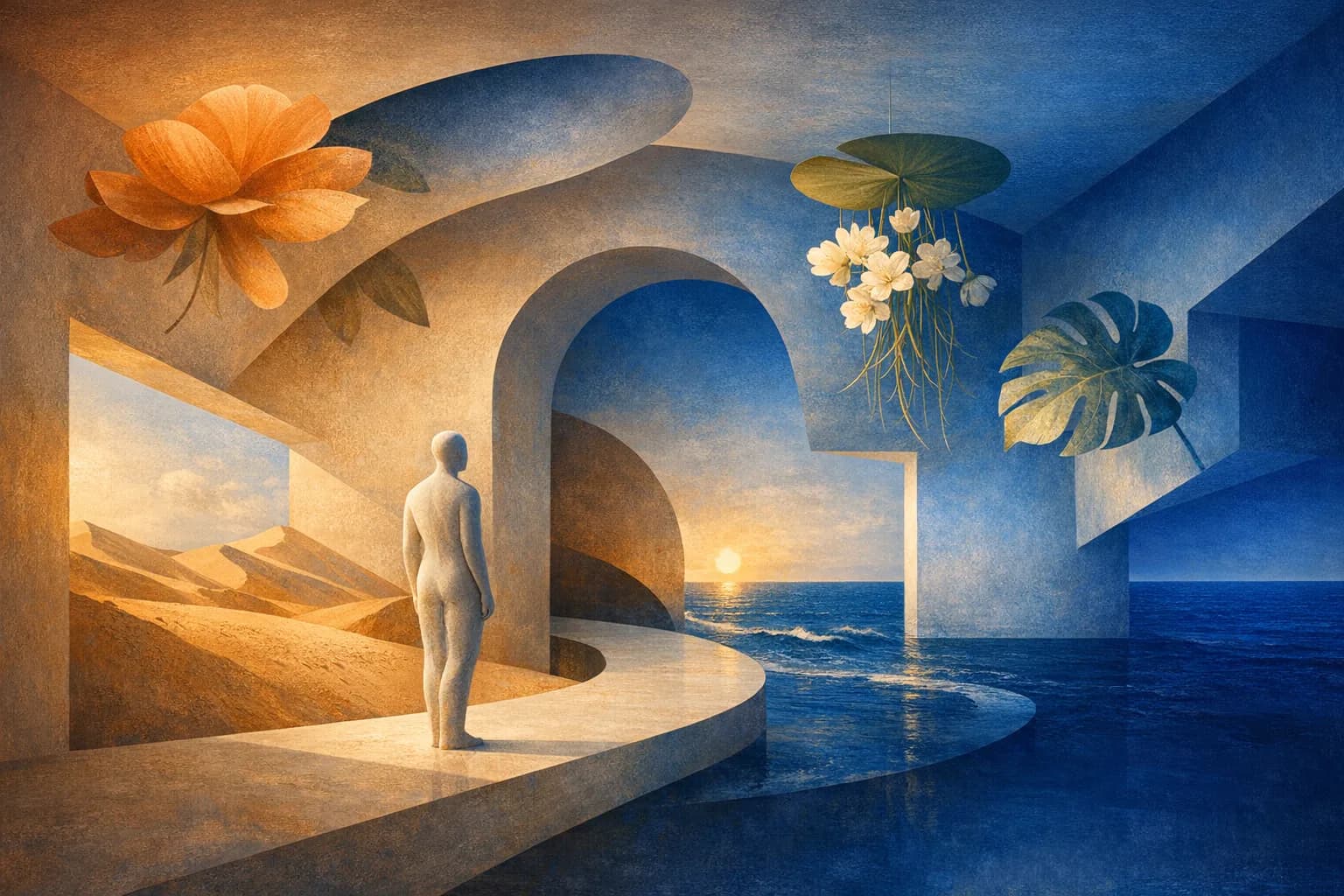
Artwork
Create paintings, illustrations, concept art, and mixed-media artwork from text or images.
Read the guideTransform
Upload a visual anchor and generate new styles, scenes, and variations.
Read the guide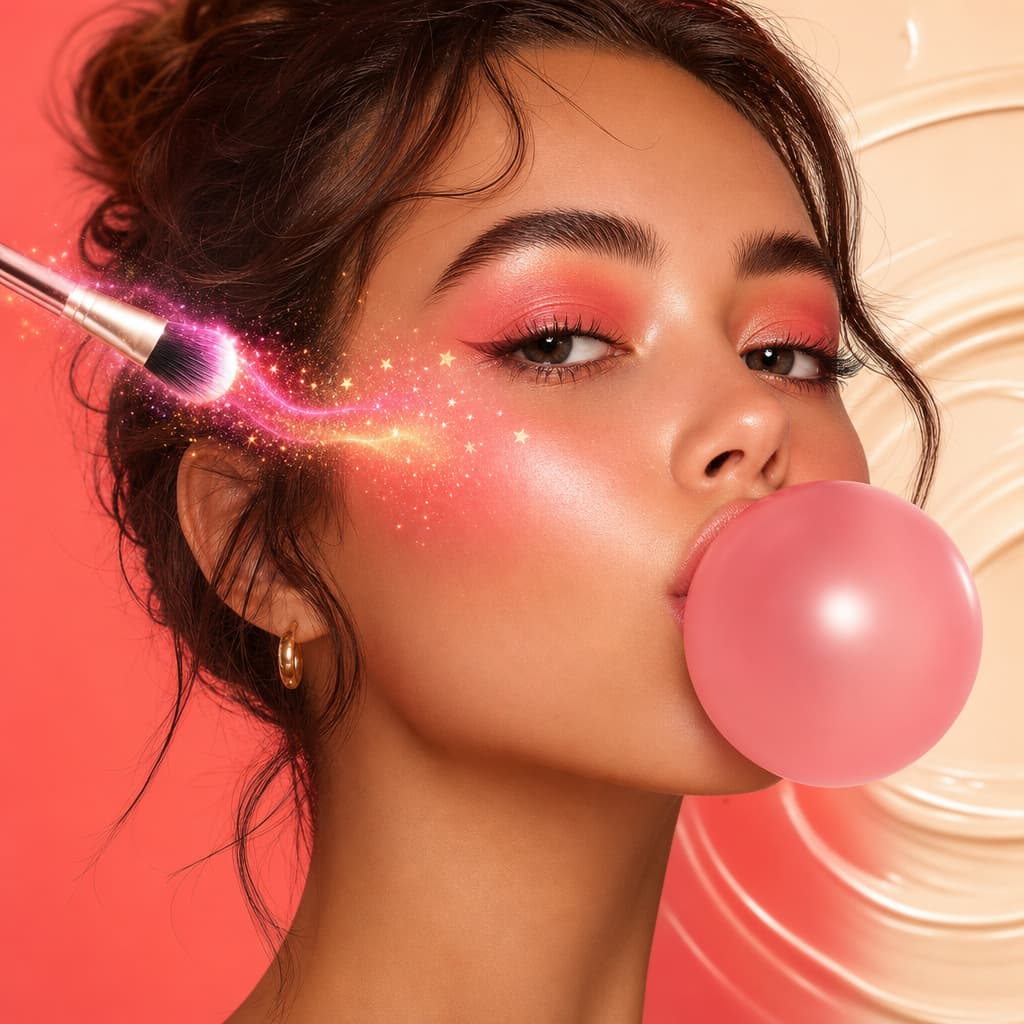
Photography
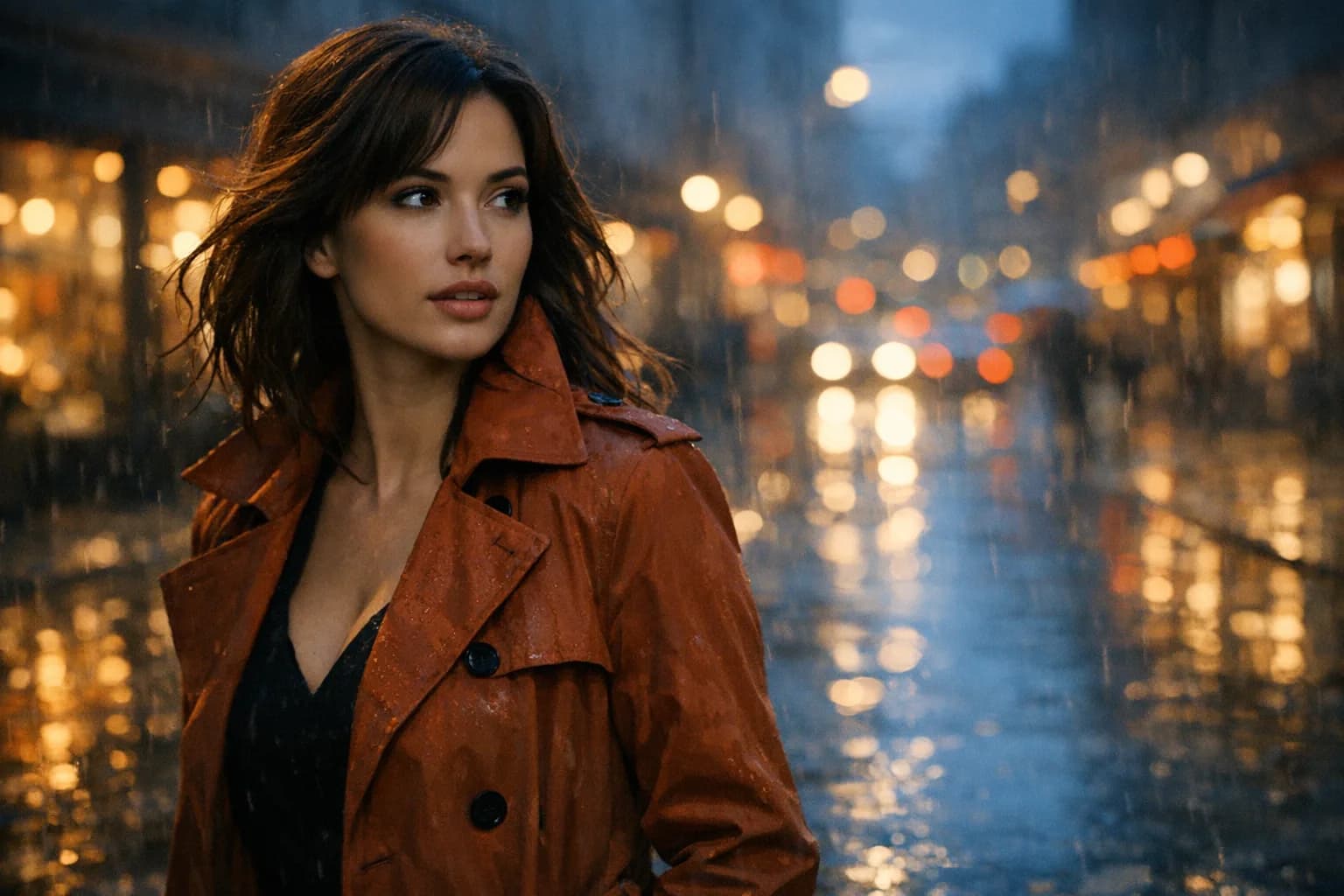
Generate photorealistic portraits, products, places, and editorial scenes.
Read the guideVariations
Use one photograph as the visual anchor for another photographic direction.
Read the guideCurrent guideRetouch
Correct and transform photographs while protecting natural detail and identity.
Open the tool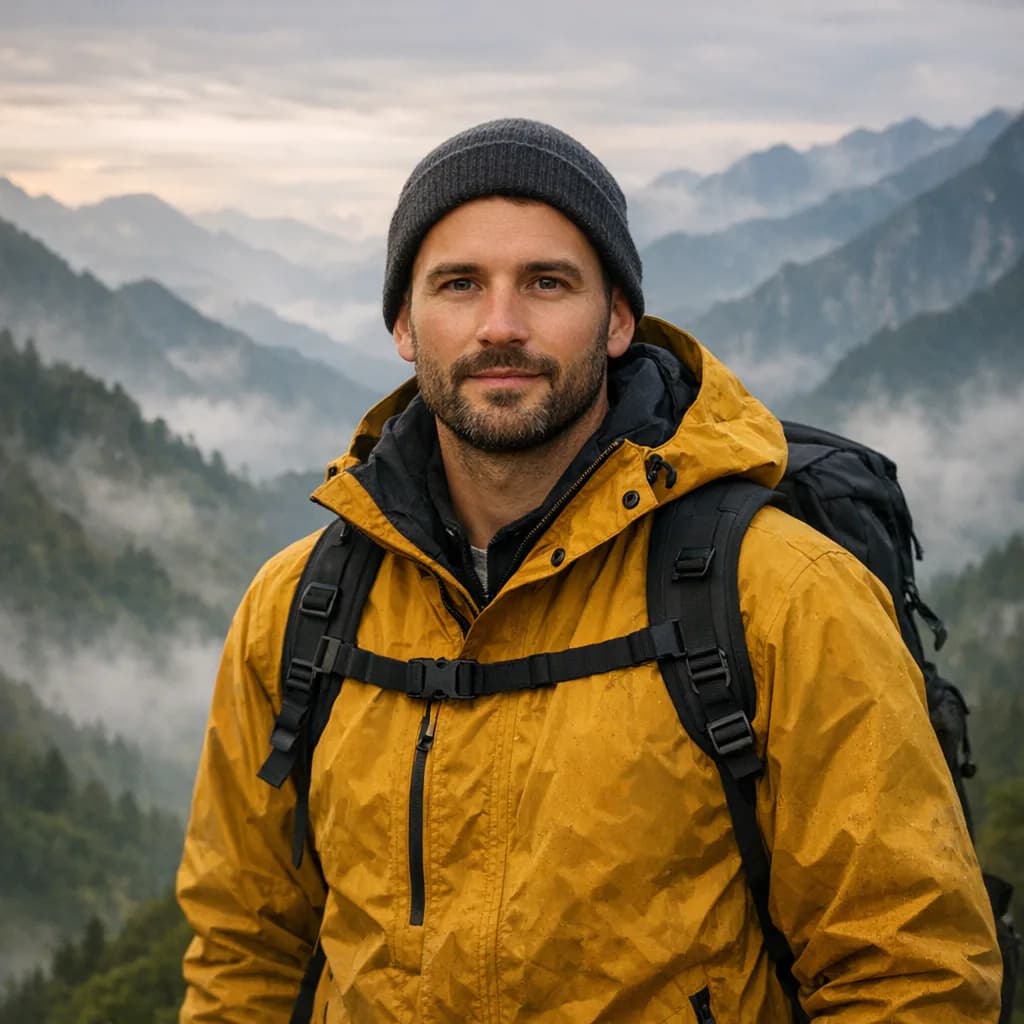
Prompt
Direct a realistic photographic scene from a written visual brief.
Read the guideOnline AI photo editor FAQ
Clear answers about inputs, prompts, free credits, workflow differences, quality, and responsible production.
AI photo editing uses machine-learning models to analyze and modify an existing photograph. Prompt-based tools can retouch, remove distractions, replace backgrounds, correct light and color, regenerate damaged areas, or create a transformed version.
Upload a rights-cleared photo, describe one specific correction, and state what must remain unchanged. Generate the edit, compare it with the original at full size, and continue only from an approved result.
Yes, with restrained instructions. Ask to preserve skin texture, pores, age, facial structure, expression, and identity while correcting only temporary details, exposure, color, or distractions. Avoid vague requests to make a person perfect.
Photo edits use HighReach credits. Current starter credits or trial access, if available, will appear in your account. The page does not promise unlimited free AI photo editing.
Yes. Describe the new environment and require matched perspective, focus, light direction, edge detail, and contact shadow. Complex hair, glass, reflections, and transparent objects need closer review.
Yes, for authorized work where the client and subject understand the process. Product, journalistic, evidentiary, medical, and documentary images need stricter accuracy, disclosure, and manual review.
Online AI photo editor
Start with a prompt or rights-cleared image, choose the right model, and keep refining the result inside the connected HighReach image and video suite.