01
Keep attention on the subject
Separate the foreground from a busy scene so faces, products, pets, food, or objects become the clear visual priority.
✨ Create Stunning Videos with AI! Access Kling 3.0, Seedance, Veo, Flux, Nano Banana and more in one platform. Start Creating
Upload a photo and create a controlled background blur while preserving the person, product, pet, or foreground object. Adjust the visual focus, soften distractions, and continue editing in one connected image suite.
What does a blur background tool do?
A background blur tool separates the intended foreground from the rest of a picture, then softens background detail to create clearer visual hierarchy. Unlike an AI background remover, blur keeps the location, light, color, and atmosphere visible while making them less distracting.
Whether you call it a photo blur tool, bg blur editor, blur tool for photos, or an app that blurs photos, the useful goal is the same: keep important edges sharp, make depth believable, and avoid turning the result into an obviously blurred photo.
Why blur the background?
Use background blur as a deliberate composition and privacy tool, not a generic filter applied to the entire picture.
Separate the foreground from a busy scene so faces, products, pets, food, or objects become the clear visual priority.
Use restrained blur for believable depth or stronger blur when the background is distracting, sensitive, or visually irrelevant.
After the bg blur, replace or remove the background, erase an unwanted object, expand the frame, upscale, or animate the finished photo.
Background blur examples
Drag each comparison to inspect the foreground mask, background softness, edge treatment, and remaining scene context.
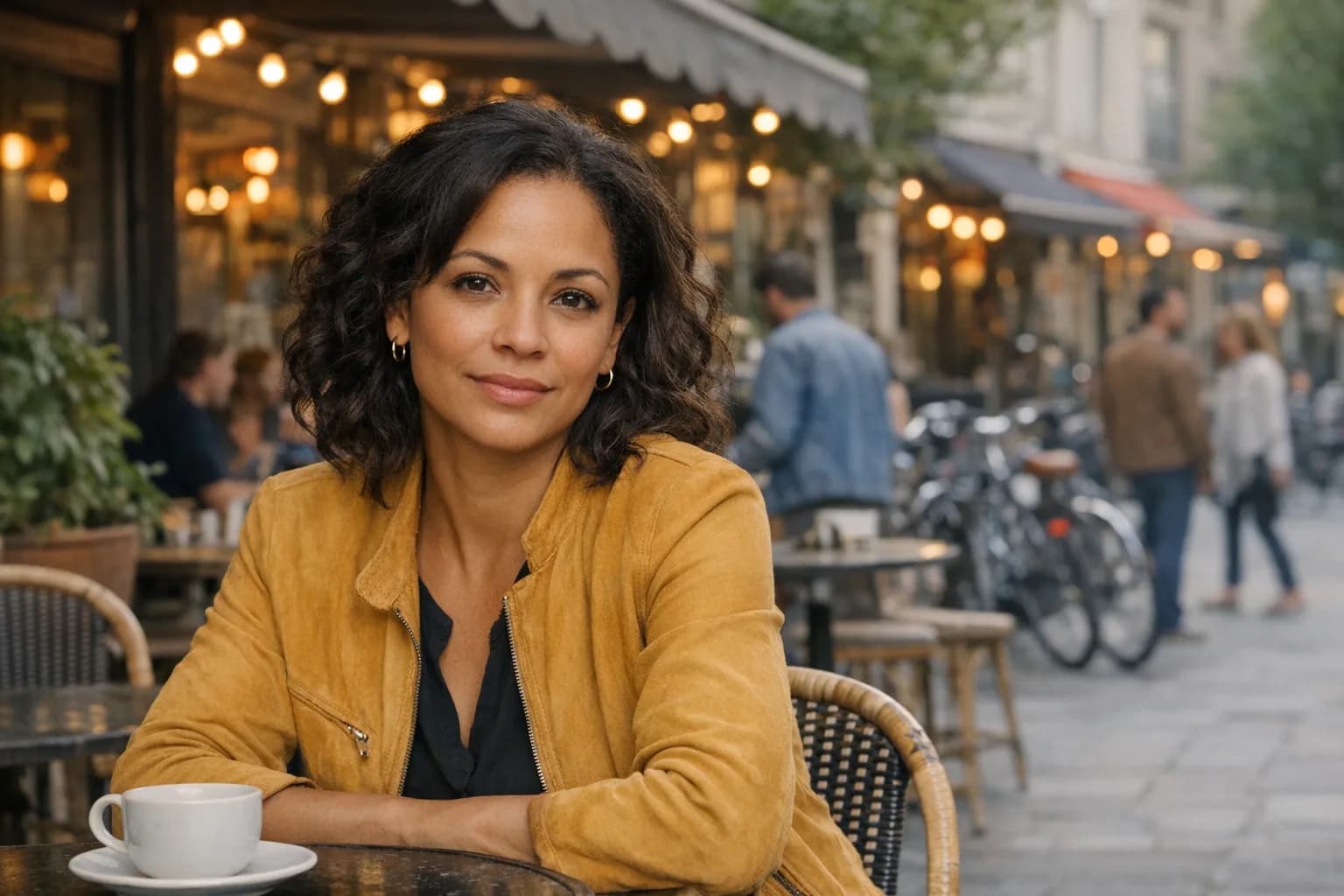
Blur study 01
Soften pedestrians, tables, signs, and city detail while keeping the person, hair edges, clothing, foreground objects, light, and skin texture clear. A moderate blur effect on photos usually looks more natural than maximum blur everywhere.
Try this background edit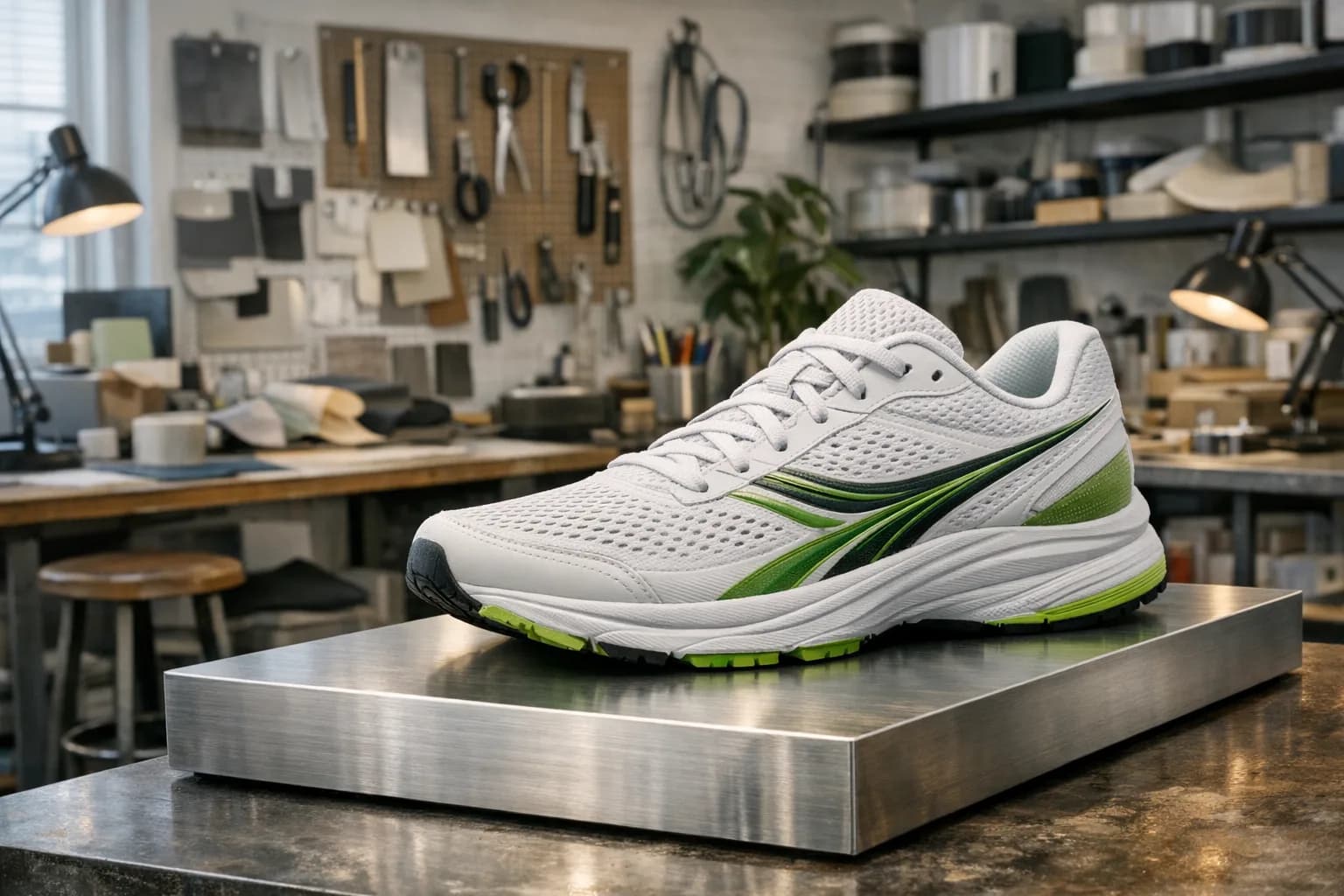
Blur study 02
Turn a detailed workspace into soft context around a sharp product. The image blurring tool keeps the hero object readable while reducing competition from shelves, tools, lamps, and material samples.
Try this background edit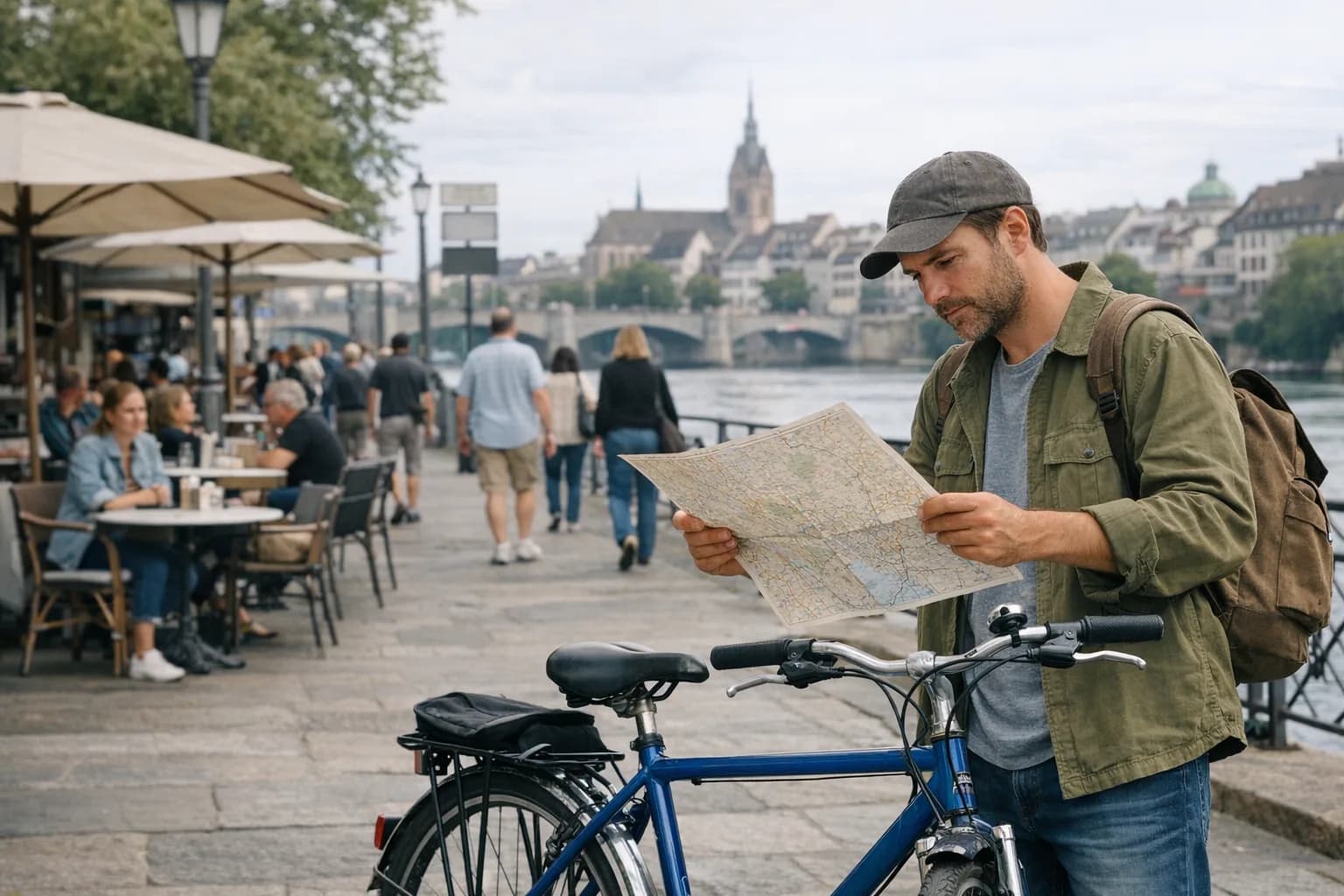
Blur study 03
Blur out pictures taken in public when background people, locations, signs, or contextual details should not remain identifiable. Preserve the intended foreground while treating privacy as an editing decision, not an afterthought.
Try this background editChoose the correct edit
These searches often overlap, but they describe three different outputs. Start with the result you actually need.
Depth and focus
Keep the original scene but reduce its visual detail. Best when context still matters and you want depth, focus, or privacy without making the background disappear.
Open Edit ImageCutout or replace
Use an AI background remover when you need transparency or a completely new setting. Background remover AI is a cutout task, not simply a stronger blur.
Open Edit ImageClean up content
Use AI object removal to erase a person, sign, cable, stain, or distraction and rebuild the space behind it. This changes scene content rather than focus.
Open Edit ImageAI image background remover
Use the same Edit Image workflow as a background photo remover online: isolate the foreground, delete the original background, and leave it transparent or replace it with a new scene.
A background removing tool produces a different result from blur. Blur keeps the original setting visible; removal separates the subject so it can be placed on a product page, ad, thumbnail, presentation, marketplace listing, or completely new environment.
Remove a photo backgroundPreserve the person, product, pet, hair, hands, transparent materials, texture, and readable details that belong in the final cutout.
Ask for transparency when you need a reusable asset, or describe a replacement scene when the finished image should be production-ready.
Zoom in around hair, fur, glass, fabric, shadows, and reflections. A high-quality background remover should avoid halos and missing foreground detail.
Background removal prompt
Remove the entire background from this image and preserve the primary subject exactly. Keep the face, hair, hands, clothing, product edges, texture, color, lighting, and proportions clean. Create a transparent background with no halo, missing edge detail, or leftover objects.
How to blur the background of a photo
HighReach uses the prompt-based image editor for blur background, background removal, and object removal requests.
Step 1
Choose a clear JPEG, PNG, or WebP you own or are allowed to edit. Distinct foreground edges produce a cleaner separation.
Step 2
Identify the person, product, pet, food, or foreground object. State that identity, edges, texture, lighting, and composition should remain unchanged.
Step 3
Ask for light, moderate, or strong optical blur. For realism, request depth-aware falloff and cleaner separation around hair and fine edges.
Step 4
Check halos, missed edges, text, reflections, and foreground sharpness. Refine the prompt, then download or continue editing.
Photo blur use cases
Use the blur effect on pictures when it improves composition, readability, privacy, or subject separation.
Create a camera-like shallow depth of field around a person while protecting facial detail, hair, clothing, and natural skin texture.
Reduce studio, shelf, desk, or lifestyle clutter so the product remains the strongest shape and clearest point of attention.
Keep the dish, glass, table setting, or venue detail sharp while softening distracting guests, furniture, and service activity.
Use app-style background blur for thumbnails, posts, announcements, profile images, and creator photos without rebuilding the scene.
Blur out background people, signs, screens, addresses, workplaces, and location clues when they should not be clearly visible.
Create calmer negative space for a headline or caption while keeping the main photo subject visually grounded in its environment.
Prompt the blur precisely
“Blur the picture” is ambiguous because the editor does not know whether the person, product, foreground, text, or complete image should remain clear. A strong prompt identifies both the protected subject and the background treatment.
Blur only the background behind the primary subject with a moderate, natural optical depth-of-field effect. Preserve the subject's identity, face, hair edges, clothing, hands, foreground objects, lighting, color, and framing. Increase blur gradually with distance and avoid halos around fine edges.
Connected image tools
Move from focus control into retouching, object cleanup, background replacement, variations, upscale, or motion without exporting between disconnected tools.
Remove an unwanted person, object, sign, cable, or piece of clutter while rebuilding the area behind it.
Explore the guideRetouch, relight, clean up, and transform photographs with practical prompt guidance.
Explore the guideAdd, remove, replace, repair, and restyle specific image details from natural-language instructions.
Explore the guideUse a source image as the anchor for new scenes, styles, materials, compositions, and controlled variations.
Explore the guideBlur background FAQ
Guidance on foreground selection, blur strength, natural depth, privacy, background removal, object removal, source images, and credits.
Open HighReach Edit Image, upload the photo, and describe the foreground subject that must remain sharp. Ask the model to blur only the background with light, moderate, or strong depth-aware optical blur while preserving identity, edges, lighting, framing, and foreground texture.
AI can identify likely foreground and background regions from the photo and follow a prompt that describes what to preserve. Complex hair, glass, motion, overlapping subjects, and low-contrast edges may need another pass or more explicit selection guidance.
Natural blur follows depth. Nearby background elements should retain more shape while distant details soften further. Clean hair and object edges, believable bokeh, preserved foreground texture, and the absence of halos matter more than maximum blur strength.
No. Blur keeps the scene and reduces detail. An AI background remover separates the subject so the background can become transparent or be replaced. If your intent is AI remove background or remove background AI, tell the editor to remove or replace it rather than blur it.
Yes. Open Edit Image, upload a JPEG, PNG, or WebP, identify the foreground subject, and ask the AI image background remover to delete the background while preserving the subject and fine edges. Request a transparent background for a reusable cutout or describe the replacement scene you want.
HighReach may provide starter access or promotional credits, but prompt-based image editing uses generation credits and is not an unlimited free background remover. If you searched for delete background free, check the current account offer before generating so the available allowance is clear.
Background remover quality depends on accurate subject separation, clean hair and fur edges, preserved transparency and reflections, natural shadows, and the absence of halos. Start with a clear high-resolution image and review the result at full size before publishing.
No. HighReach is a browser-based background removing website, so the Edit Image workflow runs online without a separate desktop background remover program. You still need a supported browser, an internet connection, and the rights to edit the uploaded image.
Yes. Upload the image to Edit Image, identify the unwanted object or person, and ask AI object removal to rebuild the area naturally. Review repeated patterns, shadows, reflections, lines, and texture where the object used to be.
Yes. A strong background blur can reduce the visibility of bystanders, screens, signs, addresses, documents, and location details. Confirm that sensitive information is no longer readable at full resolution before sharing the image.
HighReach is a browser-based AI image suite rather than a single-purpose blur images app. The Edit Image workflow can blur backgrounds, remove or replace backgrounds, erase objects, retouch details, and continue into upscale, variation, expansion, or video workflows.
Use a high-resolution image with a clearly separated foreground, visible edges, and enough contrast between the subject and background. Heavy motion blur, transparent materials, smoke, very fine hair, and overlapping crowds make segmentation more difficult.
Prompt-based image editing uses credits because the selected model processes and regenerates the image. Current starter credits, trials, and per-generation cost are shown in your HighReach account and workspace.
Focus the image
Upload a rights-cleared photo, describe the foreground that should remain sharp, and create a controlled background blur in the HighReach image editor.