01
Camera movement
Ask for a slow push-in, orbit, pan, tilt, crane, tracking shot, handheld follow, or a completely locked camera.
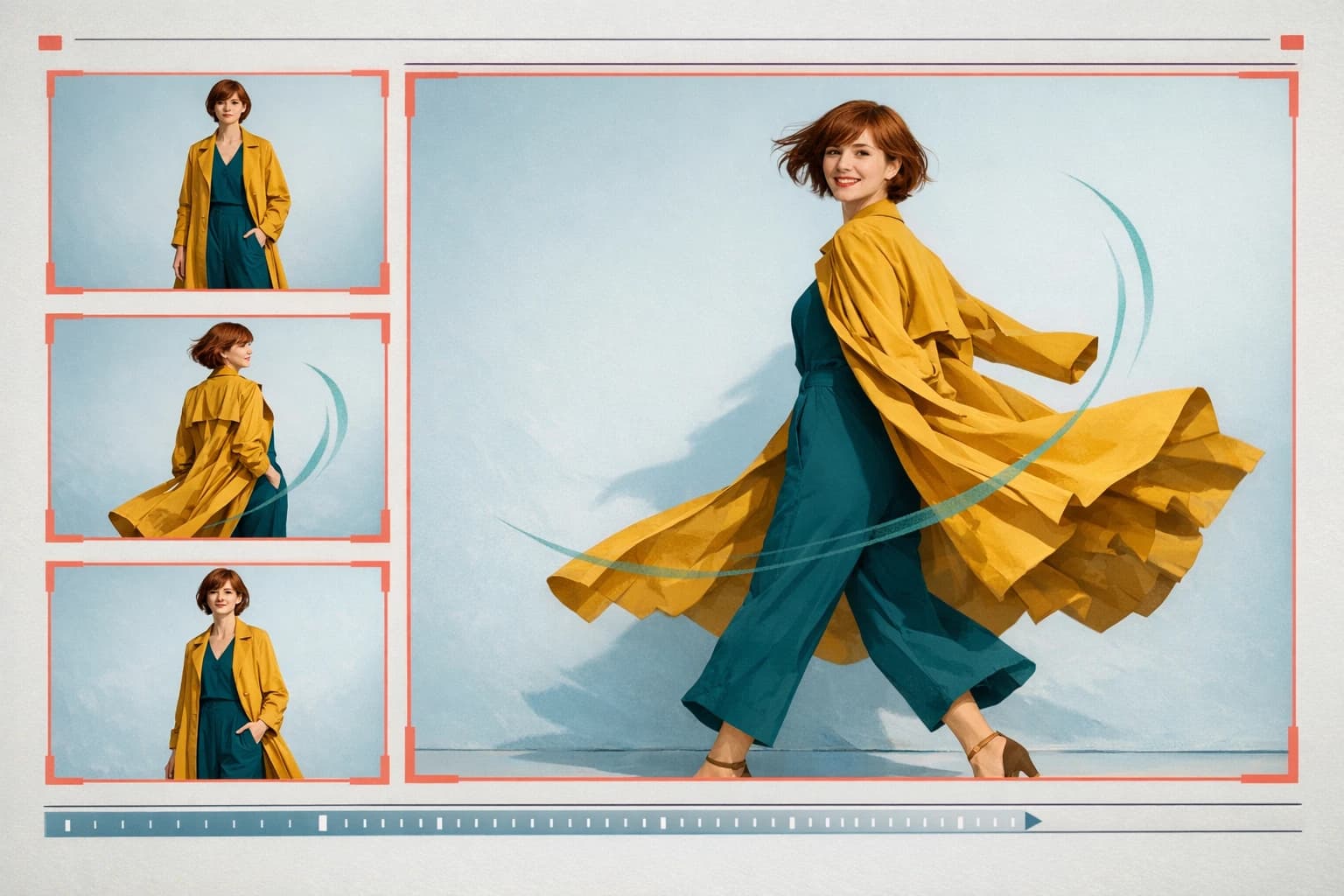
slow clockwise orbit, steady lens
✨ Create Stunning Videos with AI! Access Kling 3.0, Seedance, Veo, Flux, Nano Banana and more in one platform. Start Creating
Upload a photo, illustration, product image, or keyframe. Direct the camera, subject, environment, and pace, then generate a moving scene anchored to your visual.
What is image-to-video AI?
Image-to-video AI turns a still frame into a sequence of moving images. Because the visual source is already defined, you can focus the prompt on what changes: camera behavior, subject movement, atmosphere, pace, and the final moment.
This makes image-to-video useful when composition, product design, character appearance, or art direction should be established before motion begins.
Motion direction
The source image already describes appearance. Use the prompt to define movement with a clear hierarchy.
Ask for a slow push-in, orbit, pan, tilt, crane, tracking shot, handheld follow, or a completely locked camera.
slow clockwise orbit, steady lens
Describe how the person, product, animal, fabric, vehicle, or object should move through the shot.
turns once, coat follows naturally
Add wind, water, clouds, particles, reflections, practical light, background activity, and secondary movement.
gentle wind, soft moving shadows
Set the pace, energy, camera stability, final hold, atmosphere, and sound direction when supported.
restrained pace, calm final pose
Continuity first
Identity-critical scenes work best with a strong image and controlled motion. Preserve face, product shape, clothing, camera height, or composition explicitly, then introduce one dominant movement and supporting environmental detail.
Animate your source imageImage-to-video models
Compare how available models interpret the same frame, then continue with the result that best preserves the source and delivers the intended movement.
 01
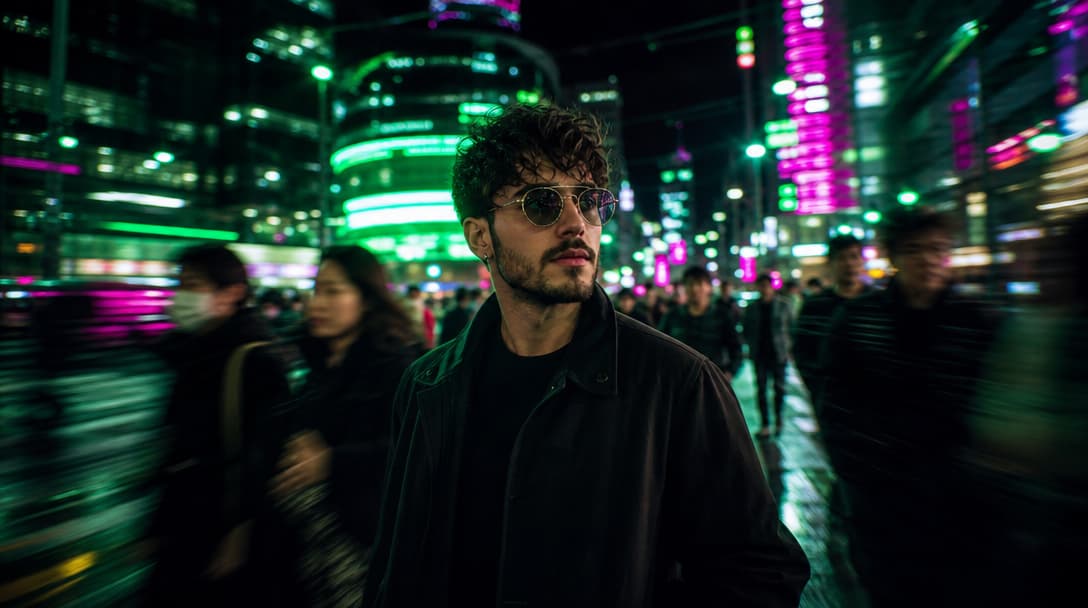
01KlingAI
Best for: Directed cinematic motion
Animate a starting image with detailed movement and camera instructions, with endpoint control available in supported workflows.
 02
02Best for: Polished image-led clips
Turn a strong source frame into a concise scene with visual polish and native sound in supported model configurations.
 03
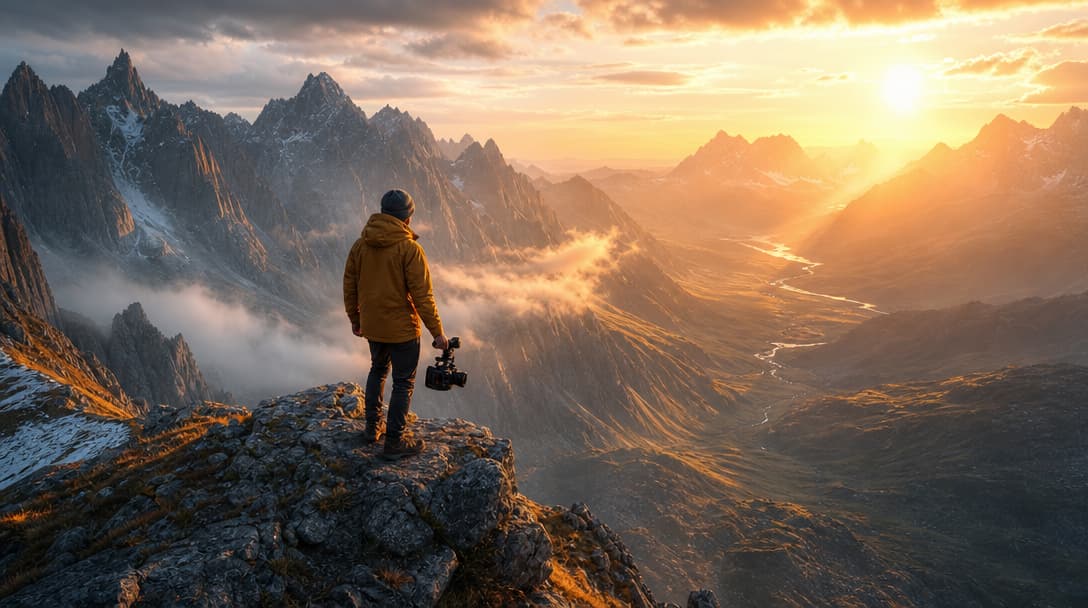
03ByteDance
Best for: Expressive scene animation
Use an image as the visual anchor for coordinated action, atmosphere, and more cinematic sequencing.
 04
04Best for: Fast reference-led iteration
Start from a defined visual and explore motion directions quickly before selecting a shot for further refinement.
 05
05Alibaba
Best for: Additional motion alternatives
Test another interpretation of the same source frame when the production benefits from comparing movement across model families.
How image-to-video works
Step 1
Choose a clean, well-composed photo, product visual, illustration, character frame, or storyboard image with the details you want to preserve.
Step 2
Direct the subject, camera, environment, pace, and final moment. Let the source image define appearance while the prompt defines change over time.
Step 3
Select a model and output format, compare results, revise one motion variable, and continue the strongest clip into editing or sound production.
Image-to-video prompt guide
Use language that explains time: what starts moving, how the camera responds, what remains fixed, and where the shot should end.
The woman turns once at a restrained pace while the mustard coat follows with natural fabric inertia. Slow clockwise camera orbit, consistent face and outfit, fixed sky-blue studio, gentle moving shadow, calm final pose held for one second.
Quality and continuity
Control the variables that cause drift and build from the same visual source.
Avoid redescribing every visual detail. Use the prompt mainly to explain what moves, how the camera behaves, and what must remain stable.
A clear primary action gives the model a stronger temporal structure than several competing movements.
Specify that identity, product shape, clothing, composition, or camera height remains consistent when those details matter.
Clear silhouettes, coherent lighting, realistic hands, and enough space for movement improve the model’s starting information.
Product identity, faces, typography, and precise design often benefit from restrained camera and subject movement.
Keep the visual source fixed while changing one motion instruction so differences remain easy to evaluate.
Image-to-video use cases
Animate existing creative assets when the starting look matters as much as the movement.
Animate light, camera, material, atmosphere, and controlled product movement without rebuilding the initial composition.
Add subtle expression, body movement, hair, fabric, and camera direction while preserving a designed identity.
Turn key art, concept frames, manga-inspired images, and stylized scenes into moving visual moments.
Add camera movement, weather, water, foliage, and environmental life to architectural or destination imagery.
Create vertical openings, loops, transitions, and moving versions of approved still imagery for more channels.
Test how a composition might move before investing in a longer sequence or traditional production.
Image-to-video FAQ
Practical guidance for source images, motion prompts, models, continuity, audio, and post-production.
An AI image-to-video generator uses a still image as the visual starting point for a moving clip. The source defines the subject, composition, style, and lighting, while the prompt directs camera movement, subject action, environmental motion, pacing, and sound where supported.
Upload the photo to HighReach Image to Video, choose a model, and describe what should move. Include camera direction, subject action, environmental motion, pace, and any details that should remain consistent. Select the format and generate the first variation.
Use images with clear subjects, coherent lighting, readable depth, clean silhouettes, and enough visual space for the intended movement. Start with a high-quality frame and correct obvious image problems before animation.
Text-to-video invents the visual scene from written direction. Image-to-video begins with an existing composition, which gives you more control over subject appearance, framing, color, product identity, and art direction. Use text when the scene is undefined and an image when the look is already established.
A strong source image, restrained movement, clear continuity instructions, and a suitable model can improve preservation. Complex action, large camera moves, occlusion, and long durations increase the chance of visual drift, so identity-critical work should begin with controlled motion.
Yes. Generate a character, product scene, environment, storyboard frame, or anime image in HighReach, refine it, and then send that image to Image to Video. This creates a connected image-development and video-generation workflow.
Some models support native audio. HighReach also offers separate workflows for music, sound effects, voice-over, dubbing, and lip-sync so a silent visual can continue through sound production.
Yes. Depending on the workflow, you can edit with prompts, extend the clip, replace a background or character, relight, apply motion, lip-sync, add audio, and upscale the final result.
Your image is already the first frame
Upload a finished visual, describe how the scene changes over time, and generate a moving shot with HighReach.