01
Plain words work
Say it the way you would to a designer. Chat Mode turns the request into a model choice, a detailed prompt and the right settings.
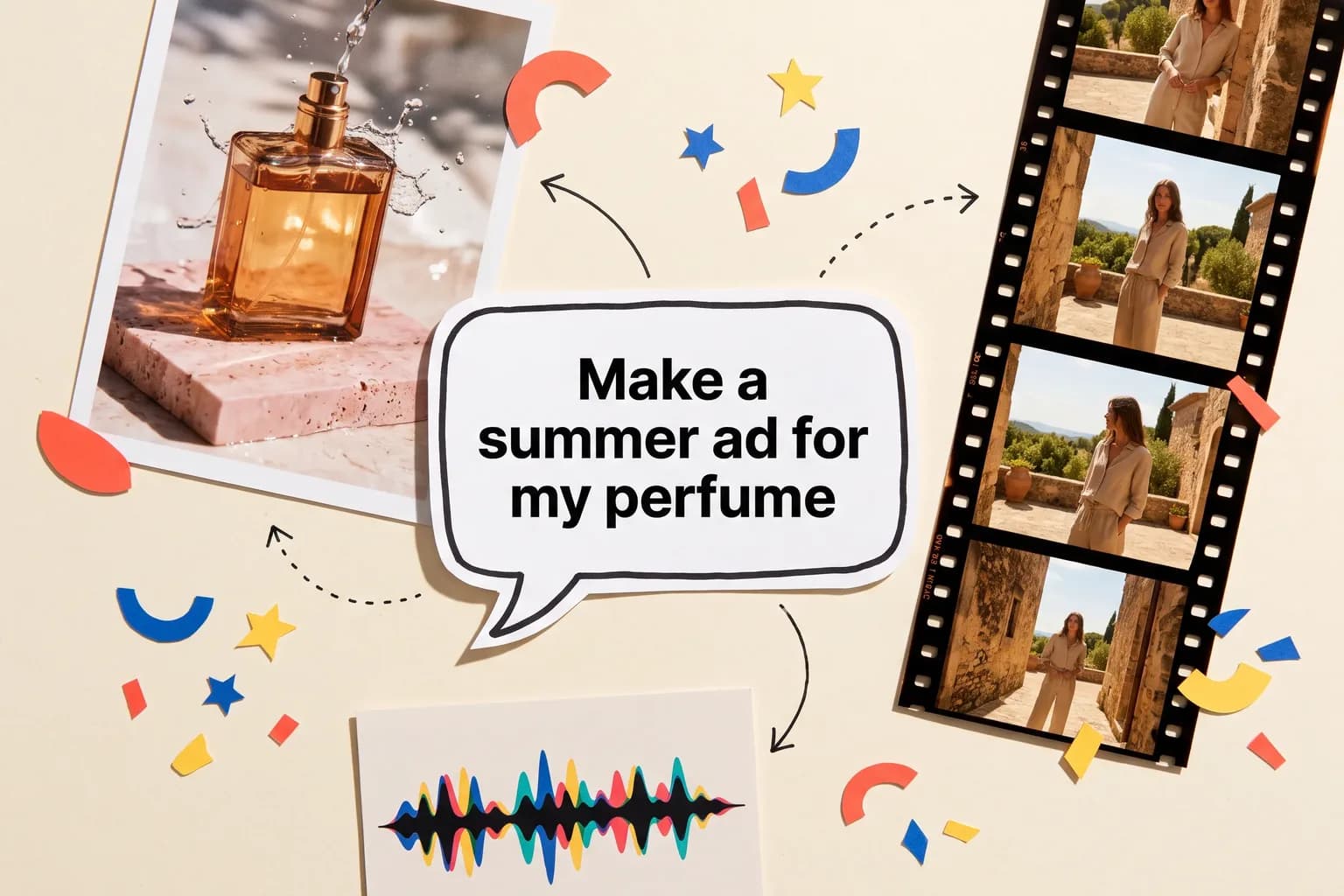
“Film my perfume box on a marble table”
✨ Create Stunning Videos with AI! Access Kling 3.0, Seedance, Veo, Flux, Nano Banana and more in one platform. Start Creating
Describe what you want in your own words. Chat Mode picks the model, writes the prompt and sets the format, then shows you the cost before anything runs. Images, videos, voice-overs and music, all from one chat.
What is Chat Mode?
Picking between dozens of image, video and audio models, then learning each one's prompt style and settings, slows everyone down. Chat Mode does that part for you. You say what you need, and it chooses the model that fits the task and your quality preference.
Every answer is a plan you can check: the model, the prompt it wrote, the length and shape, and the exact credit cost. Adjust anything, press Generate, and keep refining in the same conversation.
Why creators use it
The power of every HighReach tool, without the setup.
Say it the way you would to a designer. Chat Mode turns the request into a model choice, a detailed prompt and the right settings.
“Film my perfume box on a marble table”
Images, image-to-video, text-to-video, voice-overs and music all come from the same conversation, so a campaign stays in one place.
Image → video → voice-over
Every plan shows the model and its credit cost first. Nothing runs and nothing is charged until you press Generate.
MiniMax H3 Max Turbo · 40 credits
See a plan
A short request becomes a complete plan with the model, a detailed prompt, the format and the cost. Change anything on the card, or just press Generate.
Try it nowA matte black perfume box slowly rotating on a white Carrara marble table, soft morning window light, gentle shadows, shallow depth of field, slow orbit camera, premium product commercial.
Bring ideas to life by chatting
Use the AI image generator, video generator and audio tools without opening each one.
No prompt engineering
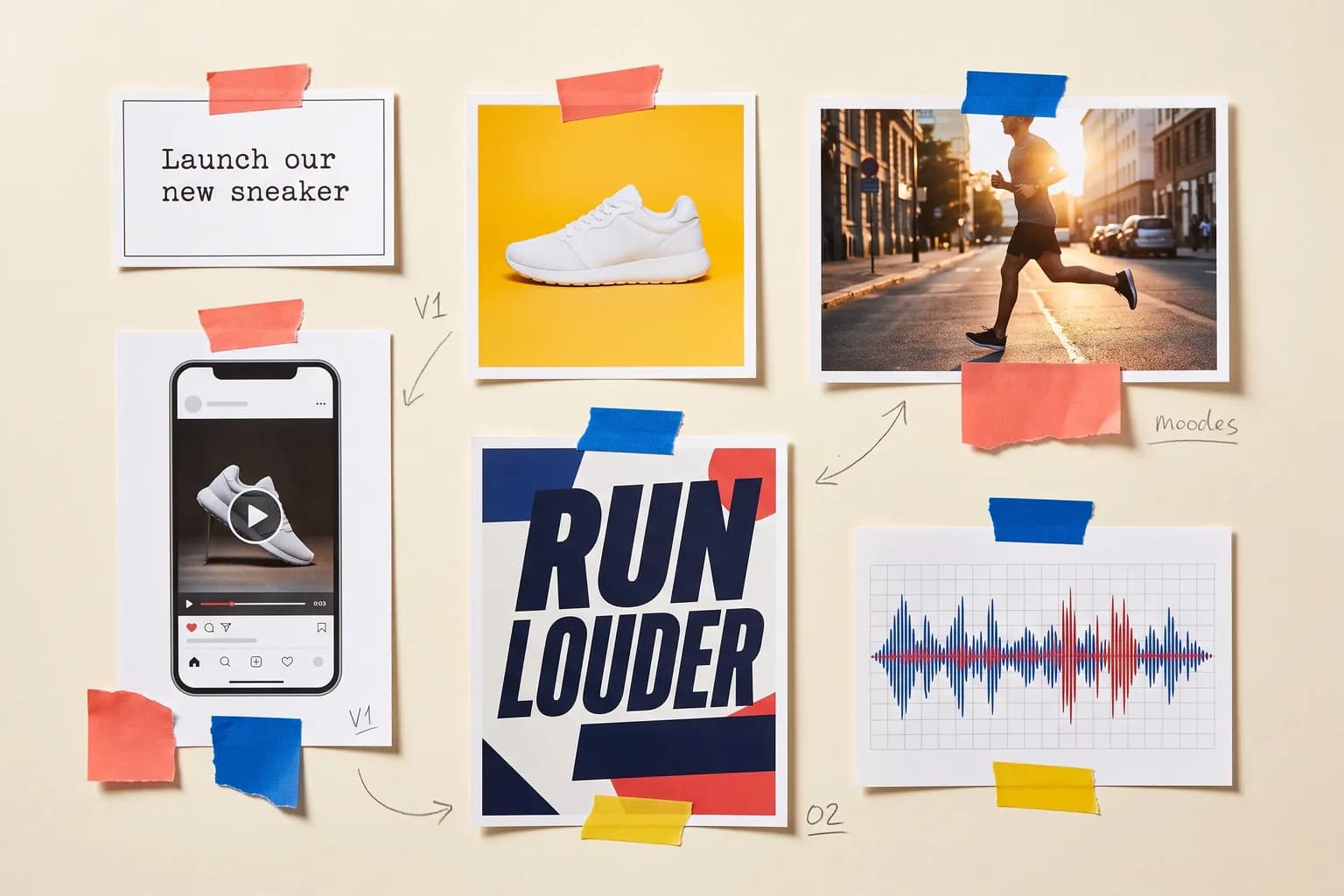
Chat Mode writes the full prompt for you: subject, setting, lighting, camera and motion. It picks the model that fits the job and sets the format and length. If you already know what you want, just say it, like “a 10 second 9:16 video with Kling”.
Refine by chat
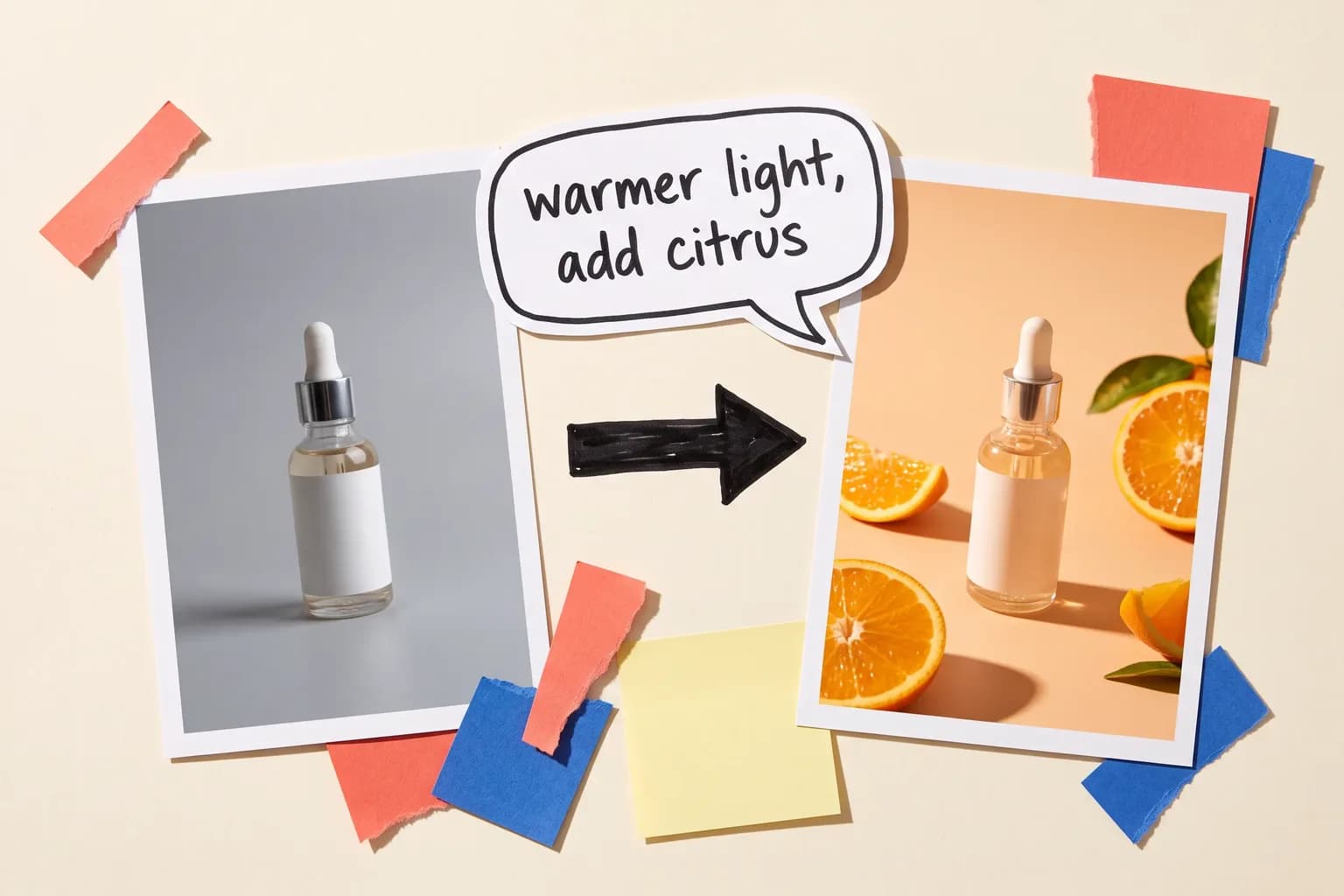
Point at any earlier result and describe the change: warmer light, a new background, a different headline, or animate the second image into a vertical video. Chat Mode keeps the context of the conversation and plans the next step from there.
Right format, every time
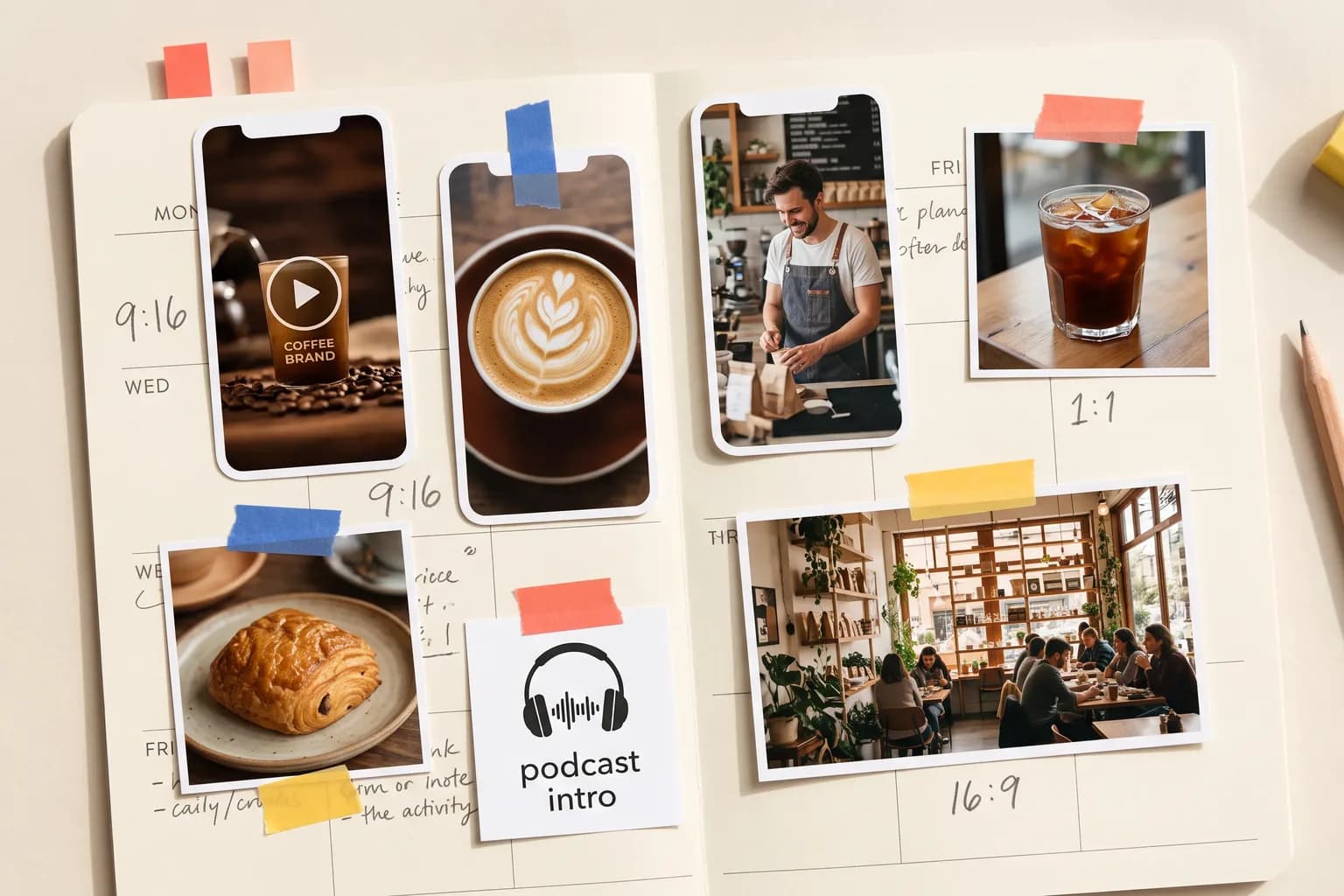
Mention where the content is going and Chat Mode sets the shape: 9:16 for Reels and TikTok, 1:1 or 4:5 for the feed, 16:9 for YouTube. You can still change the length and shape on the plan card before you generate.
How to use Chat Mode
Step 1
Type what you want on the Home page or in Chat. Attach product photos or references with the + button and pick Economy, Balanced or Best quality.
Step 2
Chat Mode shows the model, the prompt it wrote and the credit cost. Swap the model, change the length or shape, or edit the prompt, then press Generate.
Step 3
Ask for changes or the next asset in the same chat. Every result lands in the Generations panel and your Media library, ready to download or reuse.
Models in the mix
Chat Mode chooses from leading image, video, voice and music models, and you can always switch before you generate.
 01
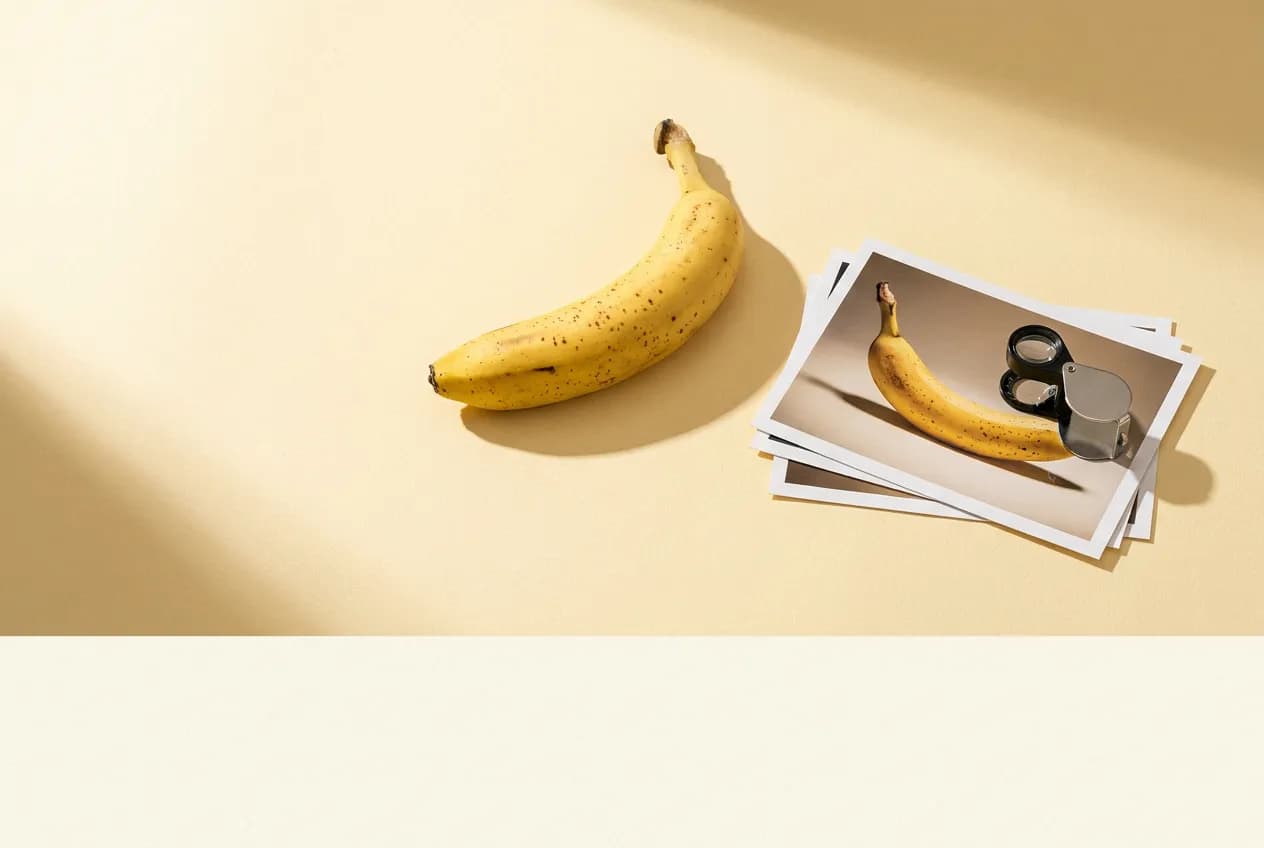
MiniMax
Best for: Everyday video
The default for video in chat: very low cost, strong prompt adherence and native sound for social clips and ads.
 02
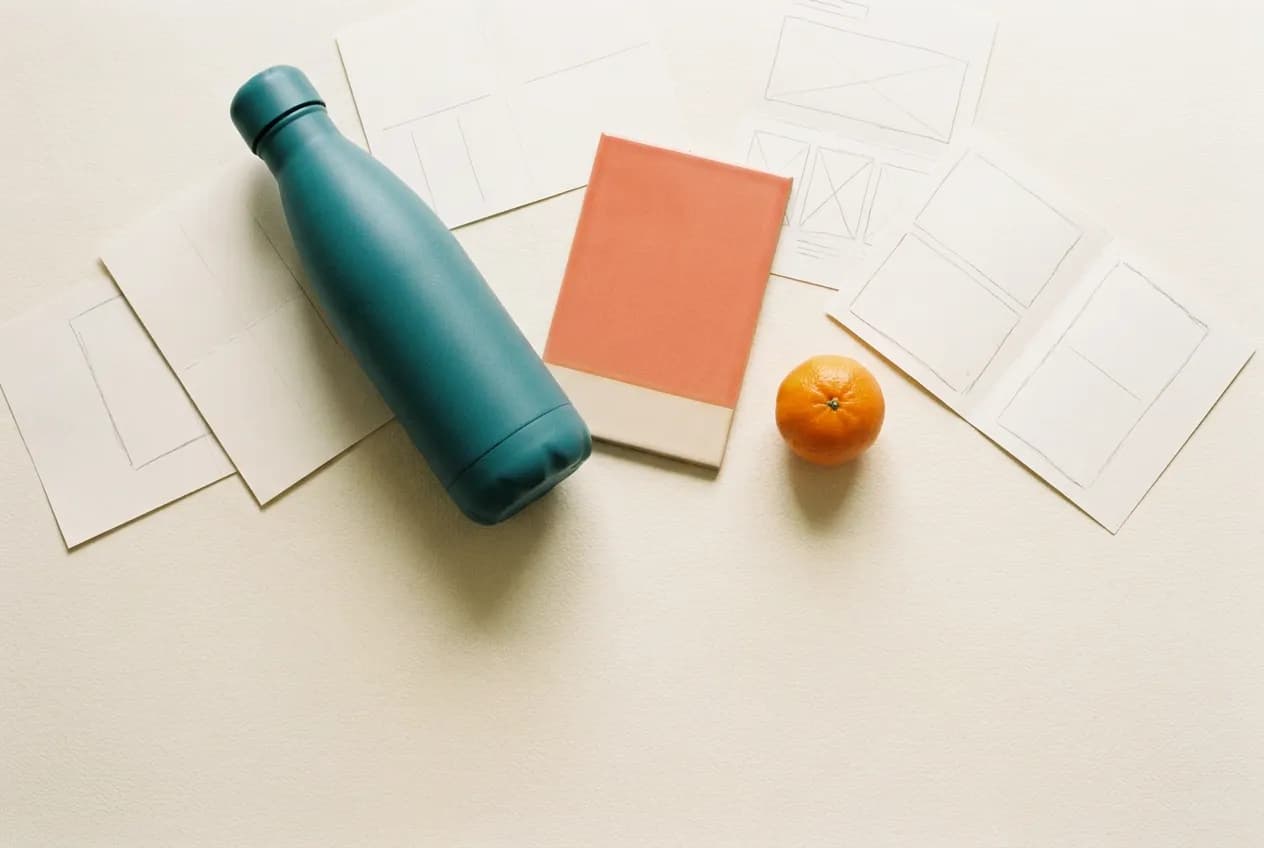
Best for: Images and edits
An all-round image model that keeps products and people consistent when you attach references.
 03
OpenAI
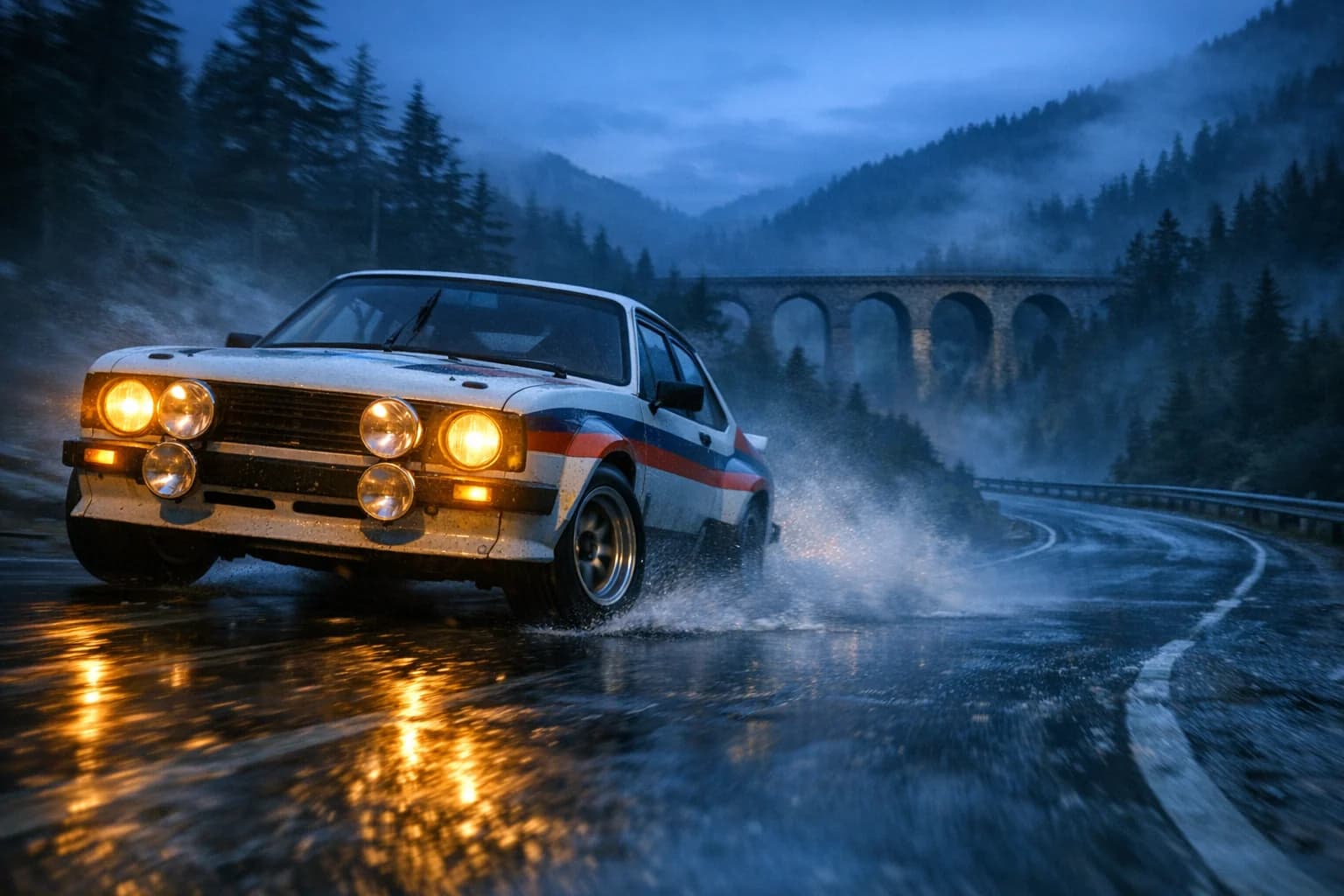
Best for: Posters and text
Chosen when the image needs crisp headlines, labels or layouts, like posters, thumbnails and ads.
 04
KlingAI
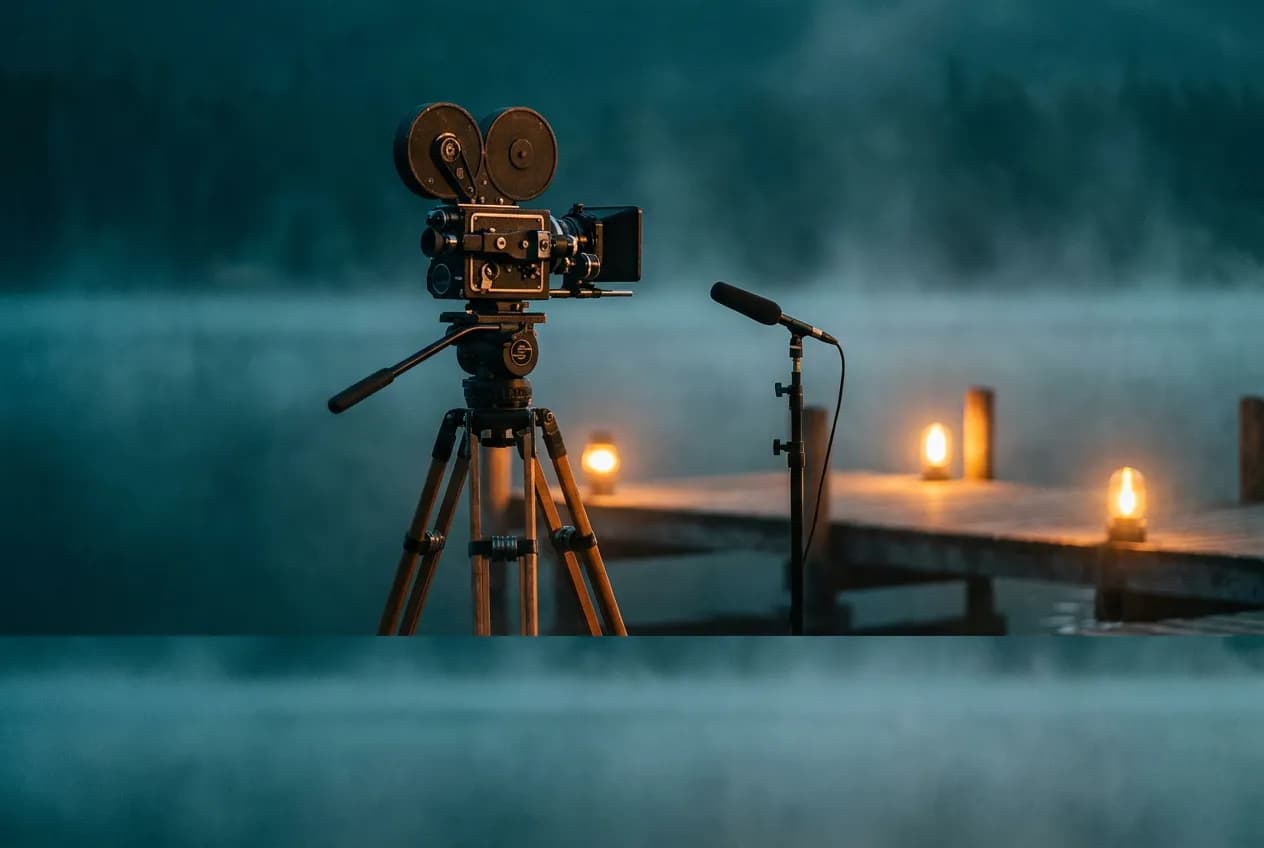
Best for: Cinematic motion
Used when a shot depends on deliberate, realistic movement and camera direction.
 05
Best for: Dialogue and sound
Picked for premium clips with people talking, dialogue and rich ambient audio.
 06
Mureka
Best for: Songs and music
Writes full songs and background tracks from a mood, genre or lyrics.
Best uses
From a first AI image to a full weekly content calendar.
Make your first AI image or video
Describe the idea. Chat Mode handles the prompt, the model and the settings.
Turn one brief into a campaign
Ask for the hero image, then the video, the poster and the voice-over, one message at a time.
Product shots from your own photos
Attach a product photo and get studio shots, lifestyle scenes and seasonal concepts.
Animate stills into short videos
Turn any image from the chat into a vertical clip with camera motion and sound.
Voice-overs and background music
Write a script or a mood and get a natural voice-over or a track for your edit.
Post fresh content every week
Keep one chat per brand and come back for new posts, reels and ads in the same style.
Attach product photos and references, or send any past generation to chat with “Use in chat”.
Set your quality preference once and Chat Mode weighs cost against quality for every request.
Results collect in the Generations panel beside the chat, filtered to this chat or all chats.
Chat Mode FAQ
Credits, models, formats, your own images and where results are saved.
Chat Mode lets you create by chatting. Describe what you want and HighReach picks the model, writes the prompt, sets the options and shows you a plan with its credit cost. Press Generate and the result appears in the chat.
No. Credits are only used when you press Generate, and the cost is shown on the plan before anything runs. Each plan includes a daily allowance of chat messages.
Yes. Name a model in your message, or switch it on the plan card before you generate. The credit cost updates when you change it.
Images, image edits, image-to-video, text-to-video, voice-overs and music, using leading models such as Nano Banana, GPT Image, Kling, Veo, Seedance, MiniMax, ElevenLabs and Mureka.
Describe the change in plain words, such as “make the background warmer” or “animate the second image”. Chat Mode refers back to the earlier result and plans the next step.
No. Chat Mode expands short ideas into detailed prompts. You can always review and edit the prompt before generating if you want more control.
Yes. Mention them in your message, or change Length and Shape on the plan card. Anything you leave out is chosen for you based on the model and where the content is going.
Yes. Attach product photos, portraits or references with the + button, and use “Use in chat” on any past generation to bring it into a conversation.
No. Every plan has an “Open in” link to the full Image, Video or Audio tool when you want every setting by hand.
Every result is saved to your HighReach Media library and shown in the Generations panel next to the chat, where you can preview, download or delete it.
Your next campaign starts with a message
Open Chat Mode, describe your idea in plain words and review the plan before anything runs.