✨ Create Stunning Videos with AI!Access Kling 3.0, Seedance, Veo, Flux, Nano Banana and more in one platform. Start Creating

Photo to emotional motion

AI Hugging VideoGenerator

Turn one shared photo into a warm, natural AI hug video. Direct a family reunion, friendship embrace, comforting moment, or original-character scene in HighReach Frame to Video.

One shared photoNatural embraceConsent required

AI hug example

5 sec

One photo, one warm reunion

Generated with MiniMax H3

What is an AI hugging video generator?

A still relationship, brought gently into motion.

An AI hugging video generator uses image-to-video generation to animate people already visible in a source image. From one shared photo, the model predicts a short approach, arm movement, body contact, facial expression, fabric motion, and release while attempting to preserve the people and setting in the original frame.

HighReach connects this focused AI hug effect to a complete video workspace. You can choose a current video model, write a specific hugging prompt, control duration and output settings, review the credit cost before generation, create alternatives, and keep the most believable result for a larger edit.

AI hug video ideas

Direct the relationship, timing, and emotion.

A precise prompt tells the model who moves first, where arms should land, how long the embrace lasts, and what expression follows.

Two fictional adult family members preparing for a hugNatural motion01

Warm family reunion

A restrained step forward, clean shoulder placement, a brief embrace, and relaxed smiles in a familiar setting.

View example prompt

The two adults smile warmly, take one natural step toward each other, and share a brief family hug. Preserve both faces, clothing, proportions, room, and sunlight. Arms wrap cleanly around shoulders and upper backs. Stable camera, no kissing, no merged limbs.
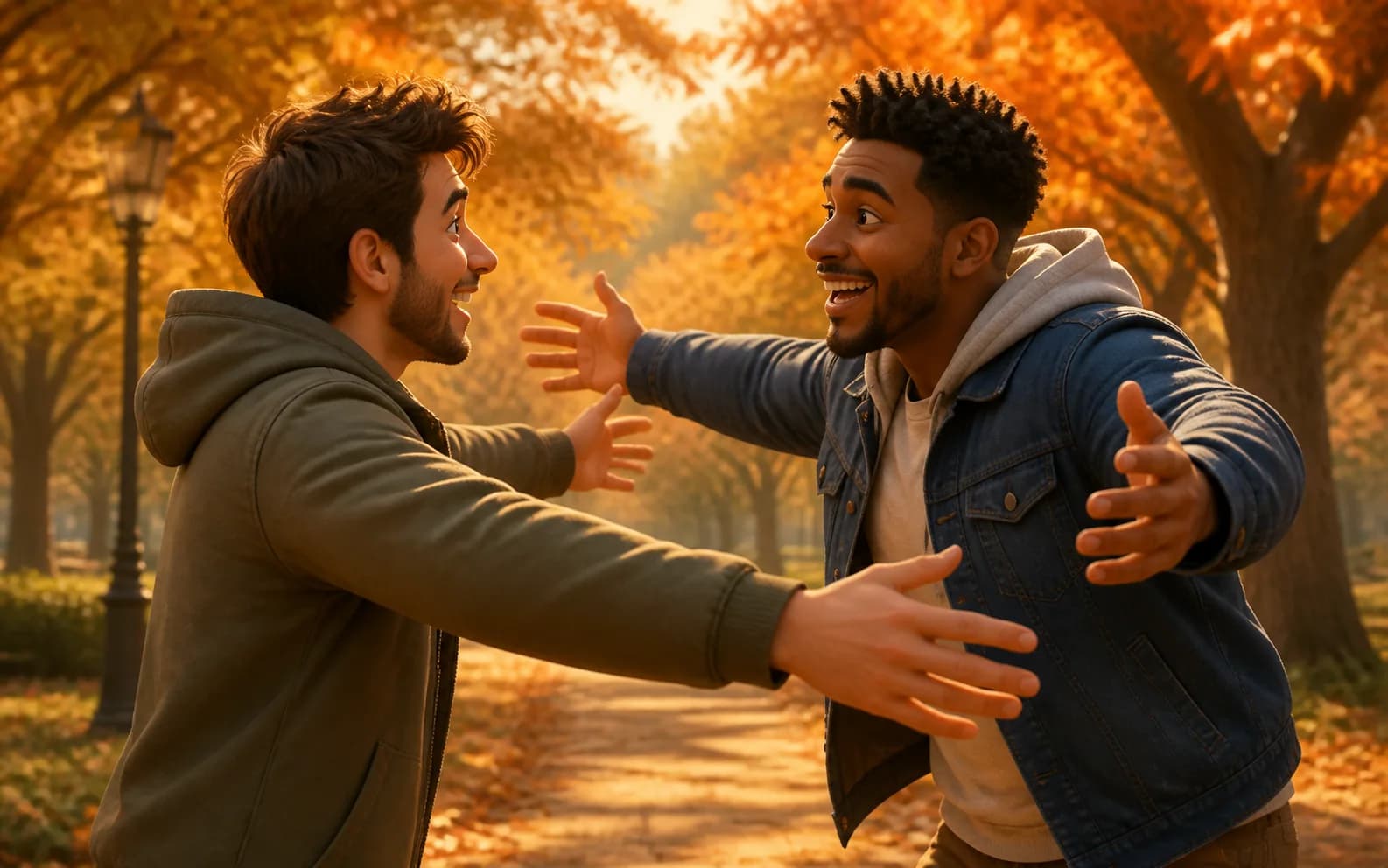
Two fictional adult friends opening their arms beneath autumn treesJoyful02

Best-friend reunion

Open body language and a slightly faster embrace work well for friendship, travel, and reunion edits.

View example prompt

The two adult friends step forward and share an enthusiastic but natural reunion hug, then pull back laughing. Preserve character designs, outfits, scale, and autumn park. Gentle handheld drift, drifting leaves, clean arms and hands.

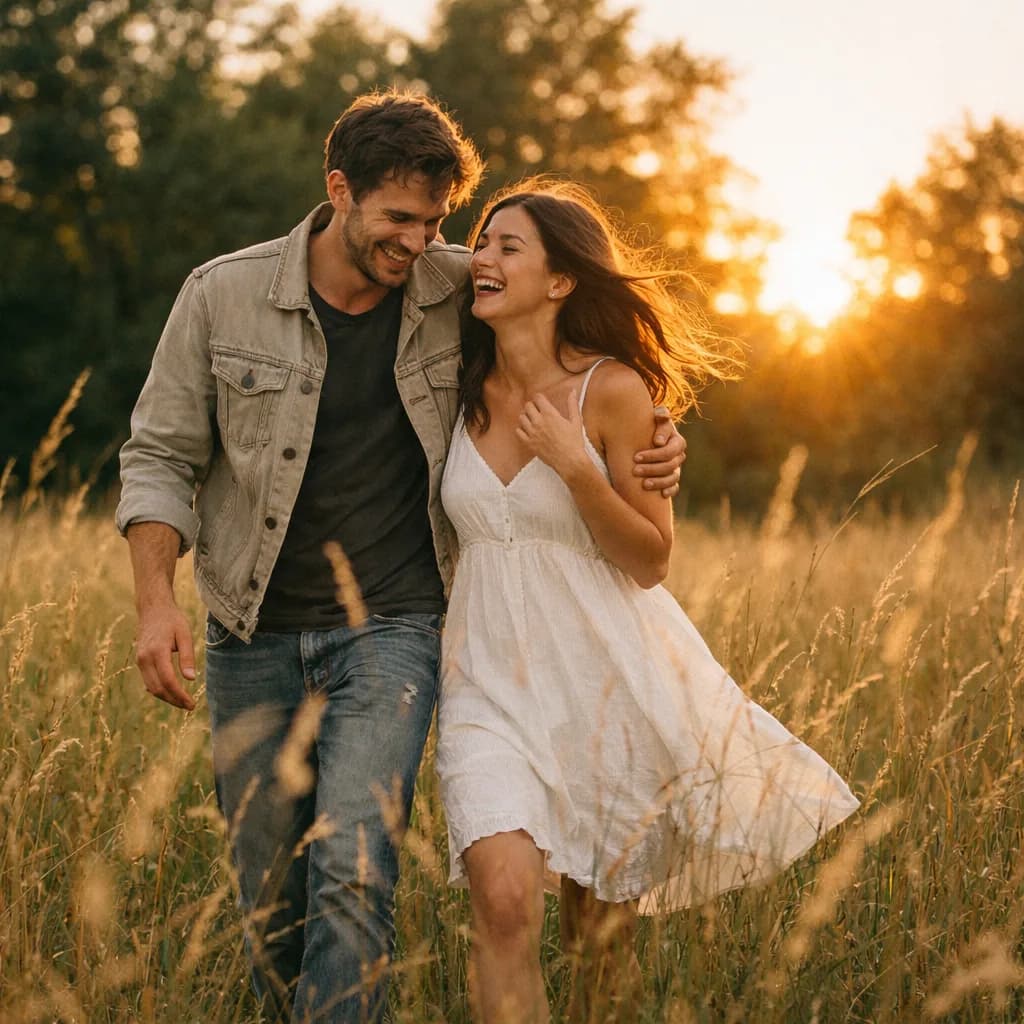
Two fictional adults together in a golden-hour fieldSubtle03

Gentle side hug

Use smaller shoulder and head movement when identity consistency matters more than dramatic action.

View example prompt

The two adults move slightly closer and share a gentle side hug while looking toward the camera. Preserve both identities and the golden-hour field. Subtle breathing, natural hand placement, light wind, stable composition, no kissing.

Prepare a reliable source image

The best AI hugs begin before generation.

A clean shared composition gives the model better information about identity, scale, distance, and where each person can move.

Use one shared frame

Start with both people already in the same image. HighReach Frame to Video animates that composition; it does not automatically merge two unrelated portraits.

Match scale and depth

Keep both people at a similar camera distance with visible shoulders and enough space between them for a believable step and arm movement.

Keep faces unobstructed

Sharp faces, consistent lighting, and simple backgrounds reduce identity drift while bodies overlap during the embrace.

How to make an AI hug video

Upload, describe, and review.

1

Step 1

Upload a shared photo

Choose a rights-cleared image with both people visible, similarly scaled, and positioned with room to move toward each other.

2

Step 2

Describe the embrace

Specify who moves first, whether the hug is gentle or energetic, arm placement, facial expression, camera behavior, and the ending pose.

3

Step 3

Generate and inspect

Choose a video model and settings, review the displayed credit cost, then check faces, hands, arms, clothing, and background continuity.

Creative uses

Warm moments for personal and original stories.

Use an AI hugging video as one controlled shot in a memory edit, reunion concept, character story, or social sequence.

01

Family reunion videos

Animate a consented shared family photo into a brief embrace for an anniversary, birthday, or private memory montage.

02

Friendship and travel edits

Create a joyful reunion shot for friends who live apart or as a transition inside a travel recap.

03

Wedding and celebration stories

Add a parent, sibling, or close-friend hug to a larger celebration storyboard without staging another shoot.

04

Original character scenes

Animate fictional or rights-cleared characters in a reunion, farewell, comfort, or reconciliation moment.

05

Illustrated and anime hugs

Begin with original artwork and ask the model to preserve line work, proportions, outfits, and environment while adding subtle contact.

06

Emotional storyboards

Test blocking, pacing, camera distance, and emotional timing before building a longer generated scene sequence.

Respectful AI memories

Permission matters as much as visual quality.

A generated hug can imply a relationship or event that never occurred. Use authorized images and avoid presenting synthetic memories as documentary evidence.

Use photos you own or have permission to animate
Confirm depicted people consent to the transformation and intended use
Do not fabricate reunions, relationships, endorsements, or news events
Avoid public figures and private individuals without explicit permission
Treat memorial and deceased-person imagery with family sensitivity
Disclose AI generation when viewers could reasonably be misled

AI hugging video generator FAQ

Practical questions, answered.

Source photos, prompts, face consistency, pricing, memorial use, consent, and output quality.

01What is an AI hugging video generator?

An AI hugging video generator is an image-to-video workflow that adds approach, arm, body, expression, and camera motion to a still image so the depicted subjects appear to share a hug.

02How do I make two people hug with AI?

Open HighReach Frame to Video, upload one authorized image containing both people, describe the type and timing of the embrace, choose a video model, review the settings and cost, then generate and inspect the result.

03Can I upload two separate portraits?

This HighReach workflow currently works best with one shared source image containing both people. If you have separate portraits, first create a rights-cleared combined keyframe with consistent scale, perspective, and lighting, then animate that image.

04What photo works best for an AI hug video?

Use a sharp shared image with both faces visible, subjects at a similar scale and depth, visible shoulders or upper bodies, simple arm positions, and enough space between them for movement.

05Will the AI preserve both faces?

The prompt can request identity preservation, but overlapping bodies and changing head angles can still cause facial drift. Clean source images, restrained movement, stable cameras, and multiple takes usually improve reliability.

06Can I animate an old family or memorial photo?

Only use an image when you have the necessary rights and the intended use respects the depicted person and their family. Clearly disclose that the motion is AI-generated, especially when the result could be mistaken for historical footage.

07Is the AI hug video generator free?

HighReach displays the estimated credit cost before you submit a generation. Trial credits, model prices, duration, and resolution can change, so check the current Generate button and account balance.

08Can I use an AI hugging video commercially?

Commercial use depends on your rights to the source image, releases from depicted people, the chosen model terms, music rights, and applicable law. Do not use a synthetic embrace to imply a real relationship or endorsement.

Animate an authorized shared photo

Turn one frame into a warm embrace.

Open Frame to Video, upload a clean shared image, describe the hug, select a current model, and create a short emotional shot.