✨ Create Stunning Videos with AI! Access Kling 3.0, Seedance, Veo, Flux, Nano Banana and more in one platform. Start Creating
Kling AIvideo generator
Generate videos from text or images, guide the first and last frame, transfer motion, build multi-shot sequences, and edit clips with Kling models inside one HighReach workflow.
Kling 3.0, Kling O3, motion control, and selected earlier models
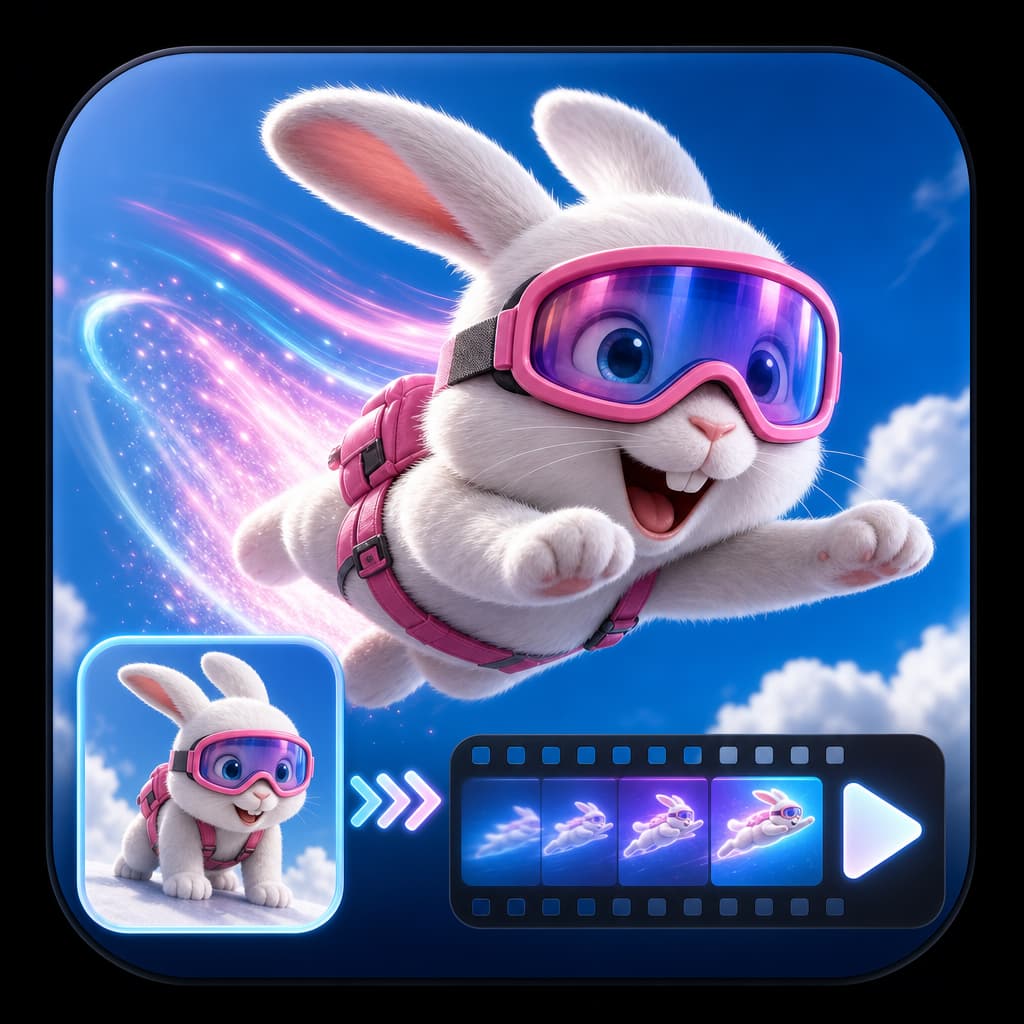
Animate the starting frame with a slow orbit, realistic surface reflections, controlled studio light, and a clean final product hold.
Core workflows
Text, image, motion, edit
Popular models
Kling 3.0 and O3
Social formats
16:9, 9:16, and 1:1
Best for
Ads, stories, product video
Four ways to create
One Kling model family. Multiple production paths.
Start with the material you already have, then choose the Kling workflow that gives the model the clearest creative brief.
Text to video
Direct a complete shot with words
Define the action, camera, lighting, atmosphere, and audio without supplying a starting frame.
Open workflowImage to video
Turn a still into controlled motion
Animate a product, person, illustration, or campaign visual while preserving the source composition.
Open workflowMotion control
Transfer a reference performance
Use a subject image and motion clip to direct gestures, movement, and performance.
Open workflowVideo editing
Transform an existing clip
Use Kling O3 Pro to restyle or alter a video while telling the model which details to preserve.
Open workflowKling text to video
Move from a written shot list to finished motion.
Kling 3.0 can turn a detailed scene description into a video without a source frame. HighReach keeps the production controls together, so you can choose the format and duration, decide whether to generate audio, and create variants for different campaign directions.
Prompt example
“Wide cinematic product reveal in a rain-washed city at blue hour. The camera tracks forward at street level as reflections move across the product surface. Premium commercial lighting, restrained motion, realistic materials, no text.”
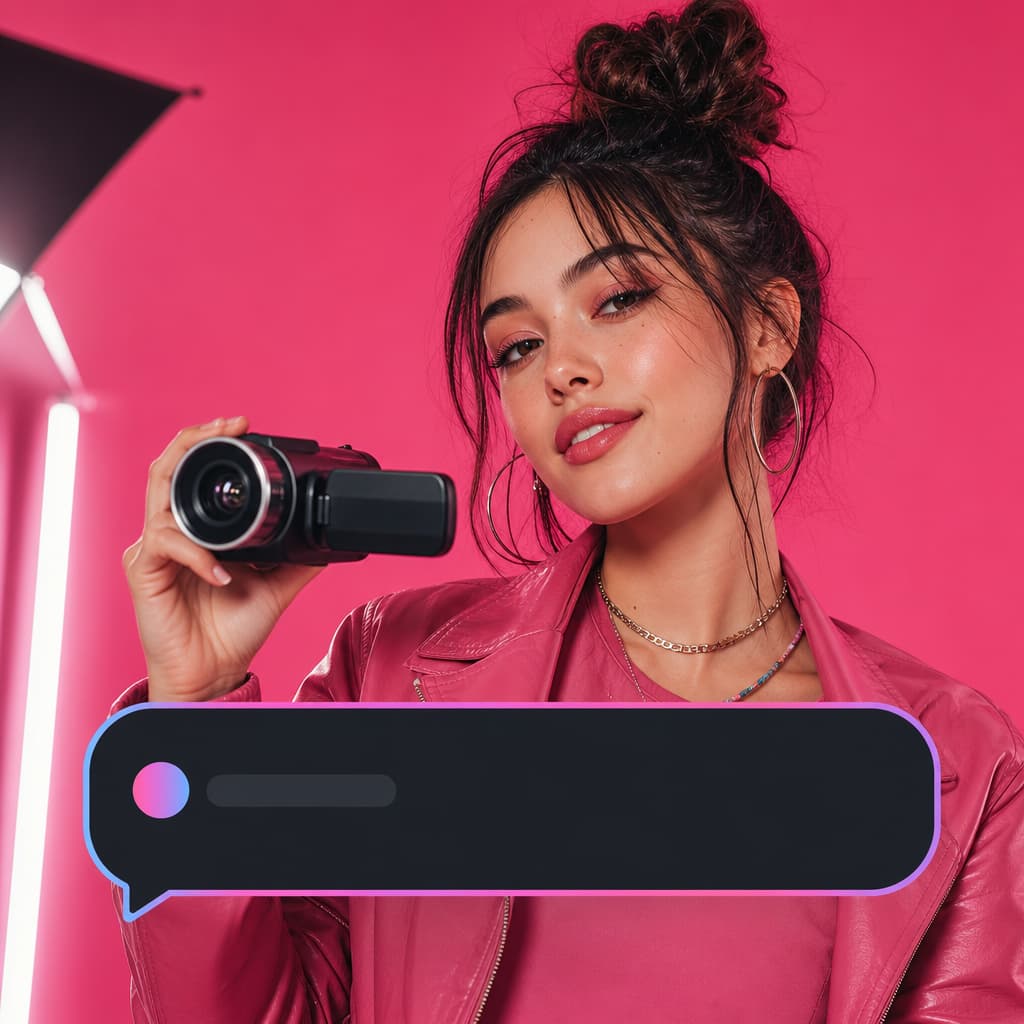
Direct the motion while HighReach handles the model inputs and generation history.
Kling image to video
Animate the image without surrendering the art direction.
A starting frame gives Kling a concrete subject, palette, and composition. Add an optional end frame on supported models to guide where the shot should land, then use the prompt to control motion between those moments.
Prompt example
“Keep the product design, color, logo placement, and proportions unchanged. Slowly orbit from left to right while soft window light travels across the surface. End on a clean centered hero composition.”
Direct the motion while HighReach handles the model inputs and generation history.
Multi-shot storytelling
Build a sequence of beats, not one random movement.
Supported Kling 3.0 and O3 models expose multi-shot timing in HighReach. Plan an opening hook, a product interaction, and a final hold inside one generation so the result follows a clearer advertising or storytelling arc.
Prompt example
“Shot 1: macro reveal as condensation moves across the bottle. Shot 2: quick pullback to the full product on stone. Shot 3: slow final push-in with the label sharp and the background softly defocused.”
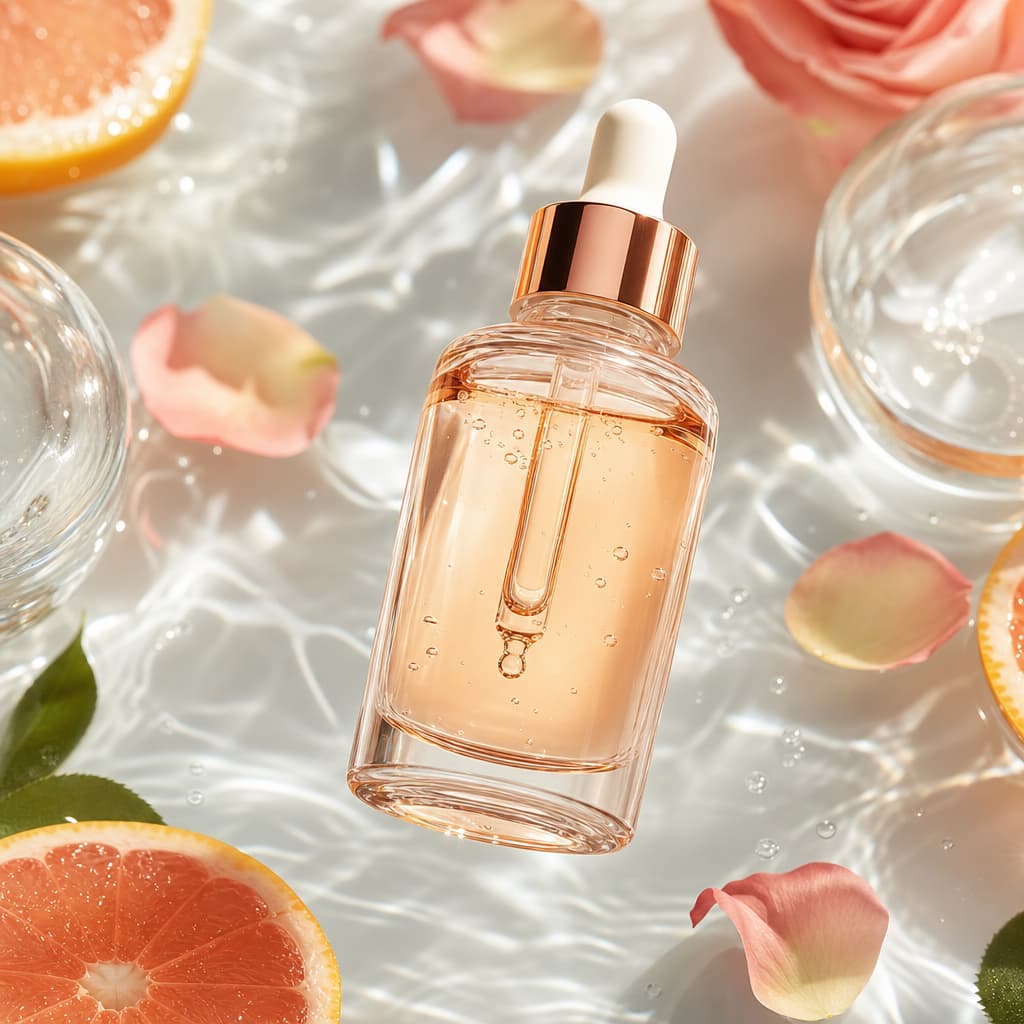
Direct the motion while HighReach handles the model inputs and generation history.
Kling motion control
Give a new character the movement you already like.
Motion Sync combines a character image with a reference performance. Kling follows the motion while the character image guides appearance, making the workflow useful for dance, gestures, performance concepts, and character-led social content.
Prompt example
“Transfer the full-body movement and timing from the reference clip. Preserve the subject's face, clothing, body proportions, and visual identity. Keep motion fluid and the camera stable.”
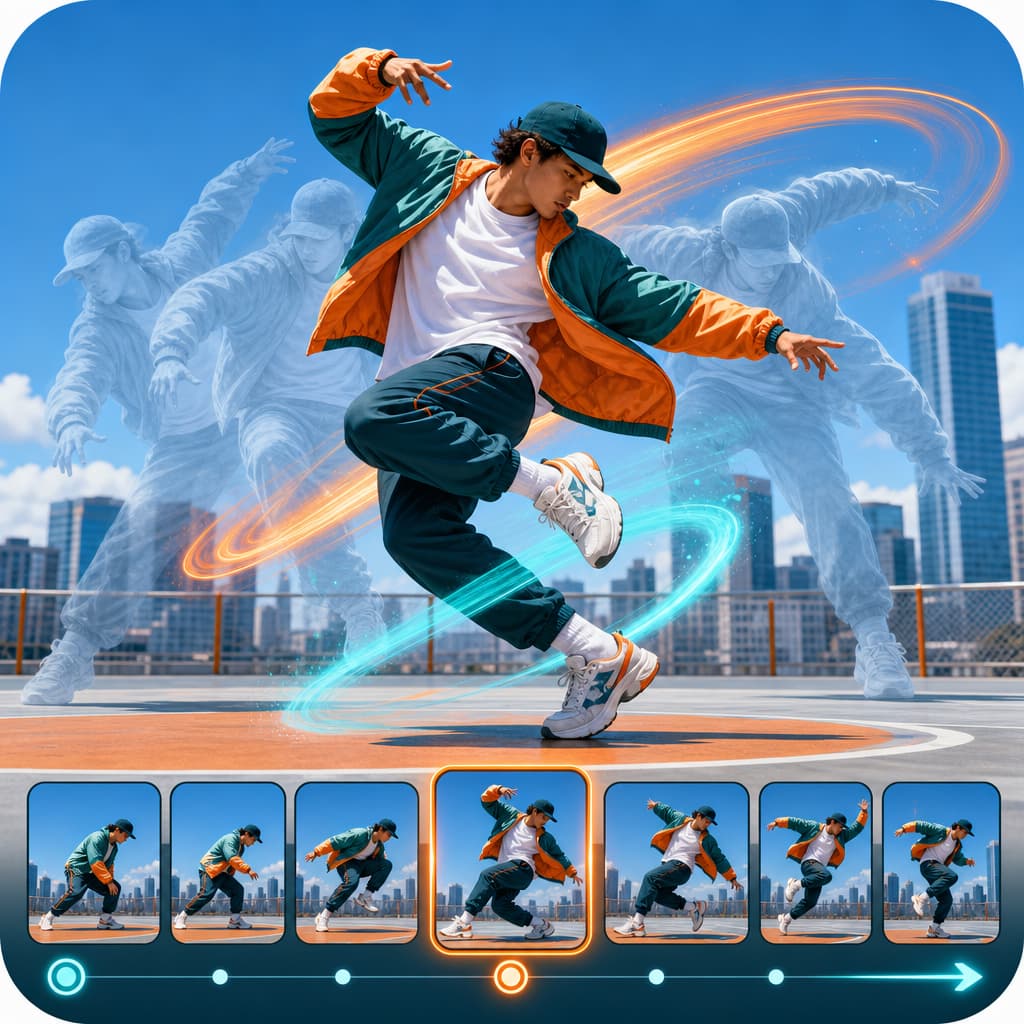
Direct the motion while HighReach handles the model inputs and generation history.
Kling O3 video editing
Change the creative direction without rebuilding the clip.
Upload an existing video and use a precise edit instruction to alter the environment, visual treatment, or scene details. Separating the requested change from the protected details gives Kling O3 a clearer editing brief.
Prompt example
“Keep the subject, performance, framing, camera motion, and timing unchanged. Replace only the environment with a clean premium studio and match the original perspective, contact shadows, and lighting direction.”
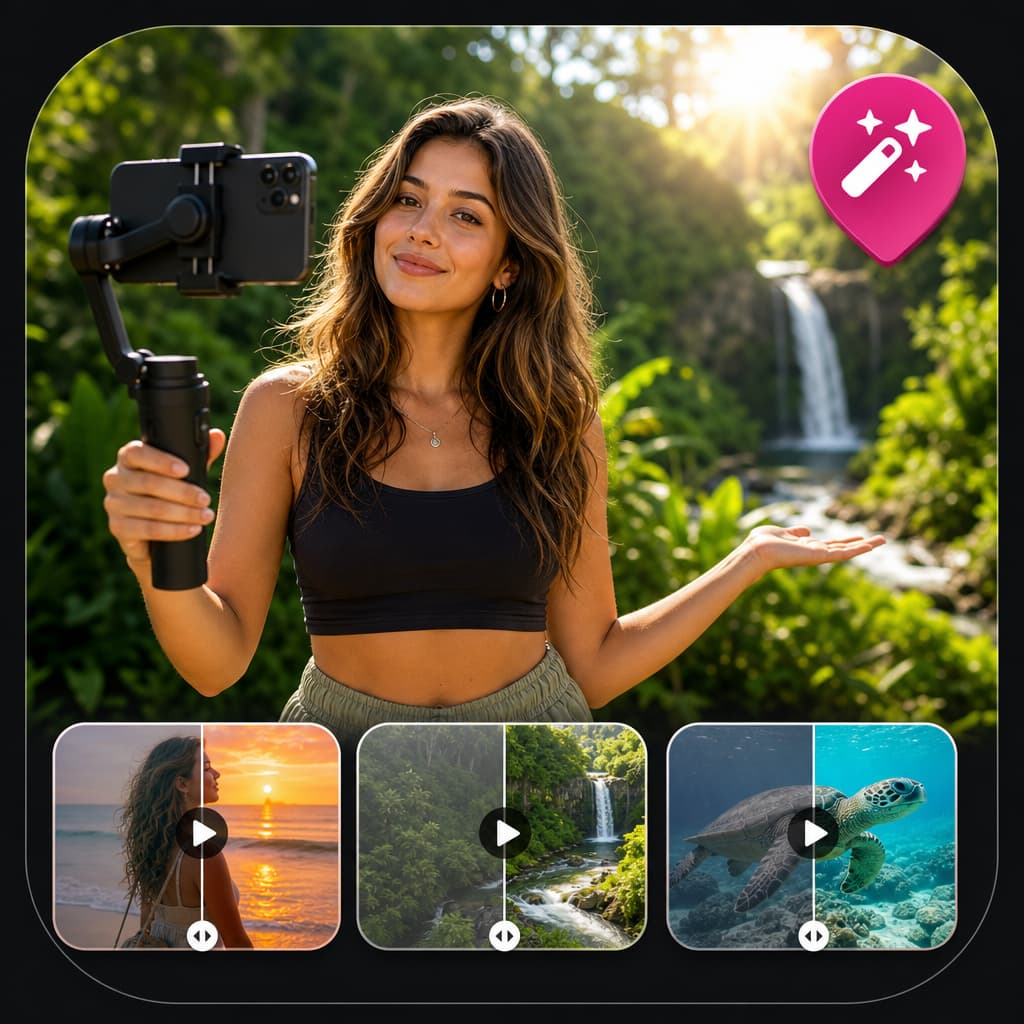
Direct the motion while HighReach handles the model inputs and generation history.
Choose your Kling model
Match model cost and control to the shot.
HighReach keeps multiple Kling generations available because the newest or most expensive endpoint is not automatically the right choice for every draft.
Highest-fidelity text and image generation
Kling 3.0 Pro
Start and end frames, multi-shot timing, audio, negative prompts, and flexible 3-15 second clips.
Lower-cost Kling 3.0 production
Kling 3.0 Standard
The same core text, frame, multi-shot, audio, and format controls with a more economical credit profile.
Image animation and video editing
Kling O3 Pro
Use O3 for prompt-optional image-to-video creation or select its edit workflow for source-video transformations.
Alternative quality, speed, and cost points
Kling 2.6 and 2.5 Turbo
Earlier Kling models remain useful when a particular workflow or budget matters more than using the newest model.
Kling AI use cases
Built for more than cinematic experiments.
Use Kling for concrete marketing and production work, from product motion to controlled character performance.
Product advertising
Animate packshots, create premium hero reveals, and generate product scenes in vertical, square, and landscape formats.
Social-first video
Build short hooks, creator-style concepts, visual loops, and fast campaign variations for feeds and stories.
Cinematic concepting
Previsualize camera moves, environments, action, lighting, and transitions before committing to a full production.
Character performance
Transfer motion to a new subject or use reference frames to keep a character visually anchored across a shot.
Creative iteration
Test alternate environments, actions, moods, and pacing while keeping the campaign brief in one workspace.
Video transformation
Use Kling O3 editing to restyle a clip or modify selected scene details with a natural-language instruction.
How to use Kling AI
From source material to a reviewable video in four steps.
Choose the right Kling workflow
Start with Text to Video, Frame to Video, Motion Sync, or Edit Video based on the source material you already have.
Select a Kling model
Pick Pro for fidelity, Standard for a lower-cost draft, O3 for supported image and edit workflows, or an earlier model for a specific tradeoff.
Write the shot brief
Describe the subject, action, environment, camera, lighting, sound, and any details that must remain unchanged.
Set the output and generate
Choose the available aspect ratio, duration, audio, and model-specific controls, then generate and review the result in HighReach.
Kling AI FAQ
Frequently asked questions
What is Kling AI?+
Kling AI is a family of generative video models from Kuaishou. Depending on the model and workflow, Kling can generate video from text, animate an image, follow start and end frames, transfer motion, create multi-shot sequences, generate audio, or edit an existing clip.
Can I use Kling AI in HighReach?+
Yes. HighReach provides Kling models inside its Video Suite, including Kling 3.0 Pro and Standard, Kling O3 image-to-video and editing models, Kling motion-control models, and selected earlier Kling releases.
Can Kling AI generate a video from text?+
Yes. Kling 3.0 supports text-to-video generation in HighReach. Describe the subject, action, environment, camera movement, lighting, and sound you want, then choose an aspect ratio and duration before generating.
Can Kling AI animate an image?+
Yes. Upload a starting image in HighReach Frame to Video and select a compatible Kling model. Your prompt can direct subject motion, environmental movement, camera behavior, pacing, and audio while the image anchors the initial composition.
Does Kling AI support first and last frames?+
Compatible Kling image-to-video models support an optional end frame alongside the starting frame. This is useful when you need a shot to begin and finish on specific compositions while Kling generates the motion between them.
What is Kling motion control?+
Kling motion control uses a subject image together with a reference motion video. It is useful for transferring gestures, performance, or body movement to a new character while retaining the character's visual identity.
What is Kling O3 used for?+
Kling O3 supports image animation and video-editing workflows. In HighReach, O3 can be used to animate a frame with optional multi-shot timing or to make prompt-based changes to an existing video with the Pro editing model.
Can Kling AI generate audio?+
Kling 3.0 and supported Kling O3 workflows include an audio option. Availability varies by model, so HighReach only displays audio controls when the selected Kling endpoint supports them.
Which aspect ratios can I create with Kling AI?+
Kling 3.0 and O3 workflows in HighReach support common formats including 16:9 landscape, 9:16 vertical, and 1:1 square. The exact options shown depend on the selected model.
Is Kling AI useful for product ads?+
Yes. A product image can anchor the design while the prompt directs the camera, lighting, environment, and action. Kling is useful for product reveals, lifestyle scenes, social ads, demonstrations, and creative variations.
Which Kling model should I choose?+
Choose Kling 3.0 Pro when fidelity is the priority, Kling 3.0 Standard for a lower-cost version of the same core workflow, Kling O3 for image animation or editing, and Kling 2.5 Turbo when speed and budget matter more than using the newest generation.
How do I write a good Kling AI prompt?+
Write the prompt like a shot brief. State who or what is in the scene, what moves, where it happens, how the camera moves, what the lighting looks like, and what should remain consistent. For image-to-video, avoid contradicting visible details in the source image.
Can Kling AI create multiple shots?+
Supported Kling 3.0 and O3 models provide multi-shot timing controls in HighReach. This lets you define a sequence of beats within a generation instead of relying on one continuous action.
Can I edit an existing video with Kling AI?+
Yes. HighReach Edit Video includes a Kling O3 Pro editing workflow. Upload a clip and clearly describe what should change and what should remain untouched, such as the subject, timing, framing, or camera path.
Is Kling AI free to try in HighReach?+
You can create a HighReach account and review the available Kling workflows before choosing a paid plan. Generations consume credits based on the selected model, duration, and supported output settings.
Kling AI in HighReach
Give the shot a clear direction. Let Kling create the motion.
Create text and image videos, transfer movement, test multi-shot ideas, and edit existing clips from one production workspace.
Start creating with Kling AI